
🚚 Basic Tab
The Basic tab on a vehicle holds most of its details. Enter its year, make, model, and other physical and purchase details here.
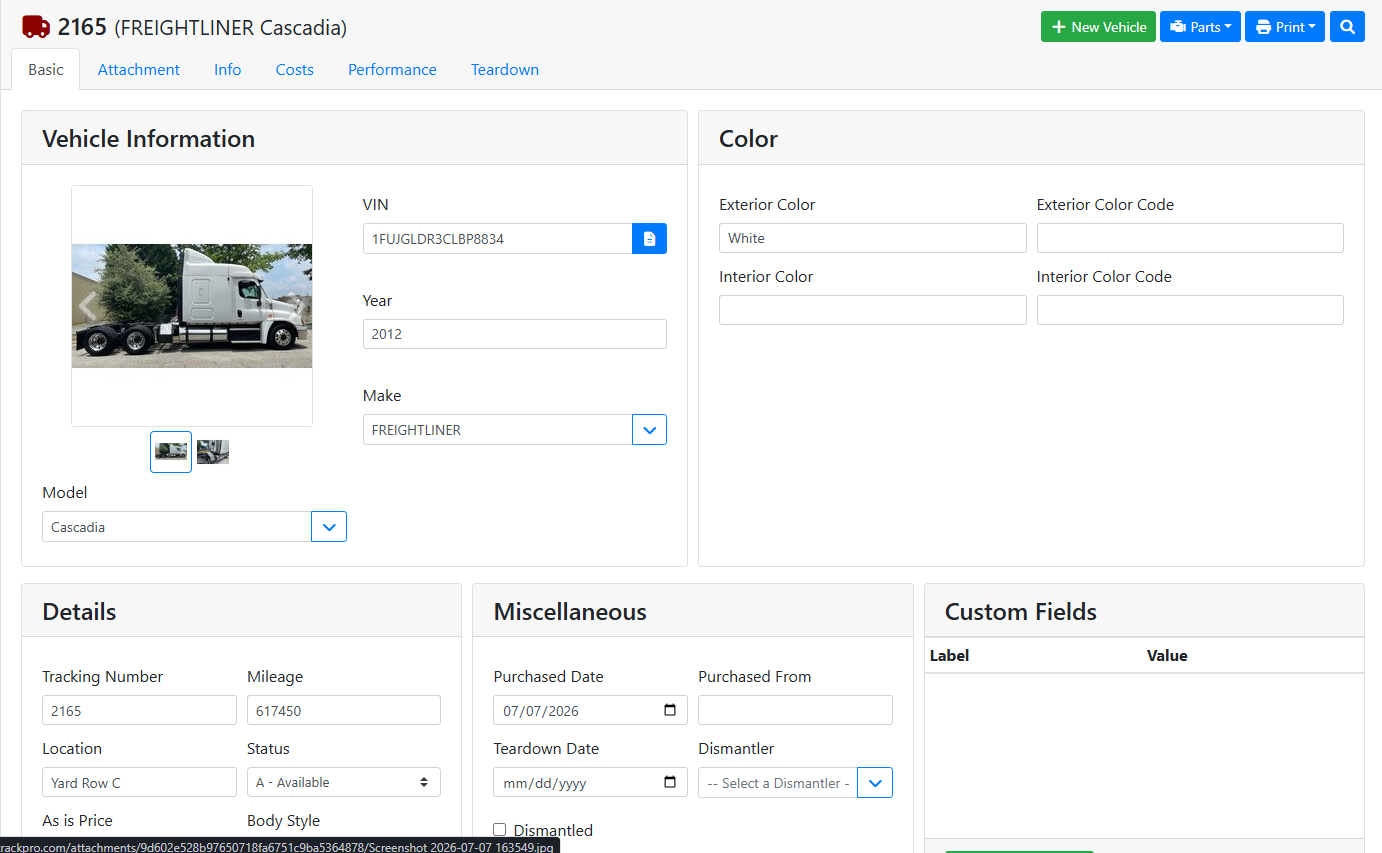
ℹ️ Vehicle Information
The Vehicle Information box contains the vehicle's core identity.
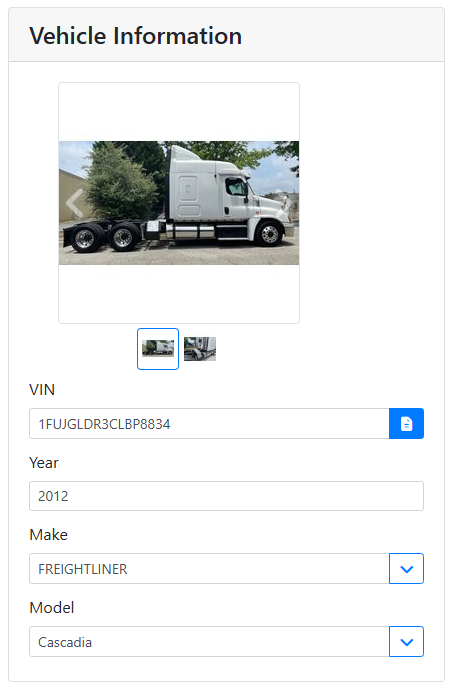
If the vehicle has any photos, they show at the top in a gallery you can page through.
VIN - Vehicle Identification Number. ITrack uses a VIN lookup tool to help you fill out vehicle details based on the VIN.
Read more about using VIN decoding.
Year, Make, and Model - The vehicle manufacturer’s classification of the vehicle.
🎨 Color
The Color box lets you store optional information about the vehicle’s color.
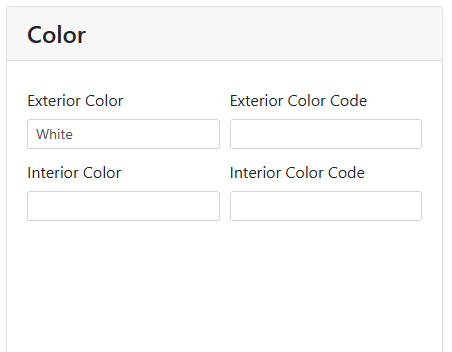
Exterior and Interior Color - The paint and upholstery colors for the interior and exterior of the vehicle.
Exterior and Interior Color Codes - The codes for the paint and upholstery colors, if known.
📋 Details
The Details box contains important stocking information for the vehicle.
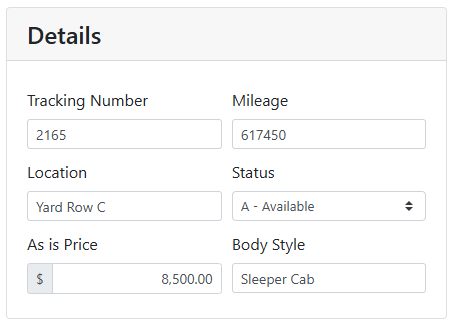
Tracking Number - The vehicle's unique identifier. ITrack assigns a tracking number automatically when creating a new vehicle, but you can change it if you use your own tracking number system.
Read more about creating a new vehicle.
Mileage - The vehicle's odometer reading.
Location - Where the vehicle is physically located in your yard.
Status - Whether the vehicle is stocked.
Read more about Inventory Statuses.
As is Price - The asking price for the whole vehicle, if you are selling the whole vehicle unit.
Body Style - The vehicle's body configuration, such as Day Cab or Sleeper Cab.
🗂️ Miscellaneous
The Miscellaneous box lets you store information about the vehicle’s purchase and teardown.
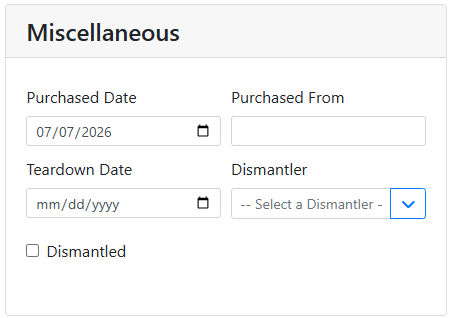
Purchased Date and Purchased From - The date you purchased the vehicle and a quick reference for who you bought it from.
Teardown Date - The date the vehicle was torn down for parts, if dismantled.
Dismantler - Who dismantled the vehicle.
Dismantled - Check this once teardown is complete.
🏷️ Custom Fields
Custom Fields track anything specific to your company that doesn't have its own field elsewhere, such as Tarp Included or Fifth Wheel Type. You can add as many custom fields as you like to capture all the information your yard needs.
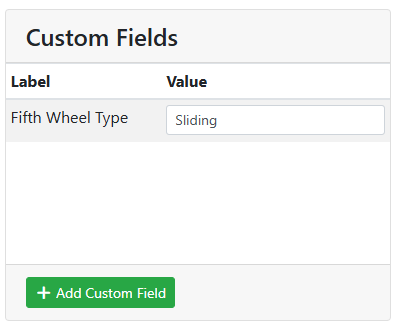
Label - The title of the custom field that explains what type of information you want to store. The label will show on all vehicles.
Value - This specific vehicle’s value as it applies to the label. For example, if the label is a question like Tarp Included, the value would be Yes or No. If the label is an identifier such as Fifth Wheel Type, the value would be what type of fifth wheel, such as Sliding or Fixed.
🏷️ Creating a New Custom Field
Custom fields will show on all vehicles, and can’t be removed once added. Make sure the custom fields you choose are easily understood by everyone in your organization and make sense for most vehicles.
Click + Add Custom Field to add a new custom field.
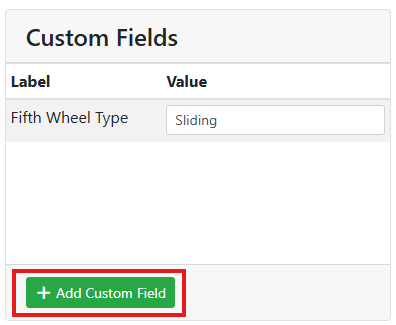
The button will be replaced with a field where you can enter the new custom field label. Click the x to cancel adding a new field. Otherwise, enter your new custom field label and click the Done button to finish.
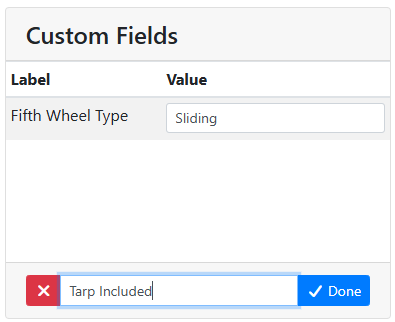
The custom field will be added to the list of fields above, and you can start adding values to it.
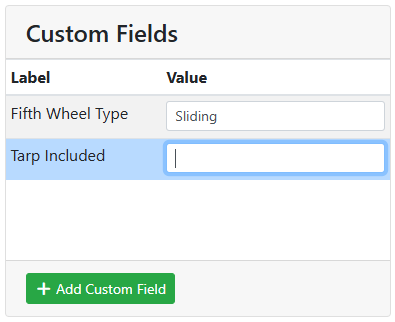
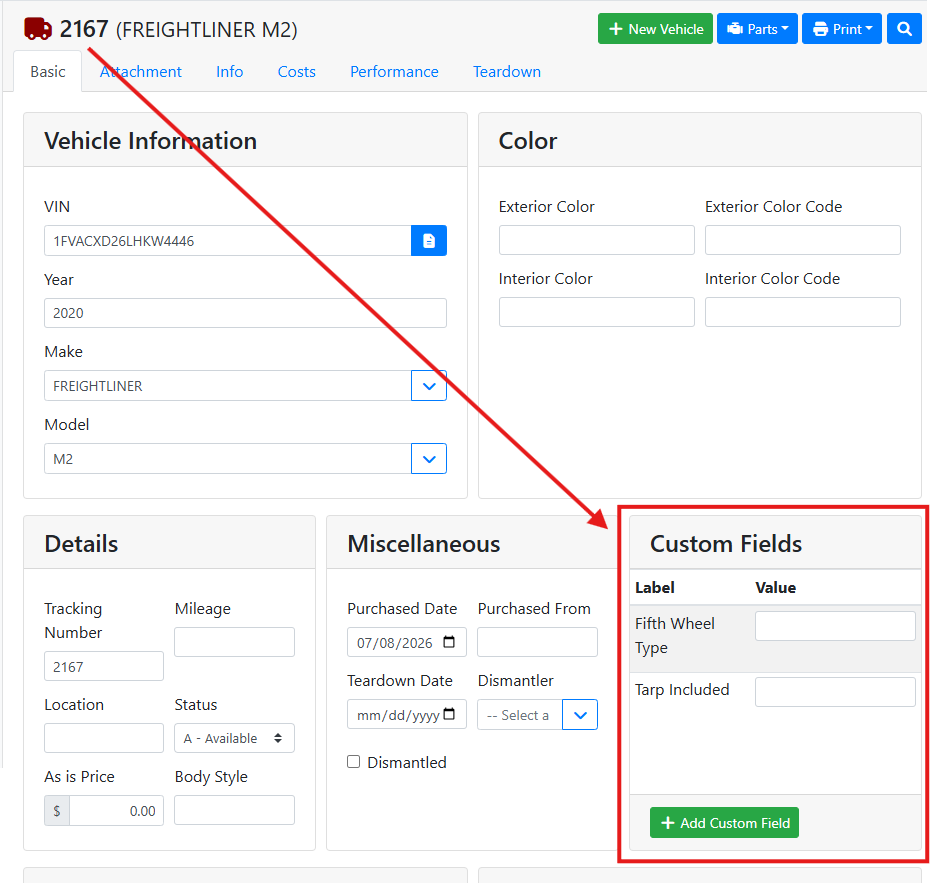
The custom field will appear on all vehicles, ready for me to enter values for other vehicles.
In this example you can see that even though I added the custom fields to vehicle #2165, the fields appear on another vehicle, #2167. The values are empty until I complete them.
📝 Description and Internal Notes
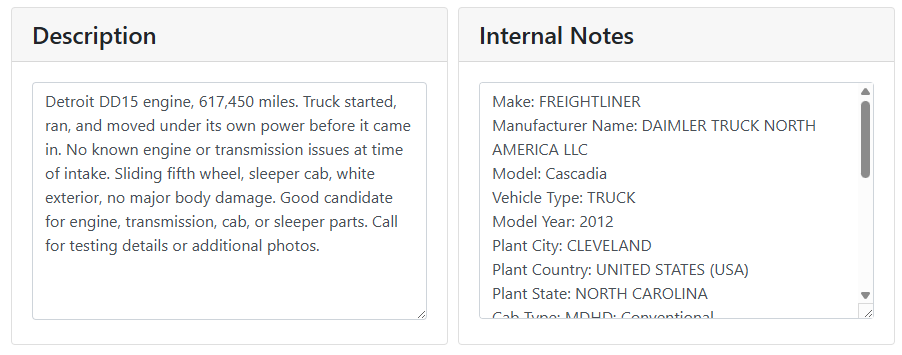
Description - Additional information about the vehicle that isn't covered by the fields above.
Internal Notes - Internal notes on a vehicle are visible only to you and won’t appear on any customer-facing printout. If you used the VIN to decode the vehicle’s information, the details will be entered in this field. You can modify the automatically entered VIN notes if needed.
Read more about VIN decoding.
ℹ️ Info Tab
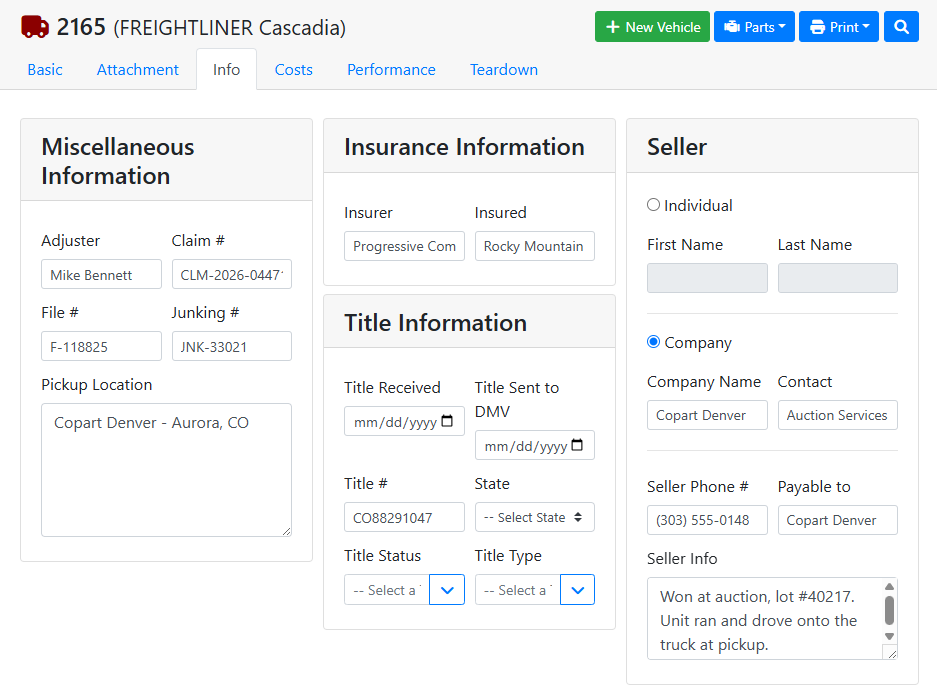
The Info tab contains details you won't need every day. Use it for insurance claims, title tracking, and recording who you bought the vehicle from.
🗒️ Miscellaneous Information
The Miscellaneous Information box lets you store insurance claim information.
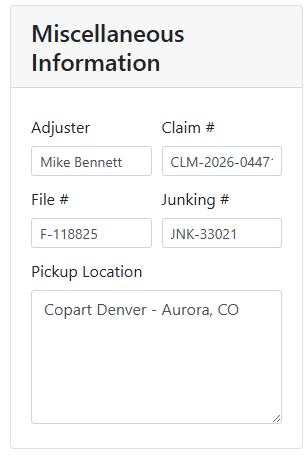
Adjuster, Claim #, File #, and Junking # - Use these if the vehicle came through an insurance claim.
Pickup Location - Where you picked up the vehicle.
🛡️ Insurance Information
The Insurance Information box contains information about the insurance associated with a vehicle claim.
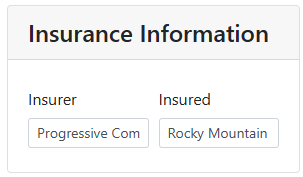
Insurer and Insured - The insurance company and the insured party.
📄 Title Information
The Title Information box contains information about the vehicle title, if applicable.
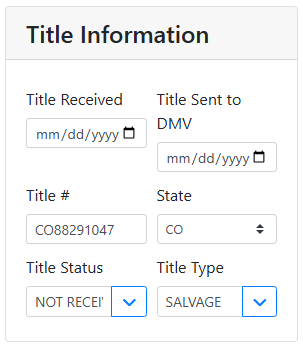
Title Received and Title Sent to DMV - Dates for tracking the vehicle's title.
Title # and State - The title number and the state or province that issued it.
Title Status - Whether the title is Received, Bill of Sale, Not Received, or None.
Title Type - The kind of title the vehicle has, such as Clean or Salvage.
🤝 Seller
The Seller box lets you store details about who you bought the vehicle from. This is different from Purchased From on the Basic tab. Purchased From is just a quick reference, like COPART. The Seller box on the Info tab holds full contact details for that same purchase. Use it if you need to follow up about a title or a return.
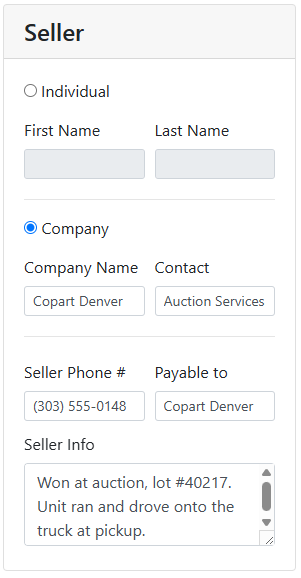
Individual or Company Selection - Use this option to toggle the type of seller between a person or a company. Choosing Individual lets you enter a First Name and Last Name. Choosing Company lets you enter a Company Name and Contact.
Seller Phone # and Payable to - Records the contact information for the seller.
Seller Info - A free text field for anything else worth noting.
📎 Related Articles