When you sign up for an account with Run Payments, you will also receive access to the Run Merchant portal. The Run Merchant portal allows you to access reporting on your transactions, funding, chargebacks, and statements, and other advanced features.
ISoft (ITrack) does not manage your account or login information with the Run Merchant portal. If you need support for the Run Merchant portal, please contact Run Payments or visit the Support tab in the Run Merchant portal. Run Merchant Guide
Reporting
The reporting tab in the sidebar lets you view various reports such as the Dashboard view, Transactions, Funding, Chargebacks, and Statements.
Dashboard
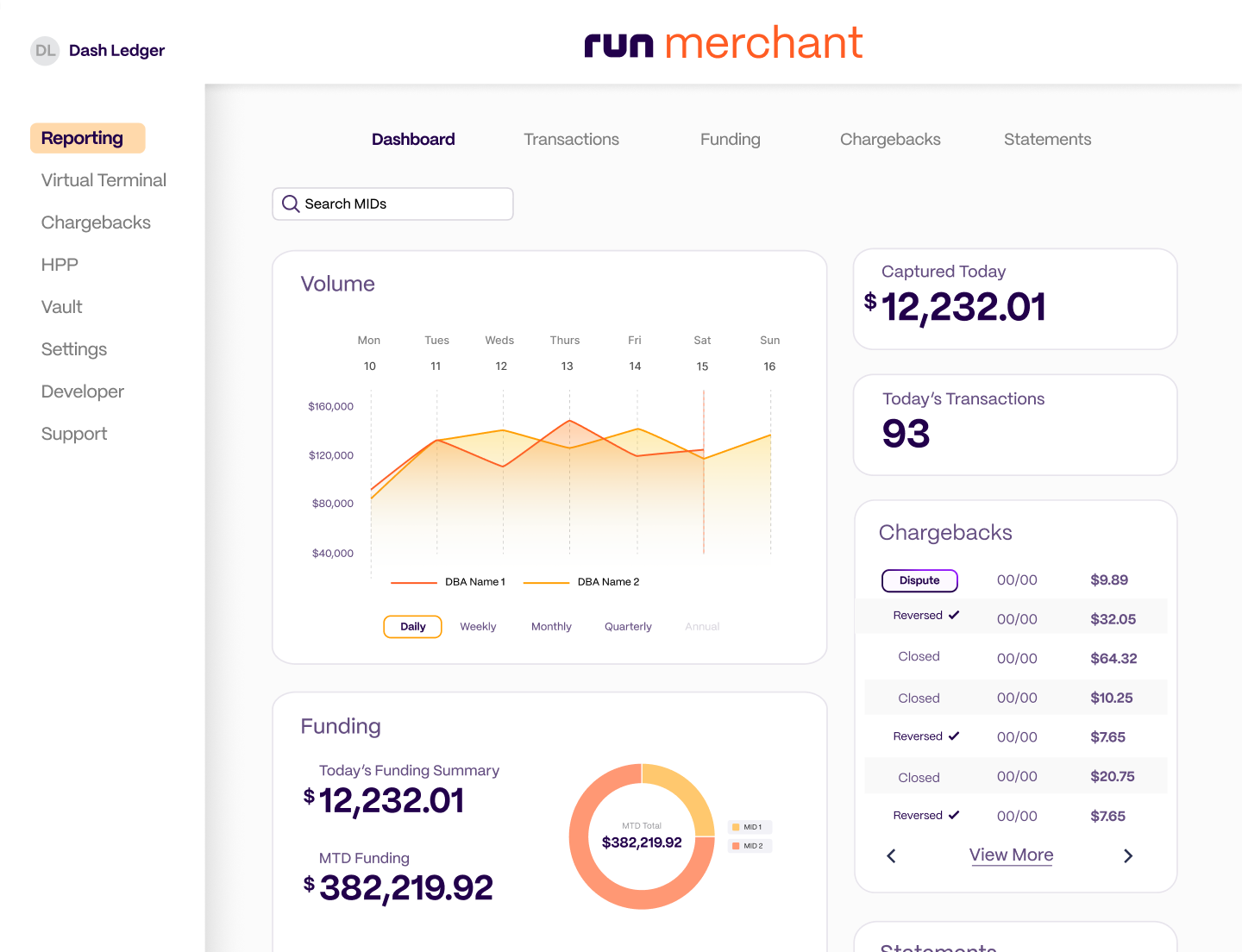
The Dashboard is the first screen you will see in the portal. It provides a snapshot of your account’s performance.
Volume - Time series data allows you to view processed volume on command (Daily, monthly, etc). Compare by selecting multiple MIDs. Use the filters at the right to change the date range or which accounts/locations are shown.
Funding - Insights on funding reports
Statements Download - Download credit card or ACH statements directly from the Dashboard
Click-to-Dispute Chargeback Manager - Get a faster jump on chargebacks
Transactions
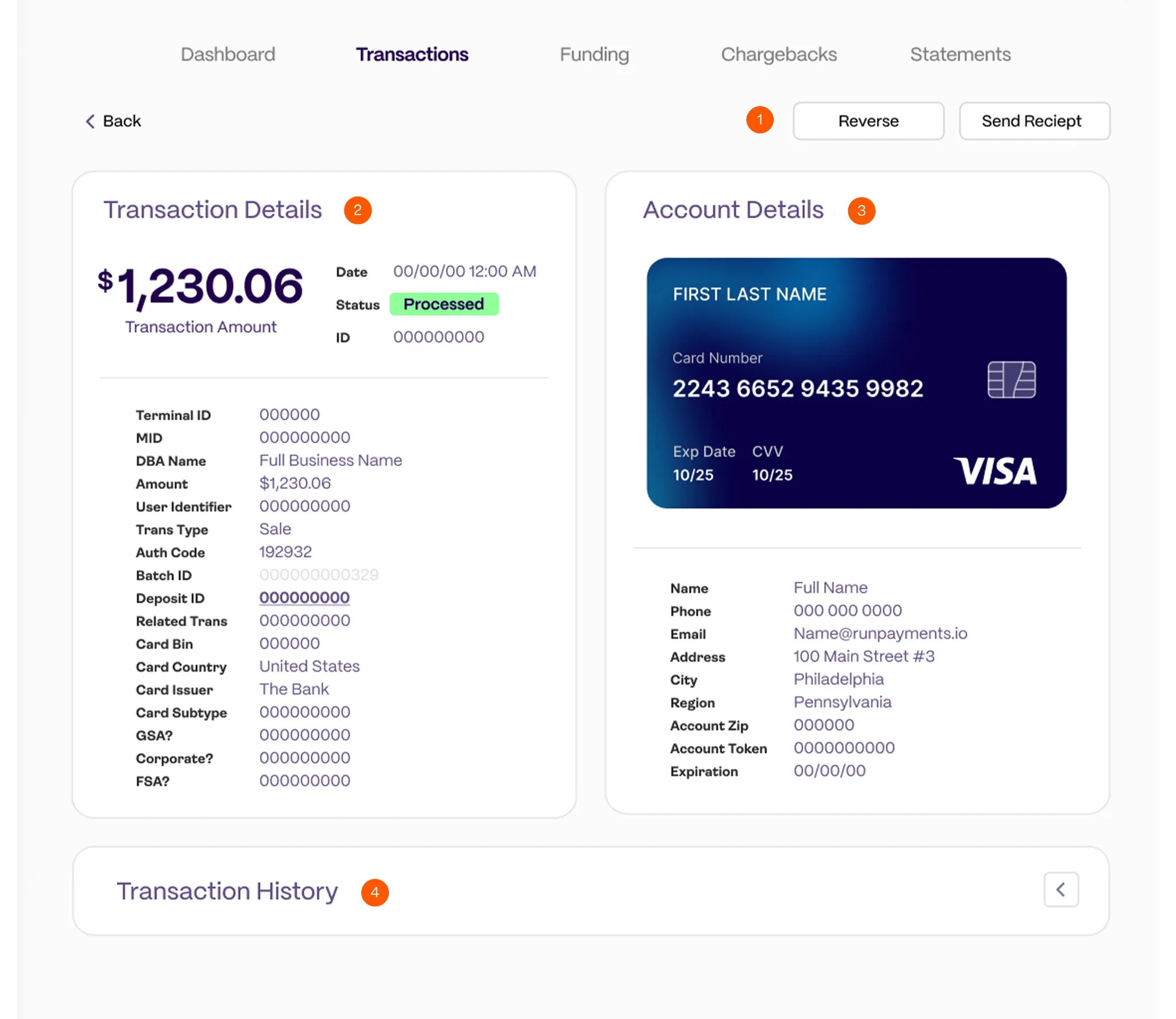
The Transactions page under Reporting displays all of the transactions tied to your selected MID/Accounts.
Click any Transaction ID to view its details, refund, re-run the transaction, or send a receipt.
Refunding a transaction or running a new transaction in the Run Merchant portal won’t update the payment in Chromium. If you do a manual action like this on a transaction in the portal, you will need to manually update the payment in Chromium.
Funding
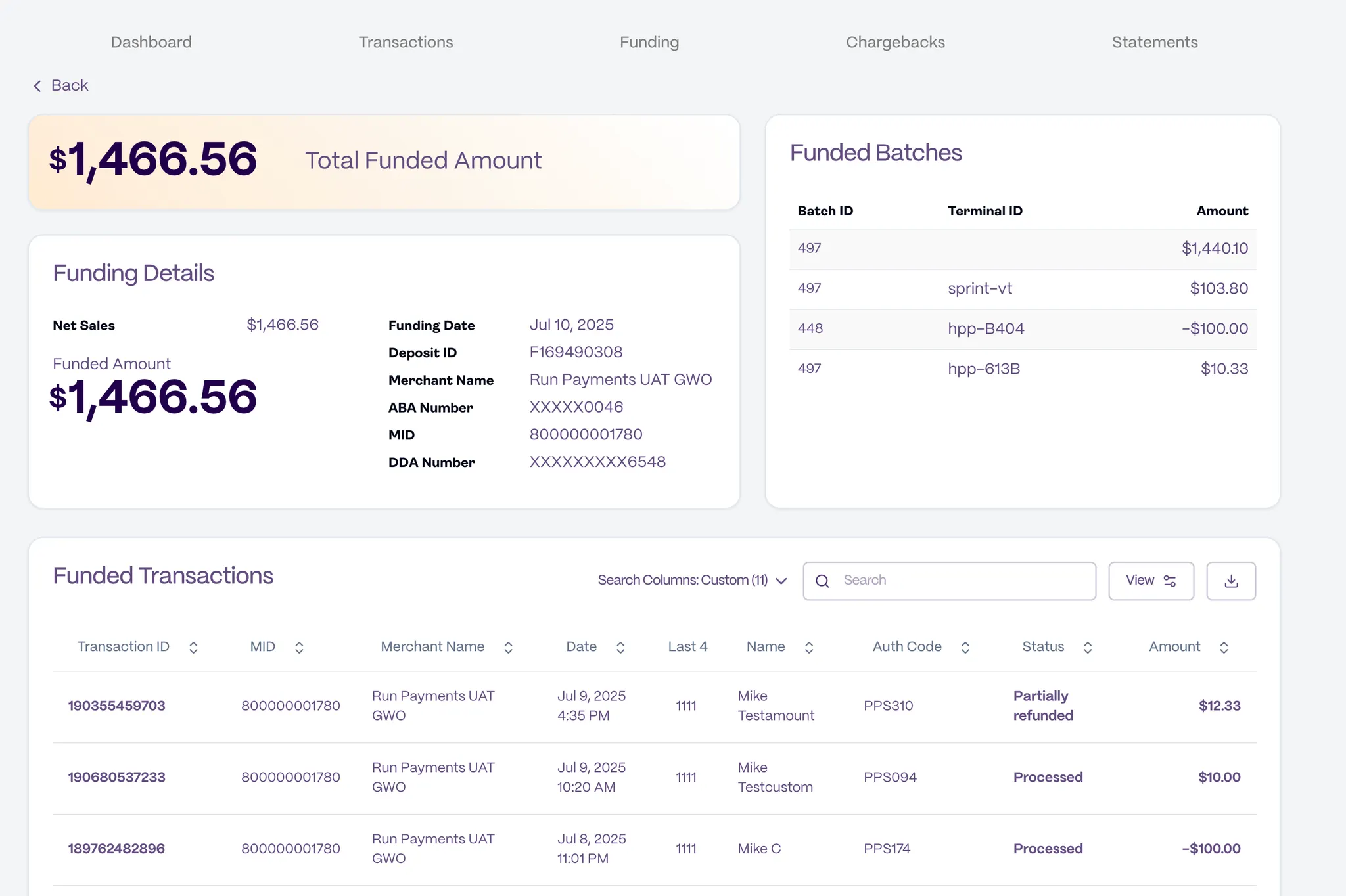
The Funding Report lists all deposits related to the processing activity tied to your account(s).
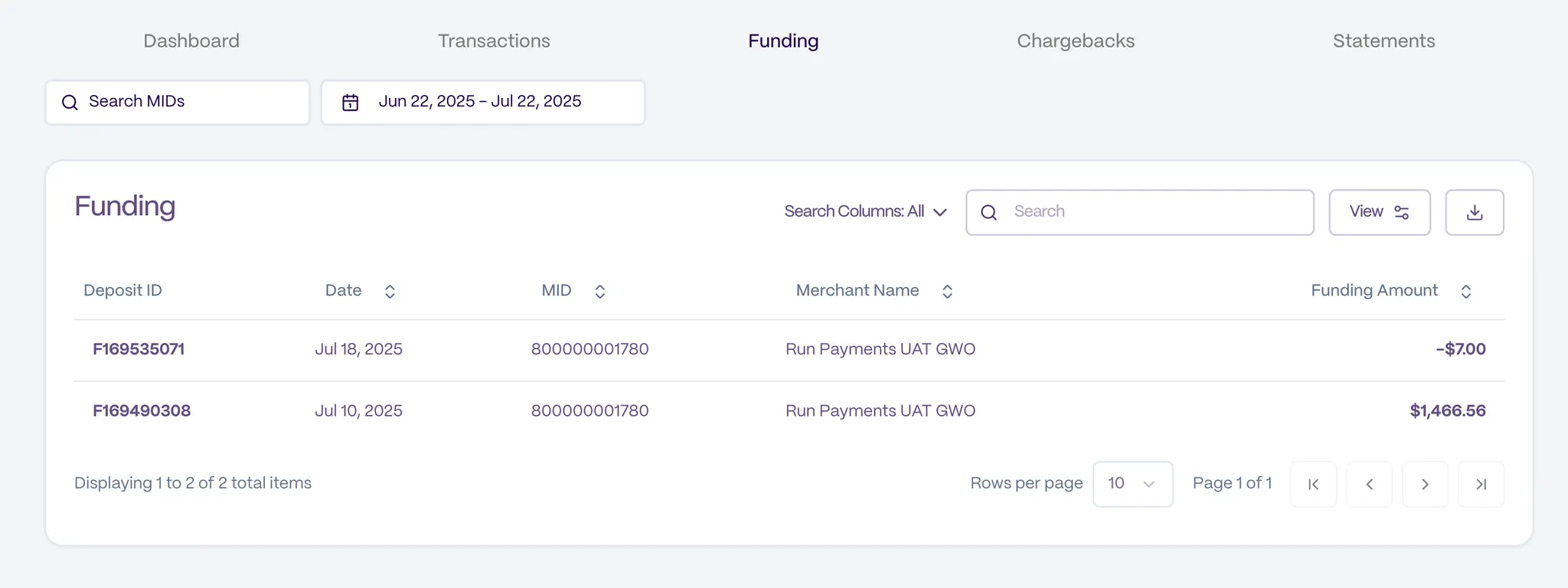
When you are viewing a Funding Report, you can click on the Deposit ID for more information.
Chargebacks
The Chargebacks page displays all chargebacks submitted by cardholders to dispute a transaction.
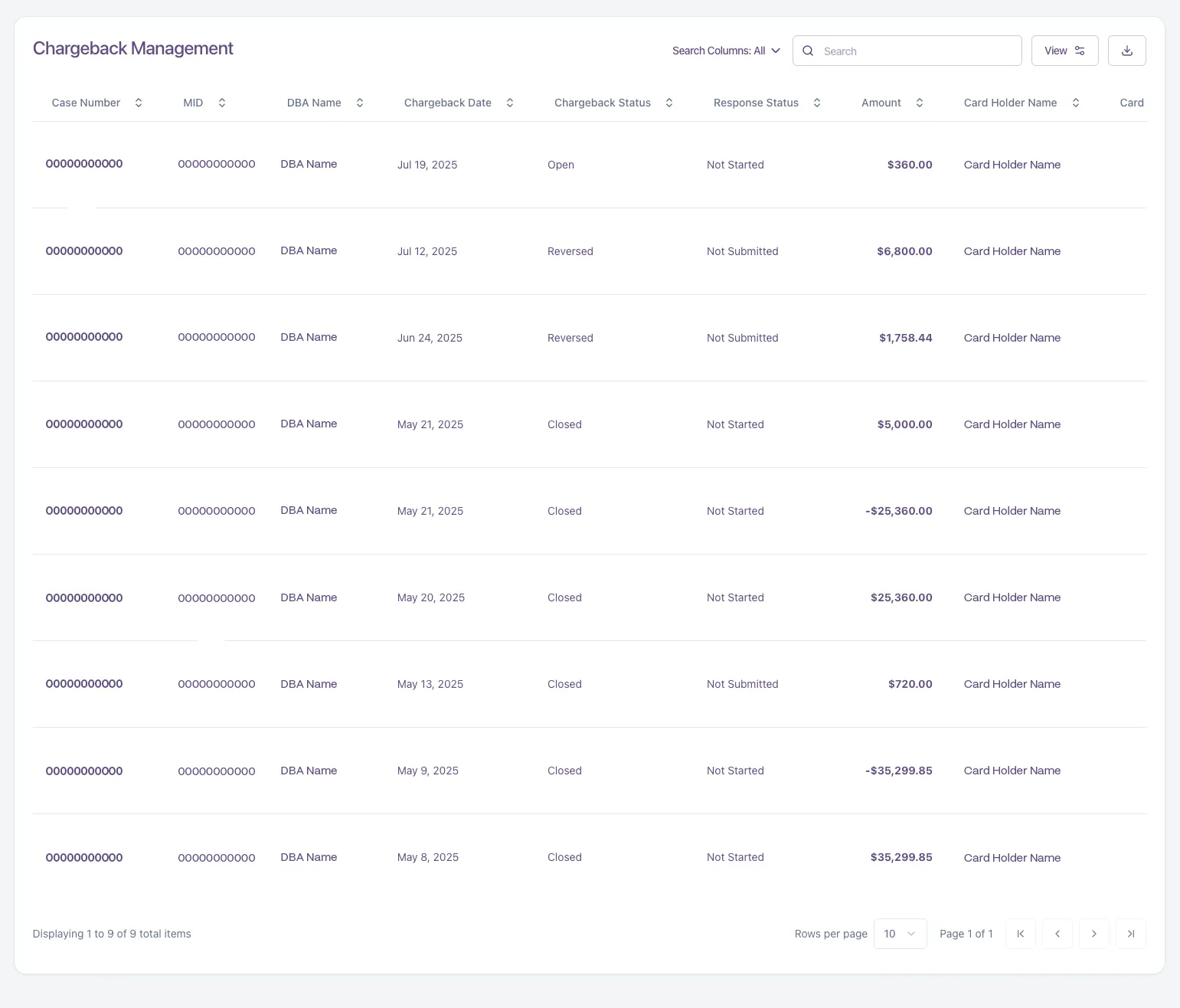
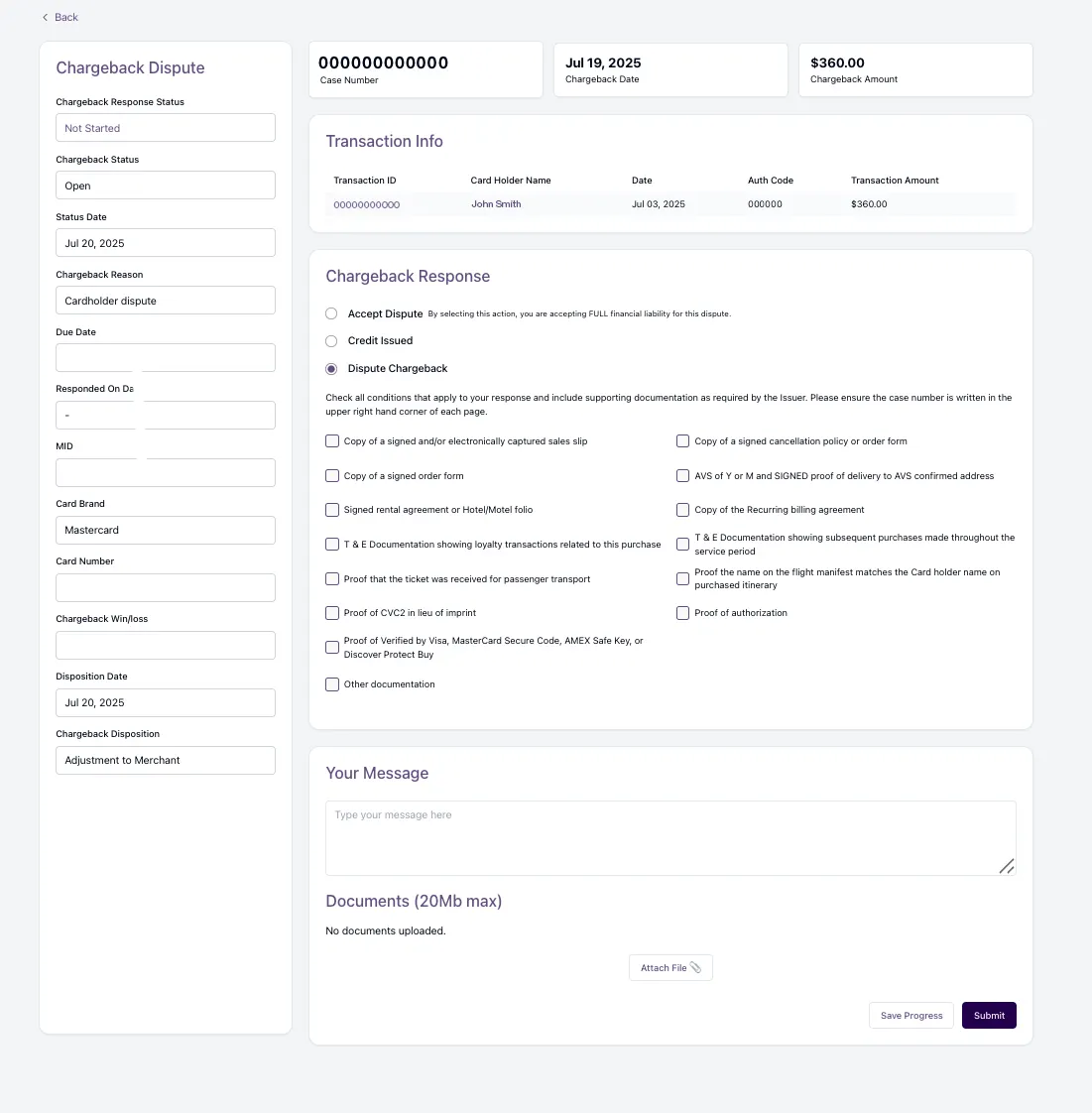
It’s important to respond to chargebacks in a timely manner so you can provide evidence to dispute them.
To dispute a chargeback, click on it and complete the form.
Statements
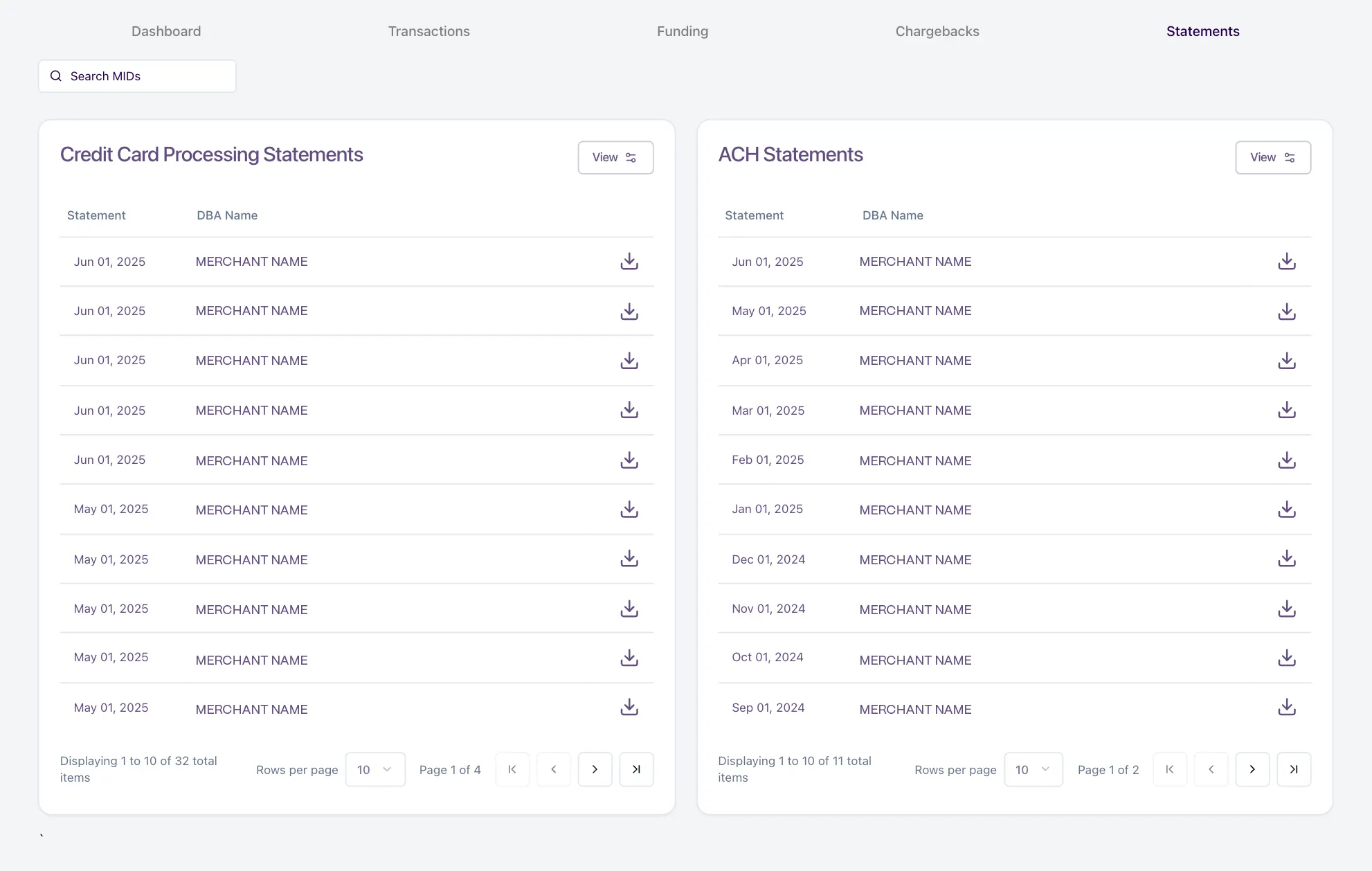
Merchant account statements will be viewable in the Statements tab. They can be downloaded and saved for record keeping.
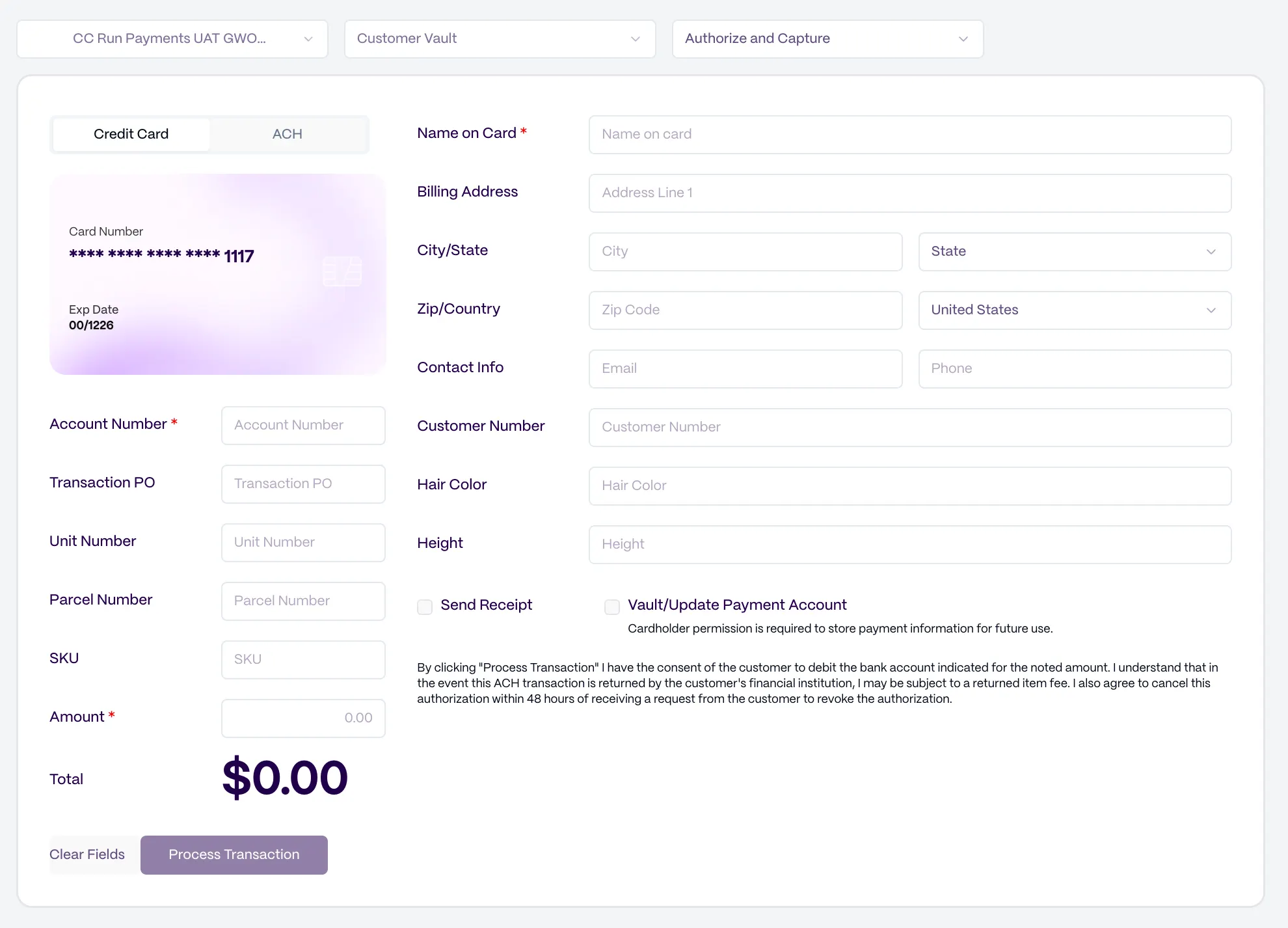
Virtual Terminal
The Virtual Terminal page allows you to accept payment cards and ACH transactions using your browser or mobile device.
Running a transaction in the Virtual Terminal will not enter the payment in Chromium. If you use the virtual terminal, you will need to also enter the transaction separately in Chromium.
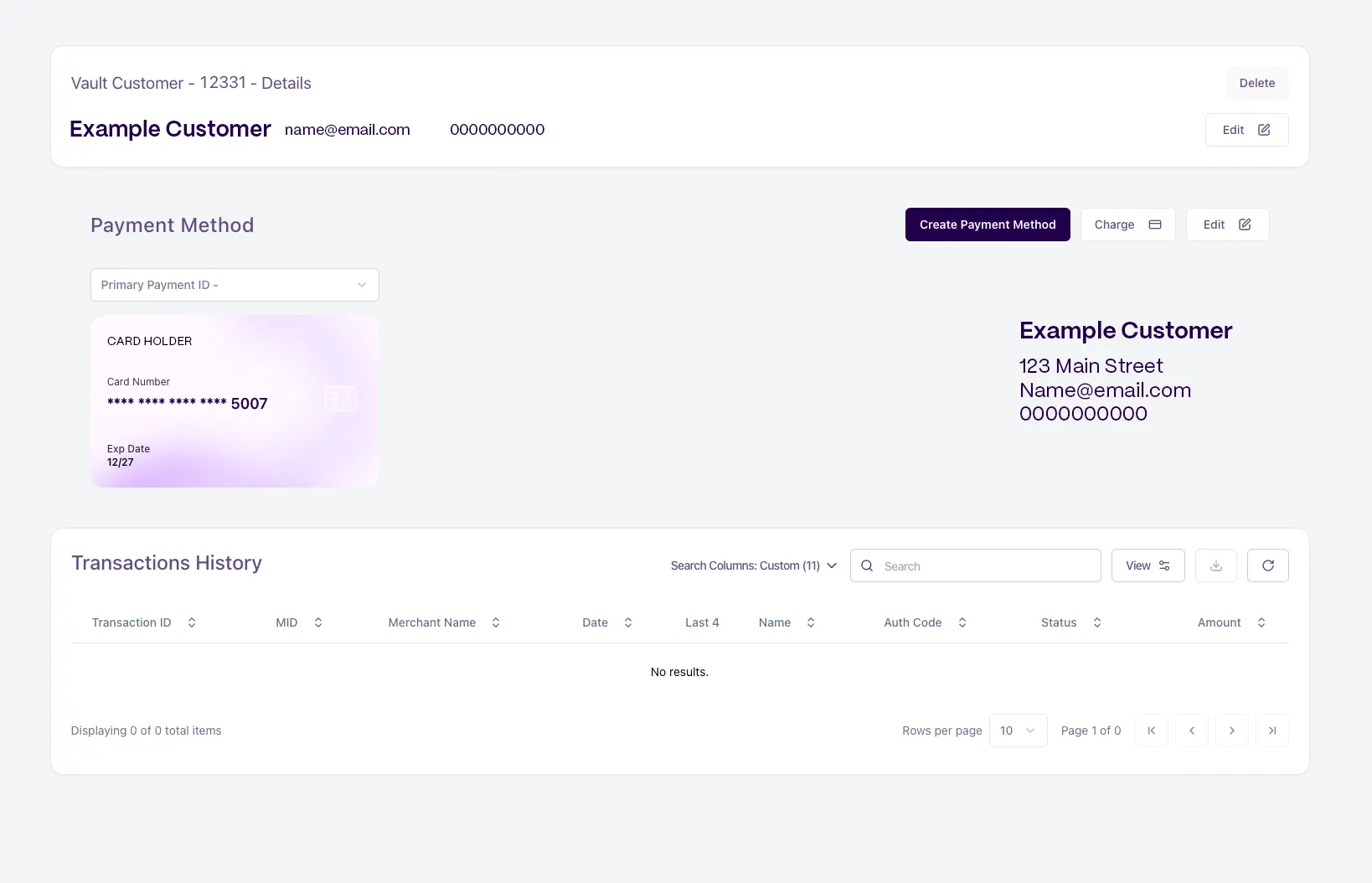
Vault
The Vault page shows any customer account information that has been ‘saved on file.’ Clicking on any customer name presents a pop-up with that customer’s specific Vault details.
Settings
Settings for custom fields, user accounts, and API credentials can be managed directly in Run Merchant.
Users
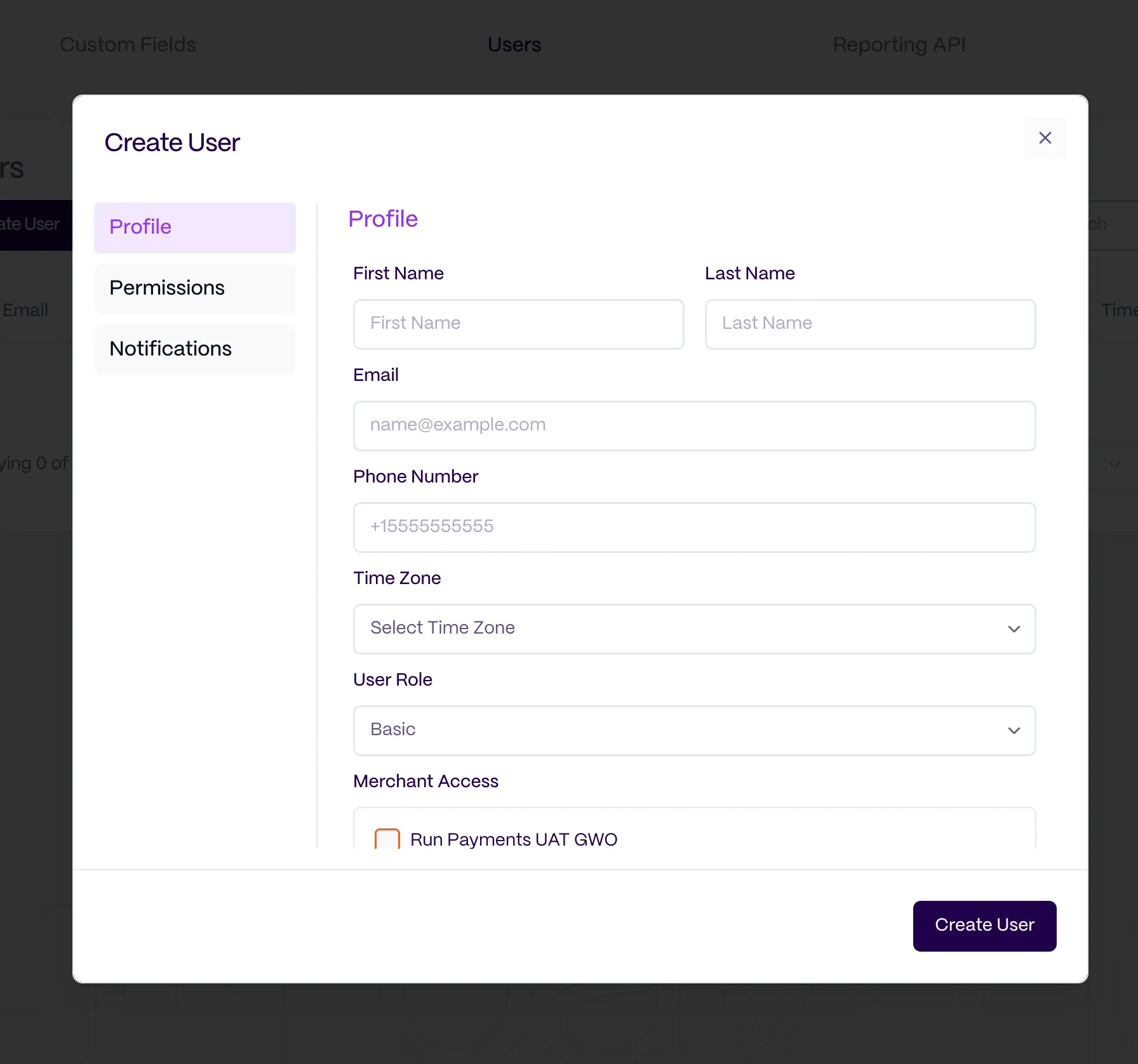
New users can be created for access to Run Merchant. There are two user types, which can be selected via the User Role dropdown:
-
Admin: full privileges
-
Basic: unable to update settings and able to restrict data access by MID/account – for example, can be used for an employee who manages a single location and would not need visibility into additional merchant accounts/locations.
Once the user details are filled out, select Send Invite. The new user will receive a Run Merchant Welcome email with instructions for setting up their account.