
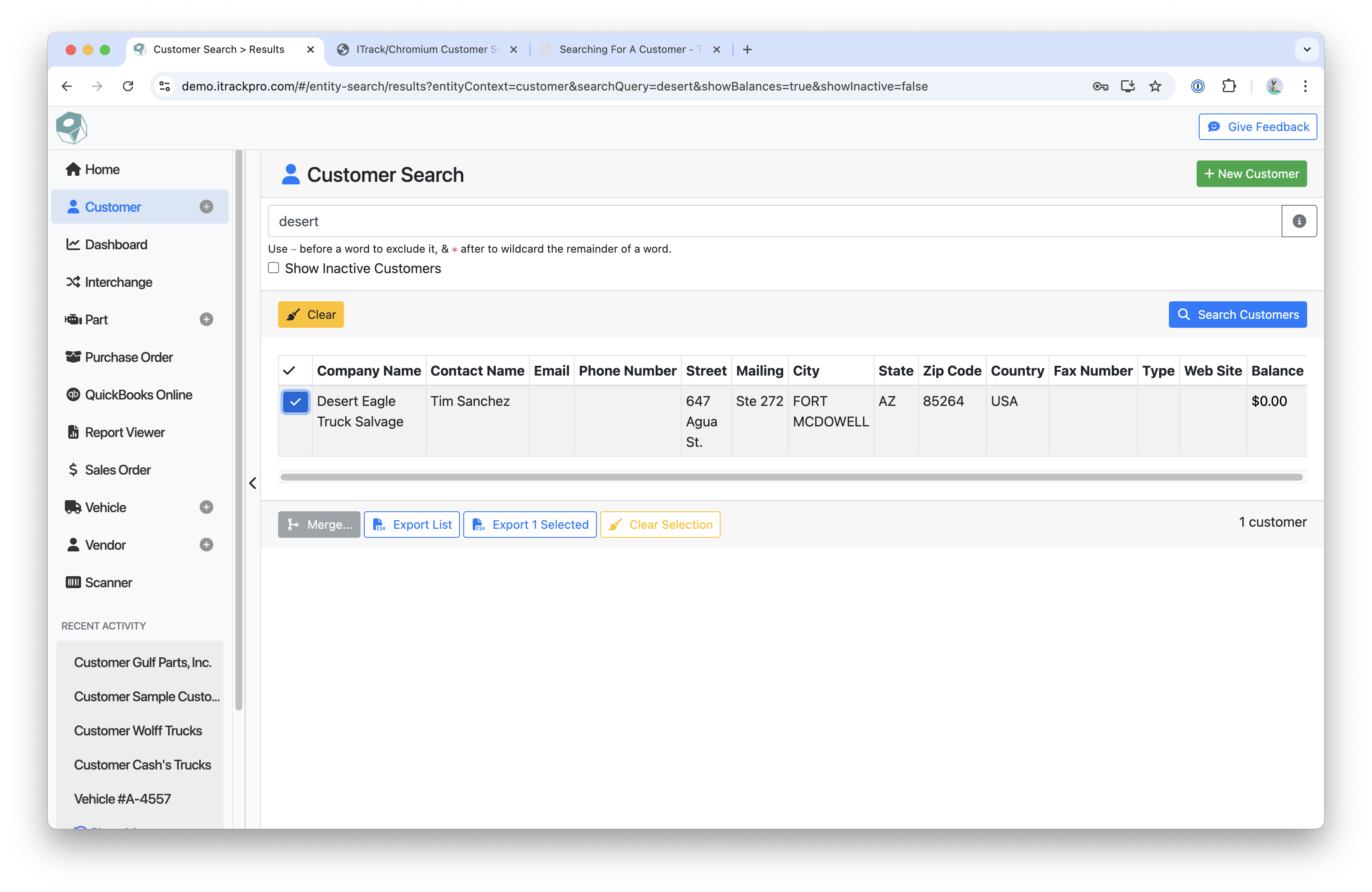
The Customer page allows you to search for customers you have previously entered into ITrack Chromium. The Keyword Search will search the following customer fields:
-
Billing Company Name
-
Billing Contact Name
-
Billing Phone Number
-
Shipping Company Name
-
Shipping Contact Name
-
Shipping Phone Number
Example: Typing “Wolfe” will bring up a list of customers that have “Wolfe” in any of the fields listed above.
Instructions
-
Type a keyword or keyphrase in the Keyword Search bar
-
Check Show Inactive Customers to include Inactive Customers in results
-
Click Seach Customers or hit Enter on your keyboard to search
-
To start with a blank search, click Clear
Action Buttons
At the bottom of your search results, there will be four buttons (two display with no customer selected, all four buttons will display once a customer is selected). They are:
The Merge Button
If you have selected two or more companies (select by checking the checkbox on the left), you can click the merge button.
Instructions
-
This will bring up the Merge Customers popup
-
Select one of the companies to be the parent company in the merger
-
This will make the new, merged company retain all the info from the parent, while also getting all invoices and notes from the other companies
-
-
Click the Confirm button to complete the merge
The Export List Button
The export selected button allows you to download an Excel file containing the customer info of all your search results.
Example: Searching “Wolfe” and clicking the Export List button will download an Excel file containing all customers with the word “Wolfe” in their Billing and/or Shipping Contact and Company name fields.
The Export Selected Button
Similar to the Export List button, but the downloaded list only contains the customers you have checked.
The Clear Selection Button
Un-checks all selected customers in your search results.
Related articles
- ITrack Chromium Knowledge Base
- Home Page
- Searching for Customers
- Getting Started
- Customer Page
- Customer Information
- How To: Create a New Customer
- Sales Order Page
- How To: Create a New Sales Order
- Sales Order Document Types
- Dashboard Page
- Dashboard Chart Types
- Dashboard Report Configuration
- Dashboard User Permissions
- How To: Create a Dashboard Report
- Interchange Page
- Part Page
- Searching for Parts
- Part Information
- How To: Create a New Part
- Purchase Order Page
- How To: Create a New Purchase Order
- QuickBooks Online
- How To: Set Up the QuickBooks Online Integration
- Vehicle Page
- Searching for Vehicles
- Vehicle Details
- Creating a New Vehicle
- Vendor Page
- Searching for Vendors
- Vendor Information
- How To: Create a New Vendor
- Scanner Page
- Configuration Page
- eBay Template Tags