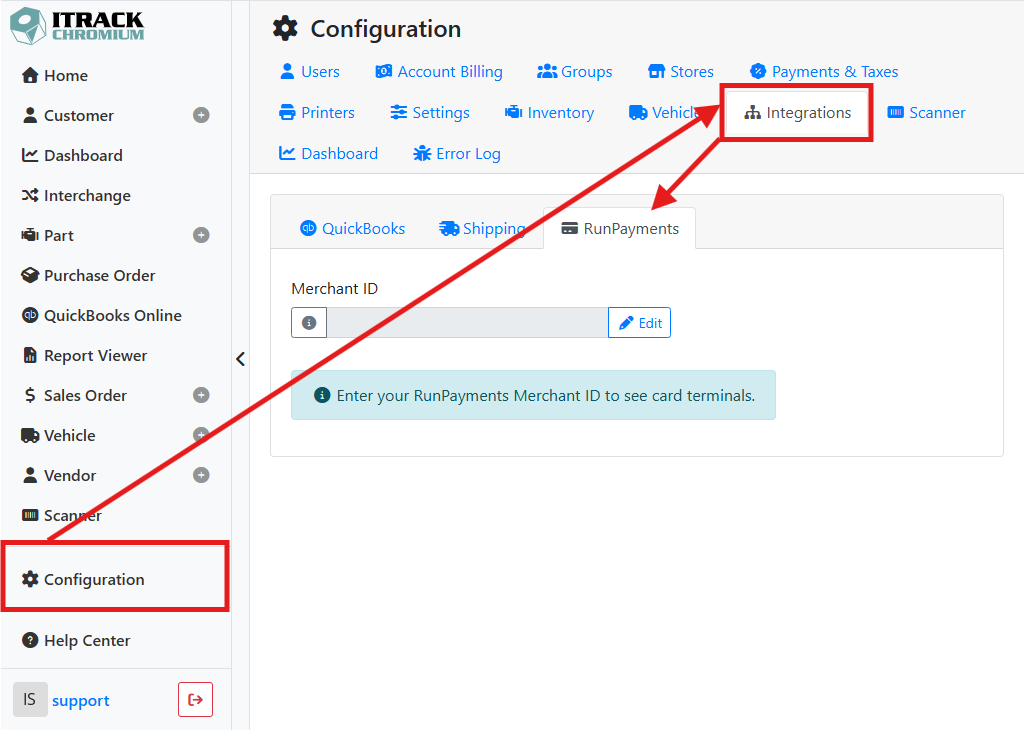
To connect a credit card terminal, go to Configuration > Integrations > RunPayments.
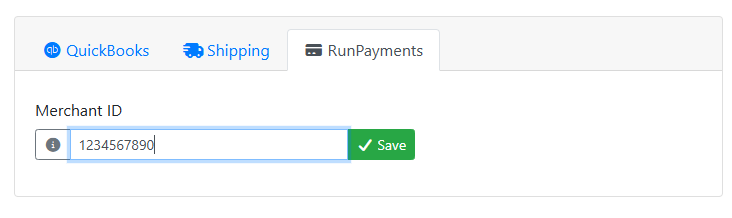
Click the Edit button on the Merchant ID field, enter your Merchant ID (MID), and click Save. Your Merchant ID is provided to you when you sign up for services with Run Payments, and essentially works like an account ID.
When you sign up with Run Payments, the terminals you receive will be linked to your Merchant ID. When you enter your Merchant ID, Chromium will connect to Run Payments and detect the terminals that are connected to your Merchant ID.
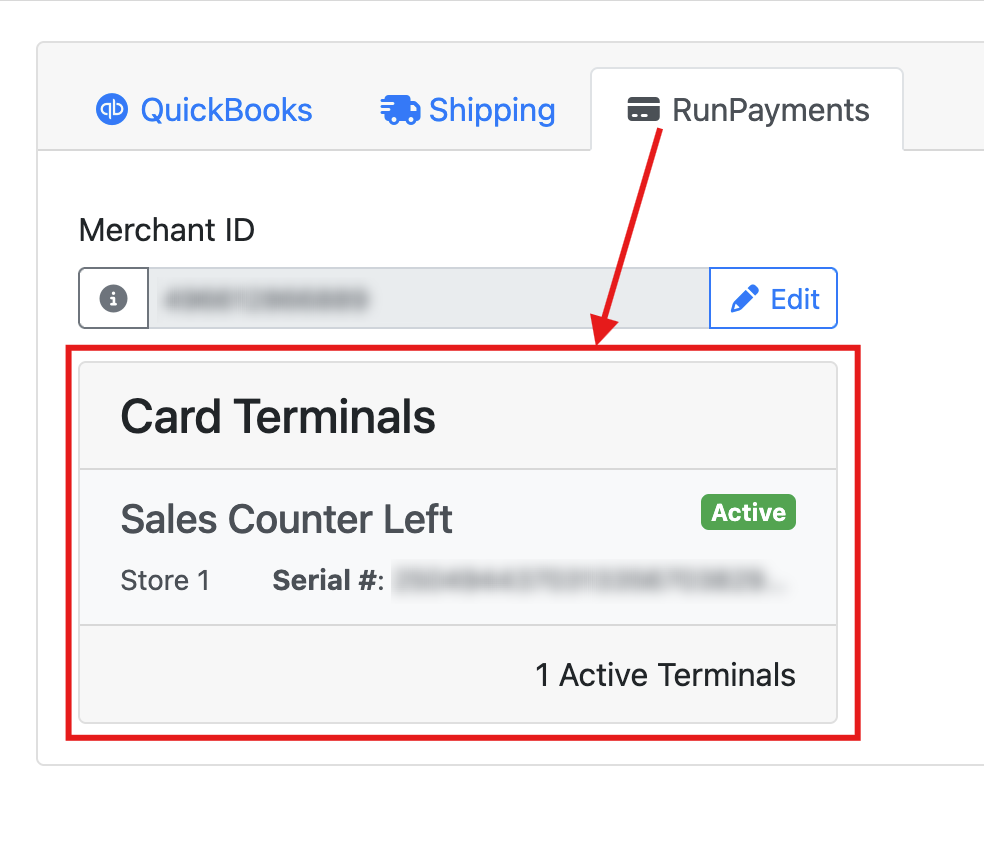
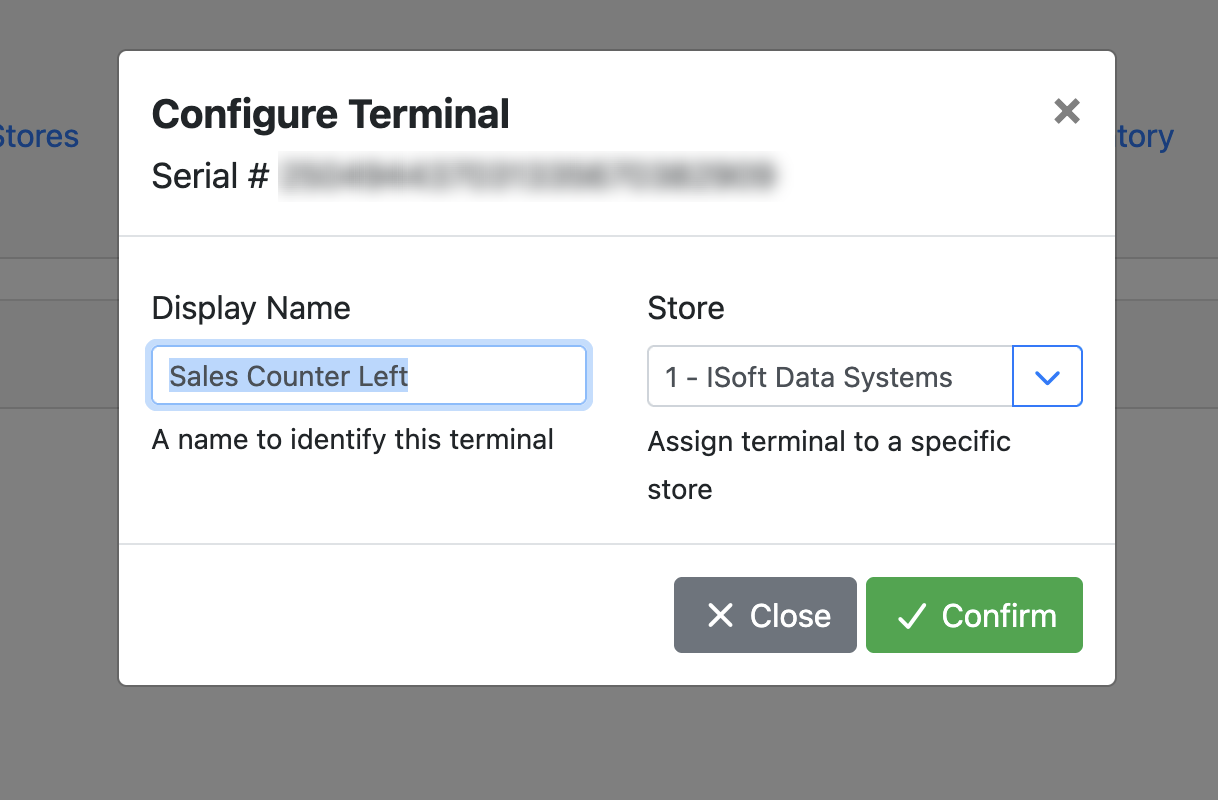
Once your terminals appear in the list, you can assign them to a store. You can also name them to make it easier to identify them. This can be especially helpful if you have more than one, especially if you have wireless terminals.
Troubleshooting
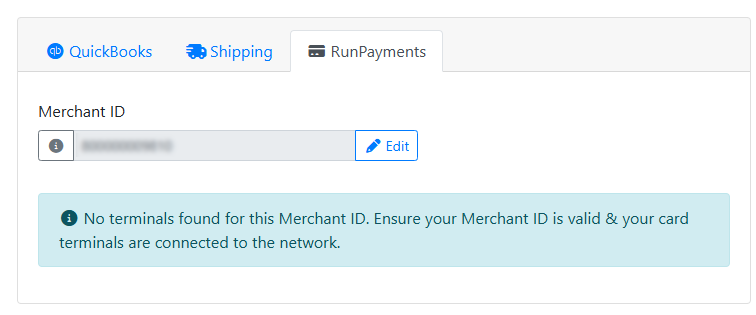
If your terminals don’t appear after entering your MID, check to make sure your MID is entered correctly. You may need to power cycle your terminal by fully powering it off and turning it back on again.