
Capture a credit card payment using an integrated credit card terminal anywhere you enter customer payments, such as Sales Orders and Customers.
Entering Payments on a Sales Order
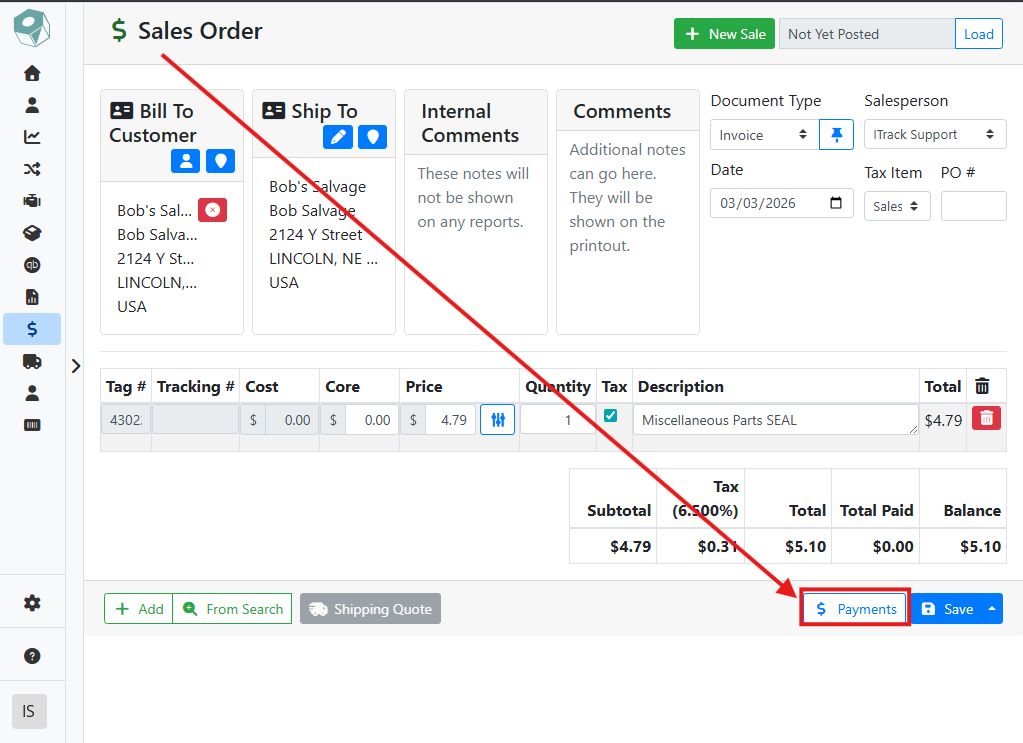
To enter a payment on a sales order, open the Payments window, then click the Add Payment button. You may also click the the Pay Balance with… button if the customer’s default payment option is a card type.
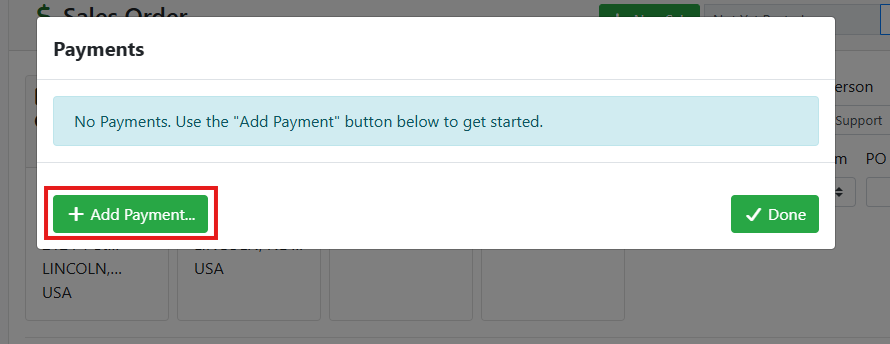
Enter an amount in the Amount box, and in the Method drop down menu, select a card payment type.
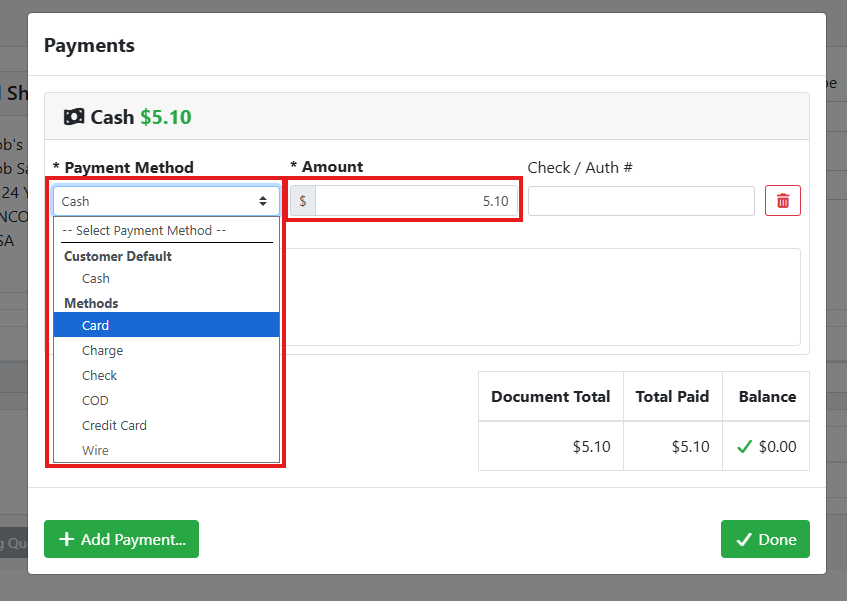
Chromium allows you to customize payment methods. A payment method is considered a card payment type if the Is Card checkbox is checked in the Payment Method configuration screen.
Read more about configuring Payment Methods.
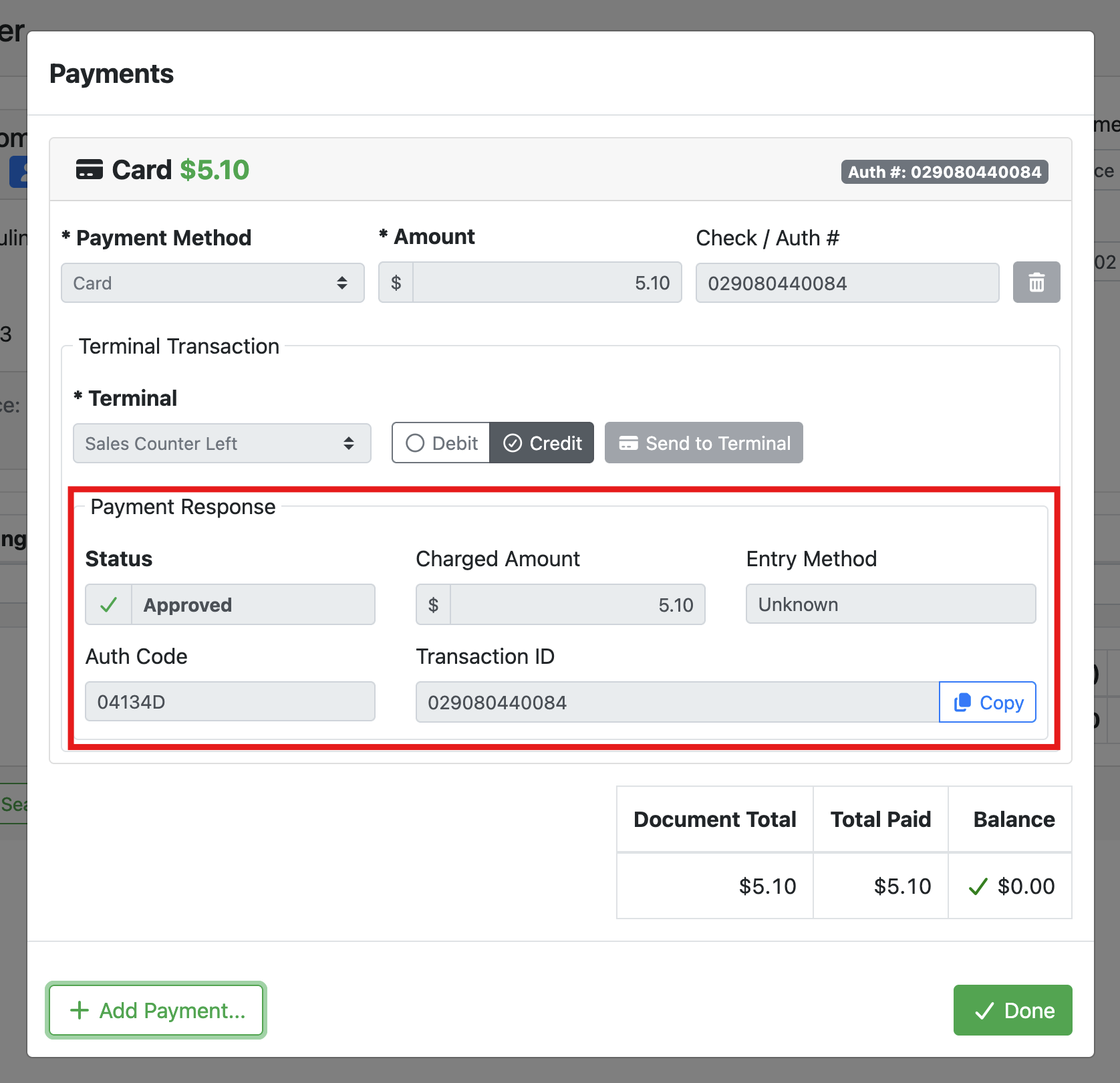
Once you select a card payment type, the window will show a Terminal Transaction box where you can send the payment to the card terminal. If you have more than one terminal, you can use the Terminal drop down menu to select which terminal to use. Click Send to Terminal when ready.
The terminal you select will be remembered for the next transaction.
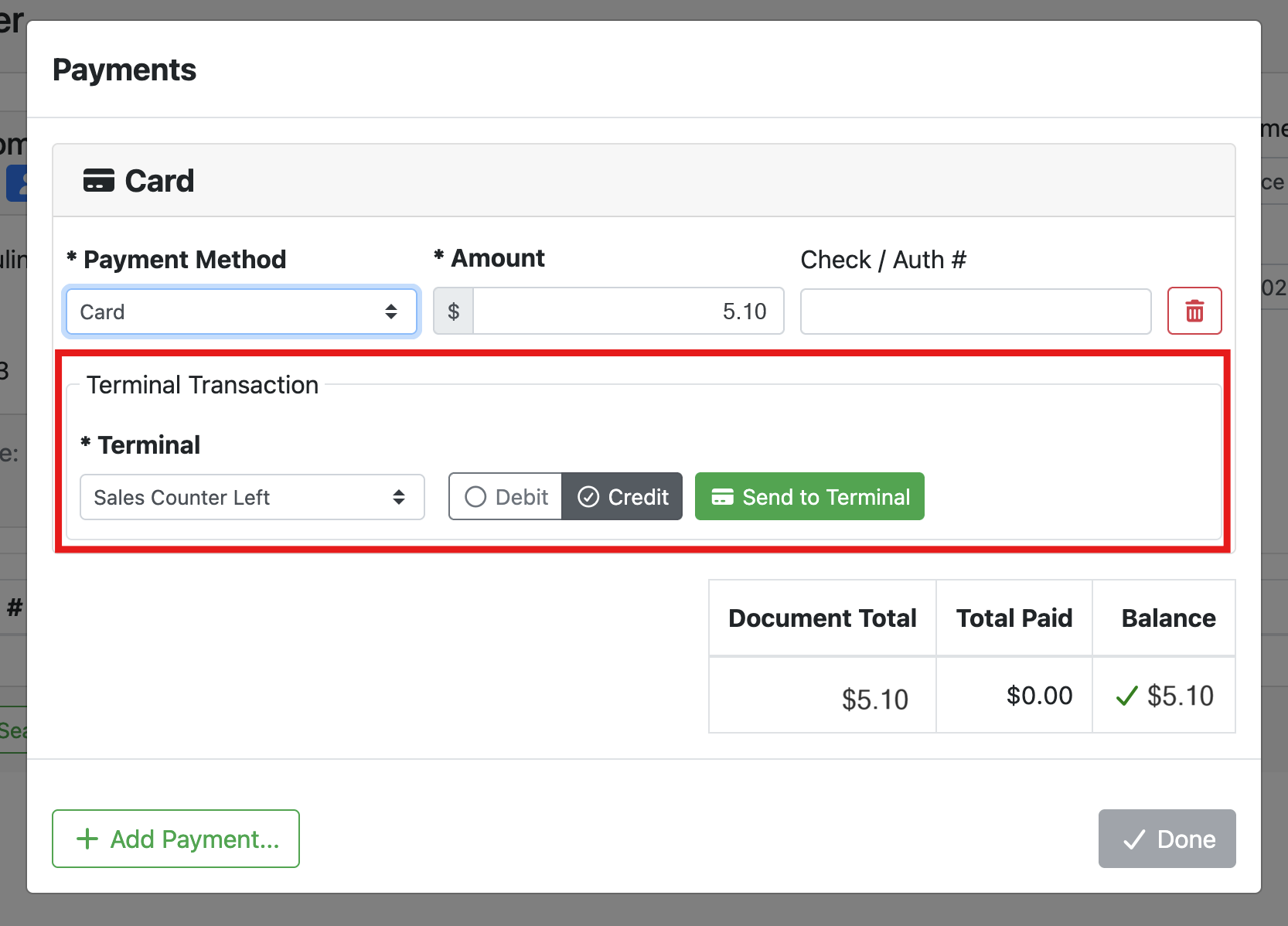
After sending the transaction to the terminal, the customer will see the amount and a prompt to pay on the screen. They can use a card (swipe, tap, etc.) or digital wallet (Apple Pay, Google Wallet, etc.) to pay.
When finished, the card information will appear in the payment window, including whether the payment was approved or denied.
Entering Payments on a Customer
This feature is under development. Documentation coming soon.