
A Service Order Mechanic user will see a dedicated My Jobs tab on the Service Orders screen. Non-mechanic users won't see this tab. When a mechanic logs in, the My Jobs tab is the first screen they will see, so they can get to their work right away.
Read more about setting up a user as a Service Order Mechanic.
By default, the My Jobs tab will show you jobs assigned to you, as well as unassigned jobs so you can pick up open work.
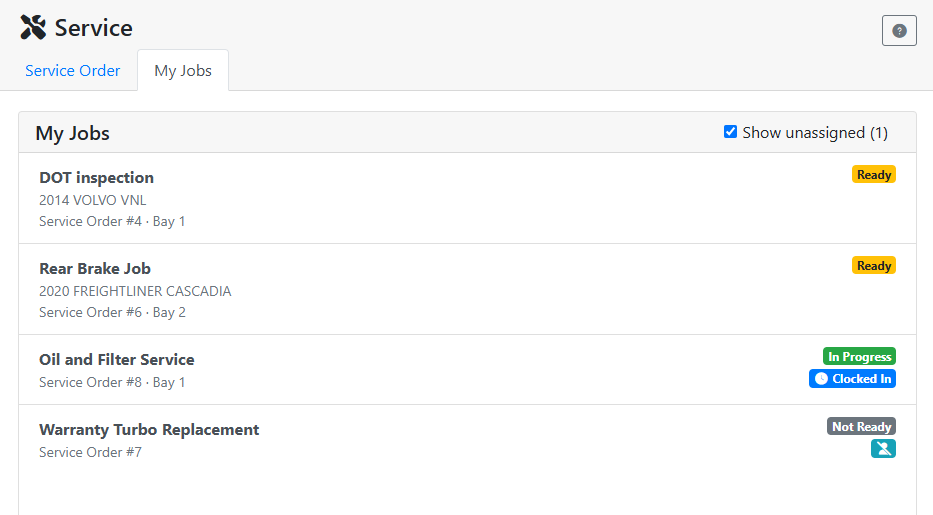
Each job will list the job title, customer unit, service order number, and bay on the left.

The job’s status is color coded on the right, either Not Ready, Ready or In Progress.
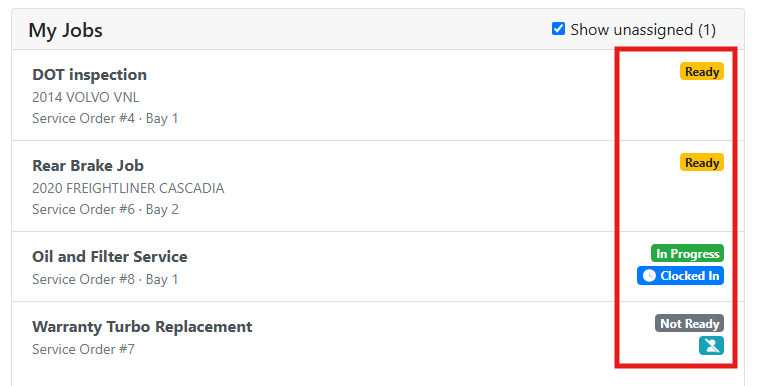
A job with a no-user 
If you are clocked into a job you will also see a Clocked In 
Read more about clocking into jobs.
You can uncheck the Show unassigned checkbox to see only your own jobs. The number in parentheses after the checkbox tells you how many unassigned jobs there are.
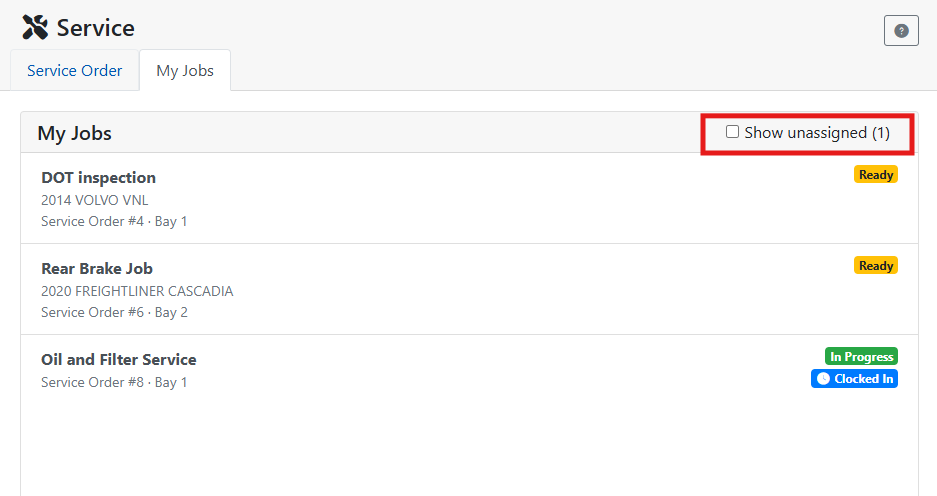
Only jobs that aren't marked Done appear on the tab. Once a job's status is set to Done, it drops off the list, whether it's assigned to anyone or not.