
If your shop performs the same types of service regularly, job templates let you save a fully configured job and reuse it on any service order. Instead of re-entering labor charges, parts, and notes every time, you can apply the template and add the job in seconds.
Templates are created and managed directly on the service order screen.
💾 Saving a Job as a Template
To create a job template, first create a job and fill in its details such as the job name, labor charges, parts, and notes, then click the Save As Template... button.
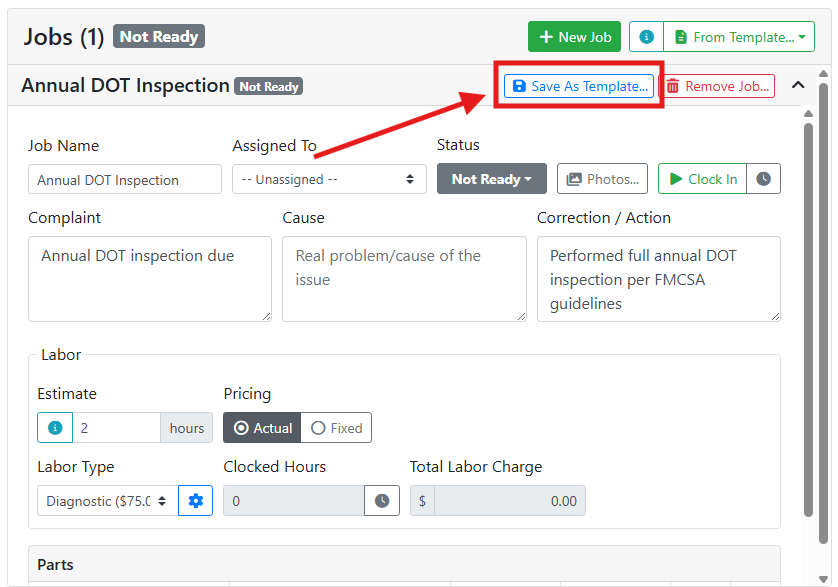
The Save As Template window opens with the job's current name pre-filled in the Template Name field. You can change the name if you’d like to use a different name for the template. Click Save Template when fished.
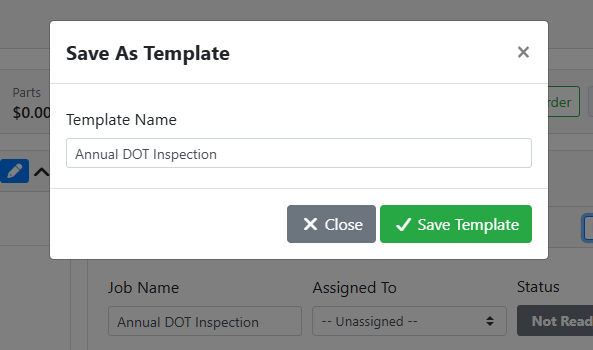
The Job Name, Notes, Labor Estimate, Pricing, Labor Type, and Parts will be saved with the template. The Assigned To user, any clocked hours, and photos will not be saved with the template since that will be different for each job.
📂 Using a Template on a Service Order
After you have some templates created, you can create a new job quickly from a template. On a service order, instead of clicking the New Job button, click the From Template... button to open the template picker.
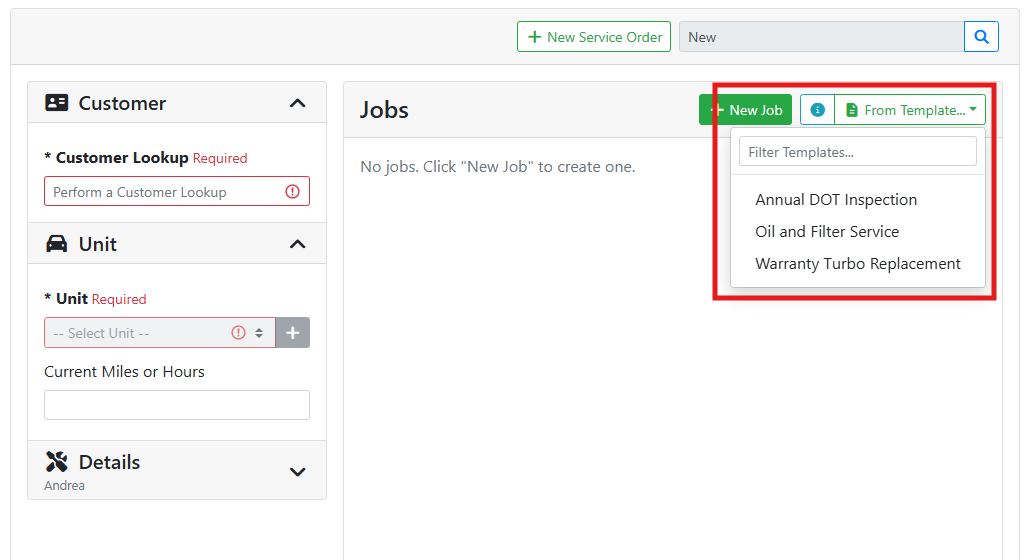
Select a template from the list and it will be used to create a new job. If you have a lot of templates in your list, use the Filter Templates... box to search for a template by name. When you use a job template you can edit anything you need to for this particular job, if it’s different than the template.
🔄 Updating an Existing Template
If you need to make changes to a template, you can do that on the job itself by just clicking Save as Template again. If you save a template with the same name, it will replace the previous template. For example you might use a template, notice something that needs adjusting, make the change, and then save it again.
Because the name matches an existing template, ITrack shows a warning that the template will be overridden.
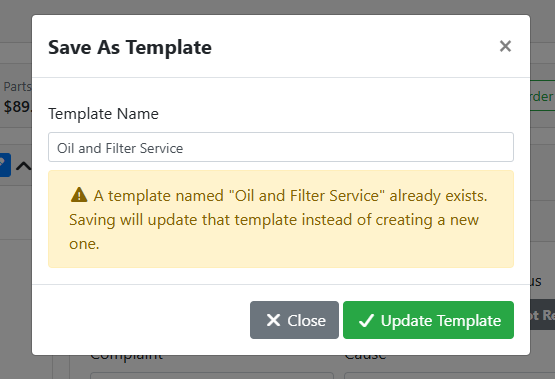
The button also changes from Save Template to Update Template. Click Update Template to confirm, and the existing template is replaced with the updated one.
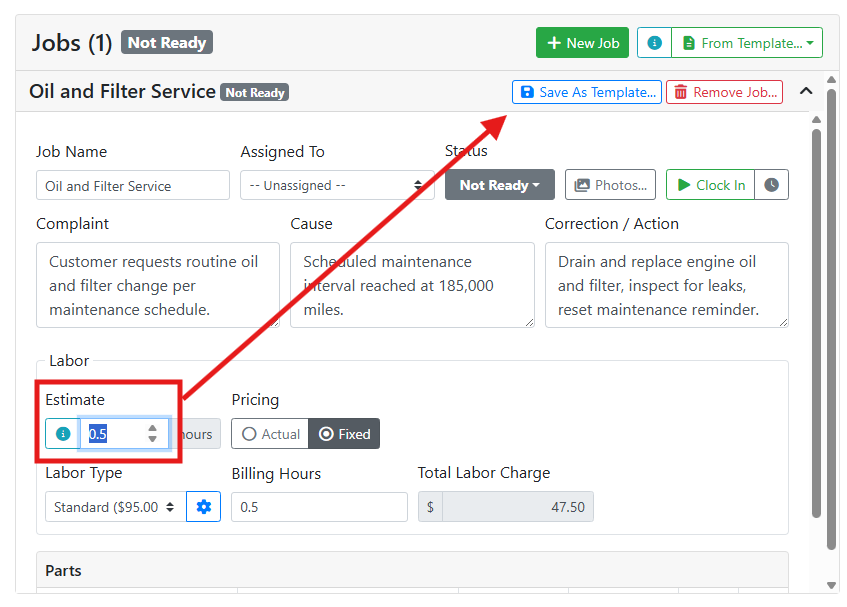
For example, I selected the Oil and Filter Service template, but I review the job, I noticed the labor estimate should be 0.5 hours instead of 1.
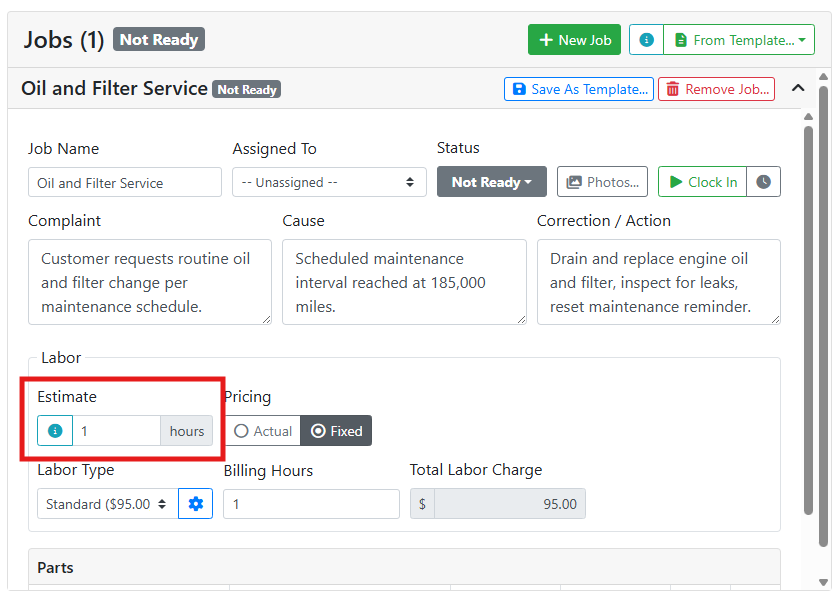
I updated the labor estimate on the job, then click the Save As Template button.
Since I didn’t change the job name, the Save as Template window warns me that I will be overriding the previous template. That’s exactly what I want so I click the Update Template button.
If you want to save another version of the job with a slight variation, just give it a new name. As long as the name doesn't match an existing template, ITrack creates a new one and leaves the original intact.
Renaming and deleting templates is done from the service configuration screen. Read more about Job Template configuration.