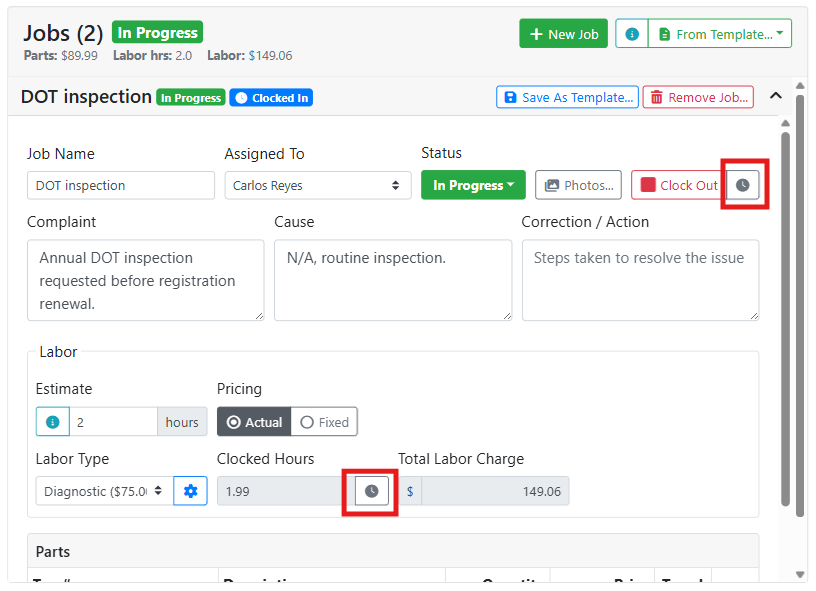
Every clock in and clock out on a job is recorded as a timestamped entry. Click the clock icon next to a job's Clock In / Clock Out button to view them.
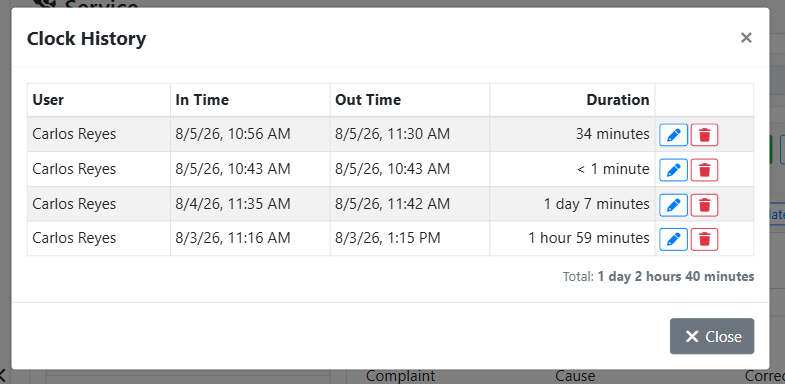
This opens a Clock History window, which lists the User, In Time, Out Time, and Duration for every entry on that job, plus a running total.
Click the edit 

Only users with the Edit Time Clocks permission will see the edit and delete buttons in the Clock History window. Read more about user permissions.
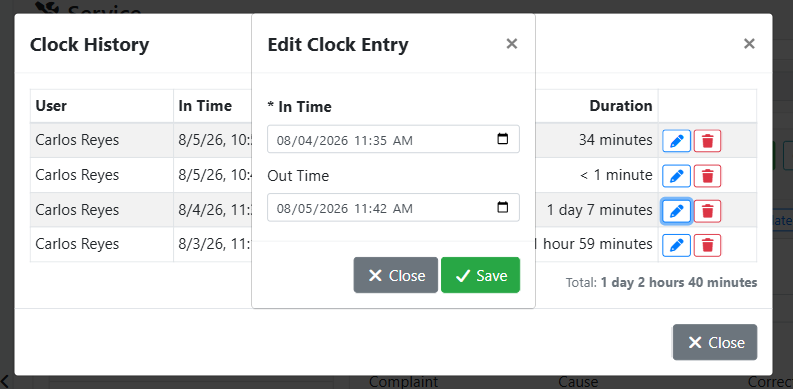
Clicking the edit button opens Edit Clock Entry, where the In Time and Out Time can be changed and saved.
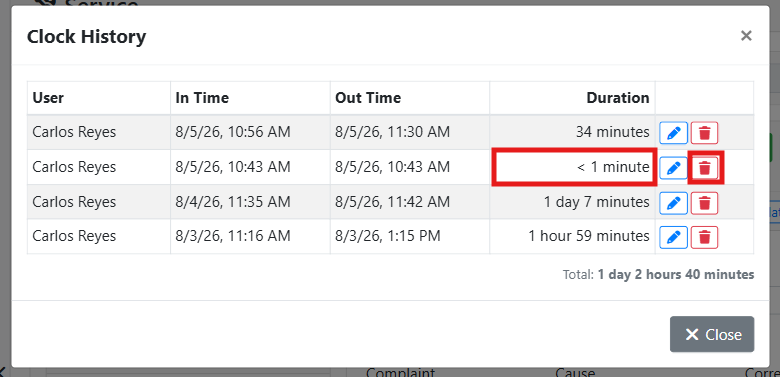
For example, in this series of time clock entries I notice a couple of errors I want to fix. I have confirmed these mistakes with the mechanic before making changes.
There is a time stamp where the mechanic was clocked in for under a minute, which is a mistake. To fix this, I will just delete this time clock entry by clicking the trash button.
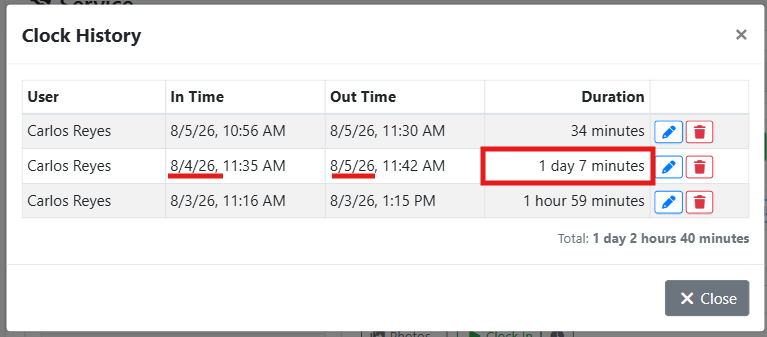
The other error I see is a time clock entry that is more than a day. In this case, the mechanic accidentally stayed clocked in over night.
To fix this I will just adjust the time he should have clocked out, so I click the edit button to edit the end time. I confirmed with him that he stopped working on that job at noon, so I change the entry from 8/5/2026 11:42 AM to 8/4/2026 12:00 PM.
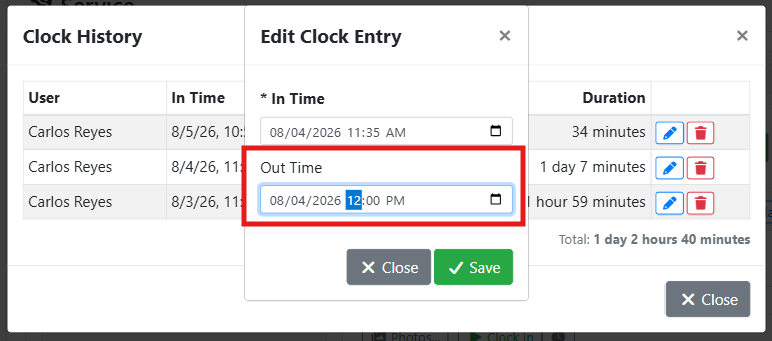
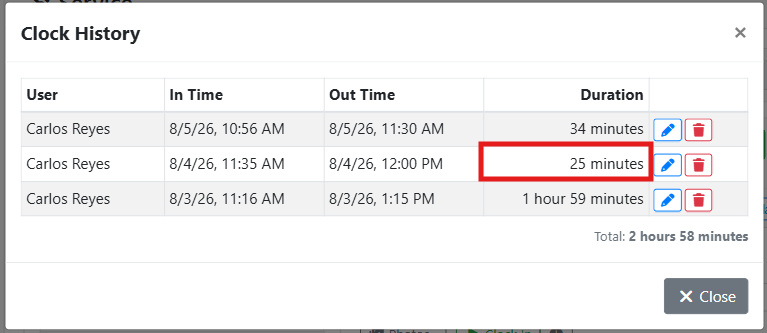
I click the Save button when I’m done making changes. The time clock entry now correctly reflects a duration of 25 minutes.