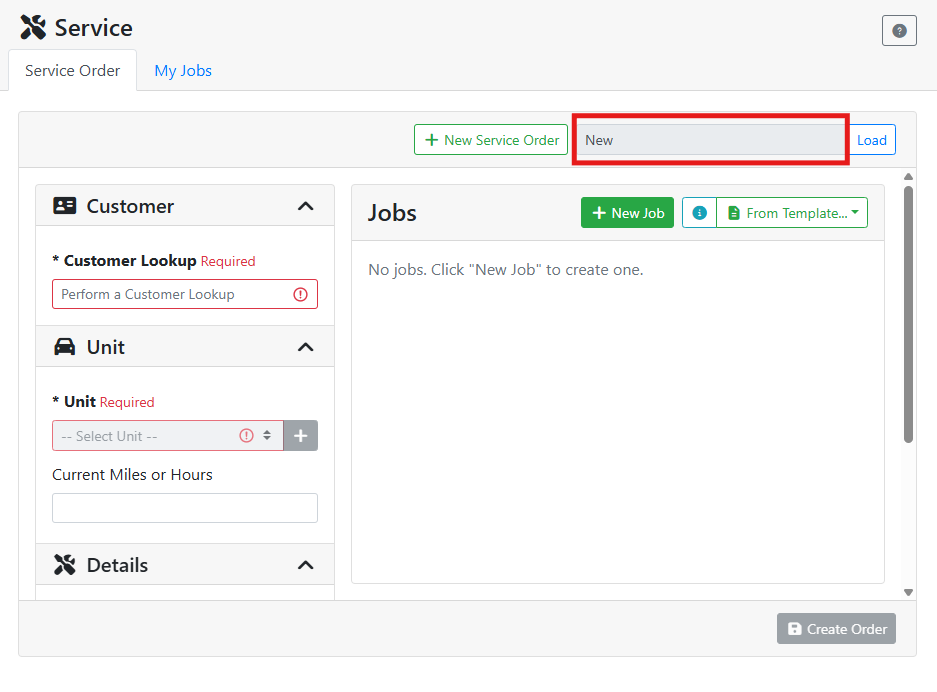
To create a new Service Order, click Service in the sidebar and select the Service Order tab. A blank order opens automatically, ready for a customer, a unit, and a job. The service order number field will say New until you fill out required fields and create the service order.
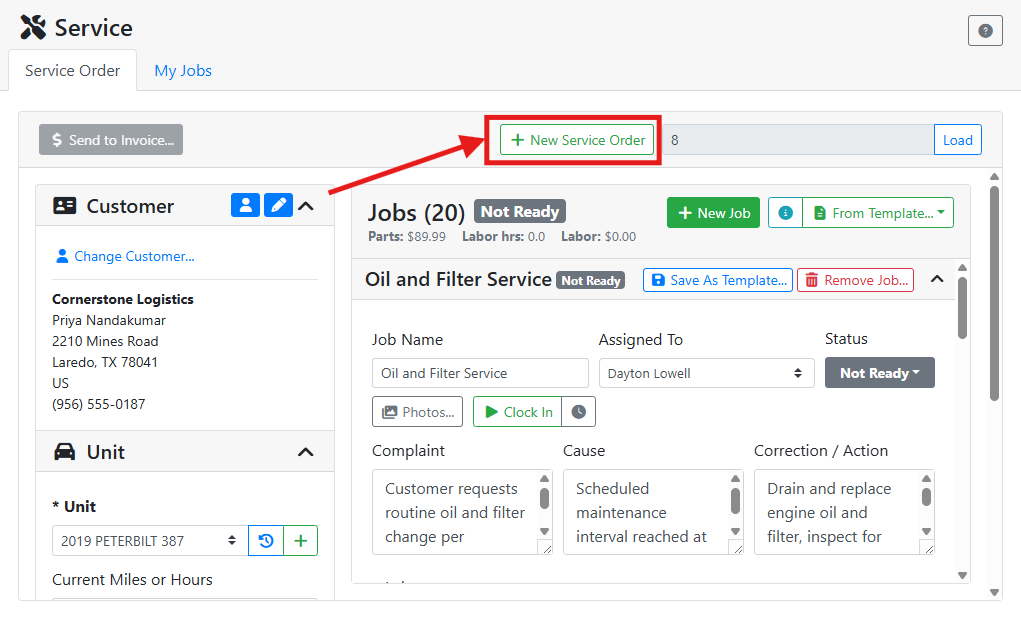
If you already have a service order open and you want to start a new one without leaving the screen, click + New Service Order at the top.
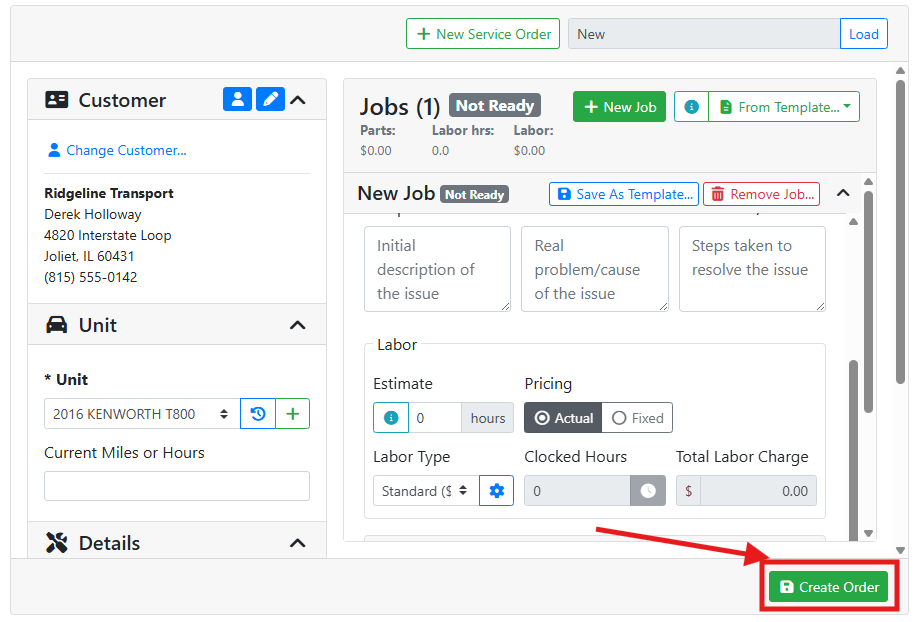
A Service Order needs a customer, a customer unit unit, and at least one job before it can be saved. The Create Order button is grayed out until all required fields are filled.
👤 Choosing a Customer
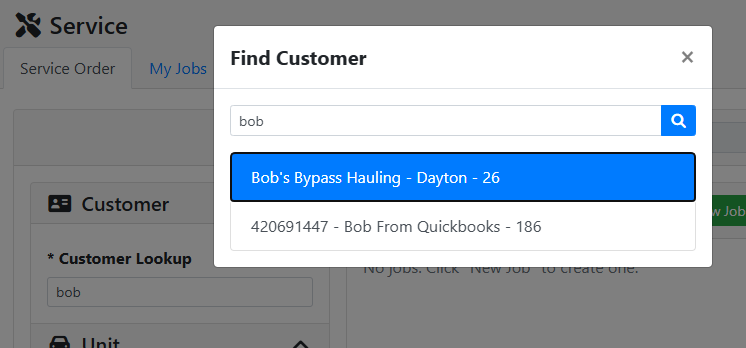
A service order needs a customer. Use the Customer Lookup field to select a customer by typing some of the customer’s name.
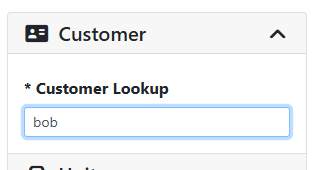
Press Enter on your keyboard or click out of the field to search. If ITrack finds one match it will be selected automatically. If more than one customer matches the search, a window will open for you to select the correct one.
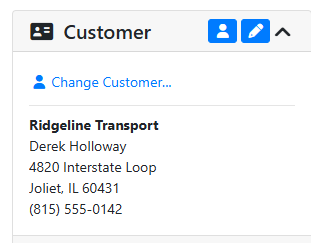
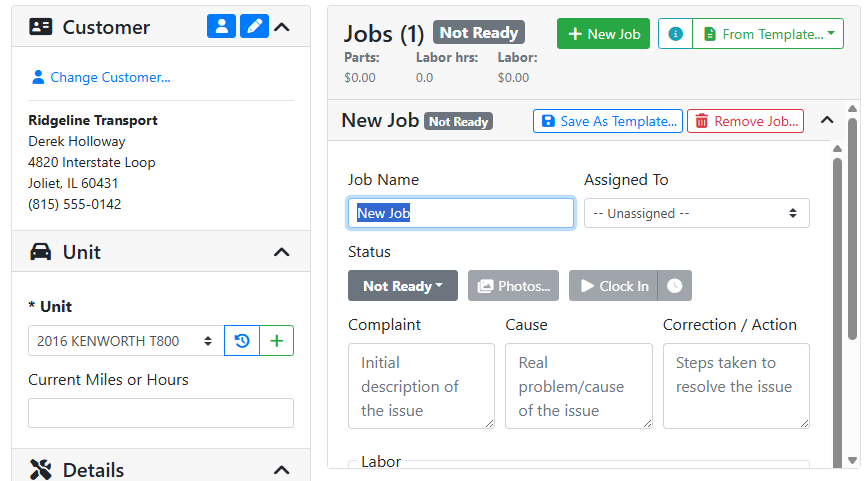
Once selected, the Customer panel shows the customer's name, address, and phone number.
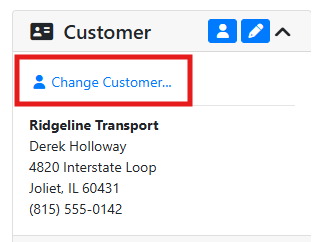
Click the Change Customer... button if you picked the wrong customer.
Click the customer 


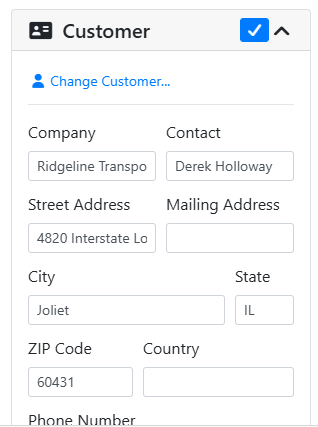
Read more about Customers.
🚚 Choosing a Customer Unit
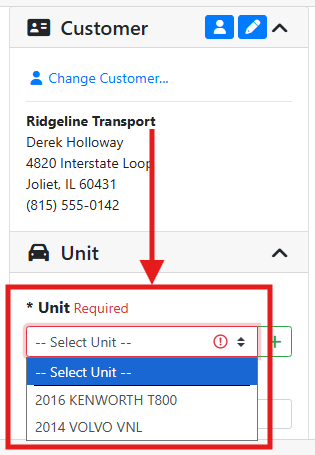
After you select a customer, you can select or create the customer’s truck or unit that you are servicing. Use the Unit dropdown to select the unit or make a new one.
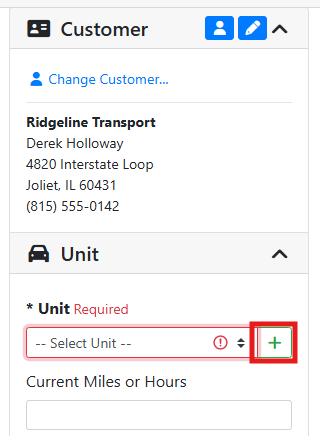
If the customer unit hasn’t been added yet, click the + button to create a new unit.
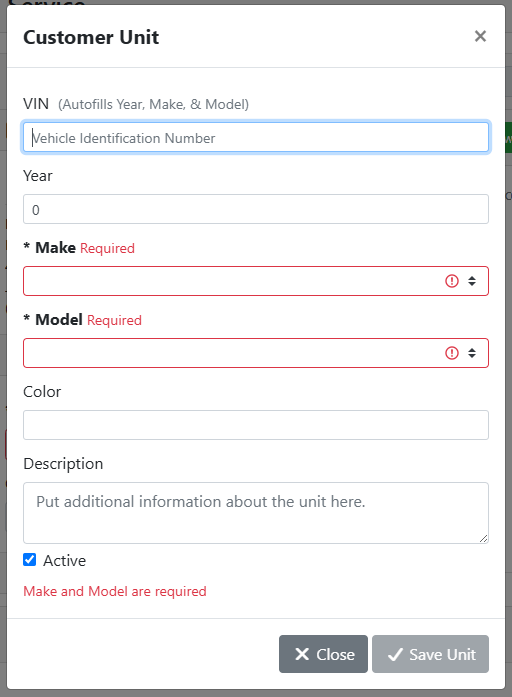
When making a new customer unit, enter the Year, Make, and Model, or enter the VIN to automatically complete the year, make, and model.
You can also enter a Current Miles or Hours to keep track of the starting mileage or running hours for the unit before servicing.
🧰 Adding a Job
Click + New Job to add a job to the service order.
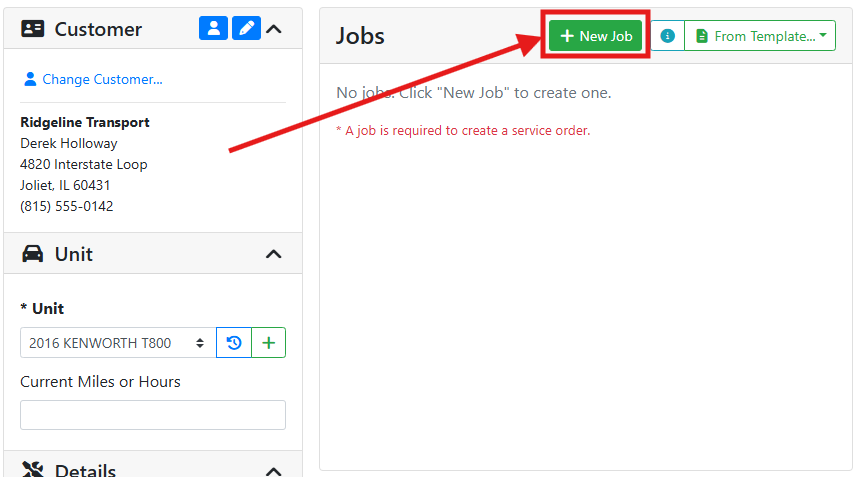
Give the job a name and enter the customer’s complaint. Each job on a service order can have its own status, assigned mechanic, customer complaint, labor charge, and parts, and will make their own line items on the customer’s invoice. You can add as many jobs to an order as needed.
Read more about filling in a job's details.
💾 Saving the Order
Once the customer, unit, and at least one job are all set, click Create Order.