🕑 Clocking In and Out
When working on a job, click the Clock In button to start tracking your time on it.
Clocking into a different job automatically clocks you out of whatever job you were previously clocked into. Only one job can be running at a time.
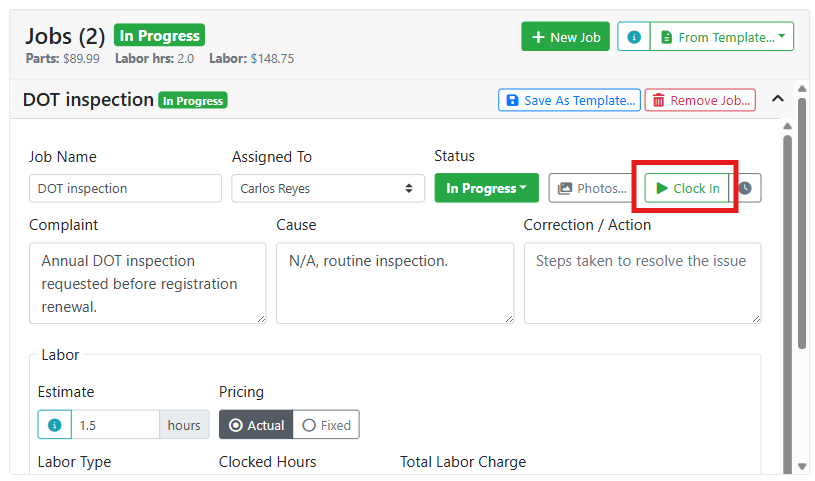
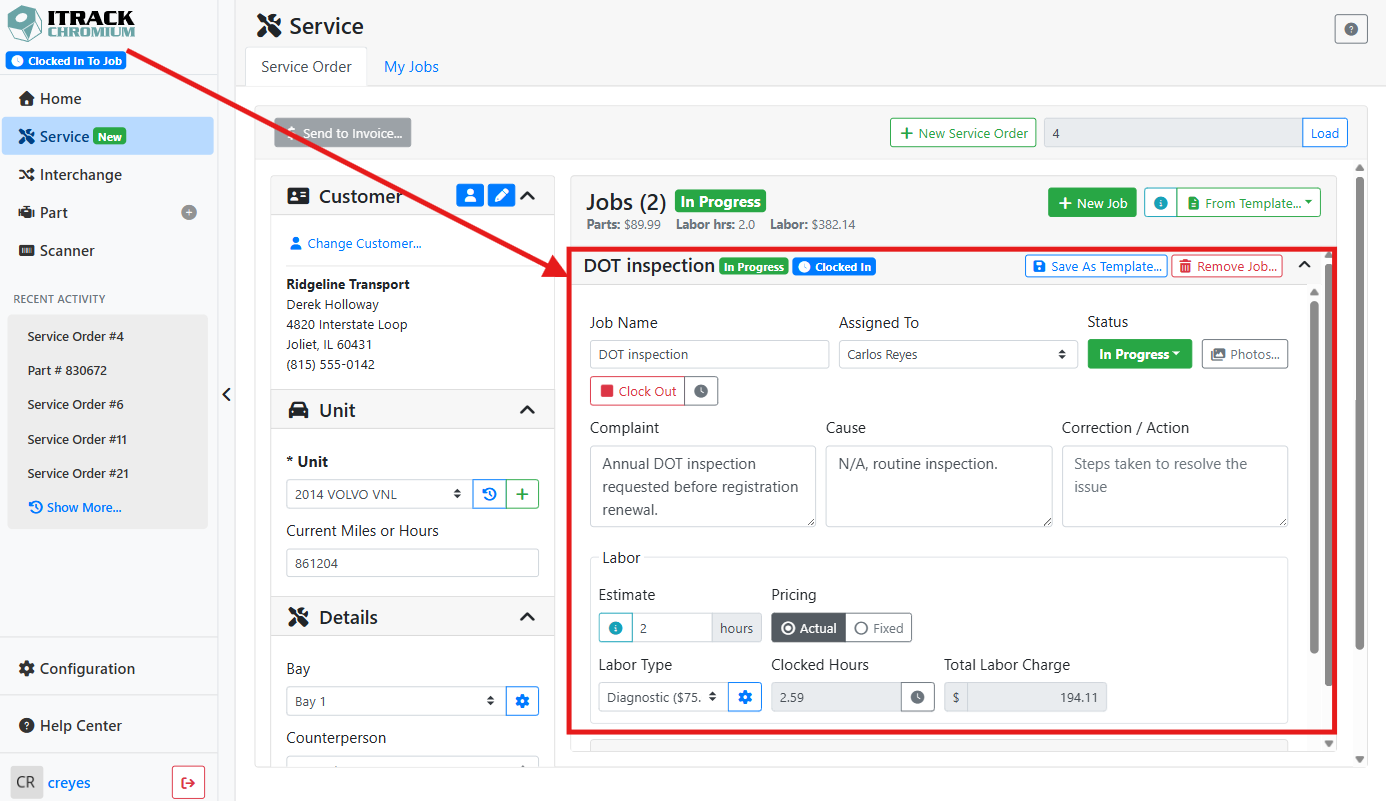
Once you're clocked in, you will see a Clocked In badge on the job next to the job status. The Clock In button changes to Clock Out.
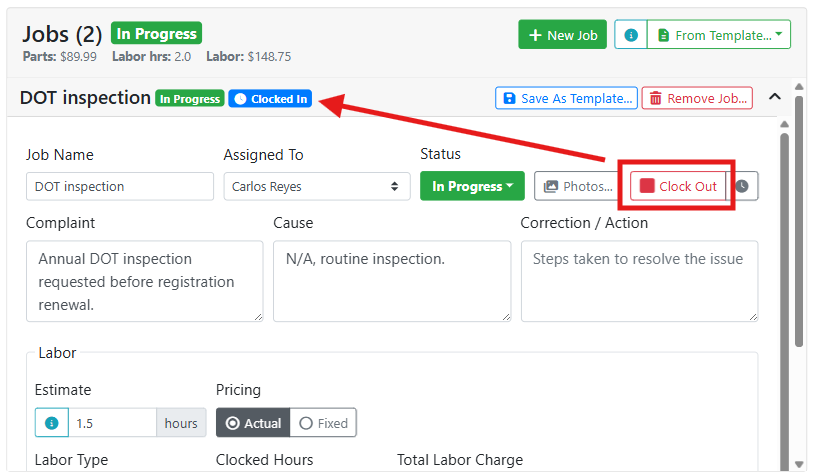
Click Clock Out when you're finished, or when you're stepping away from the job. You can clock in and out of a job as many times as you need.
🔍 Viewing Your Clock Entries
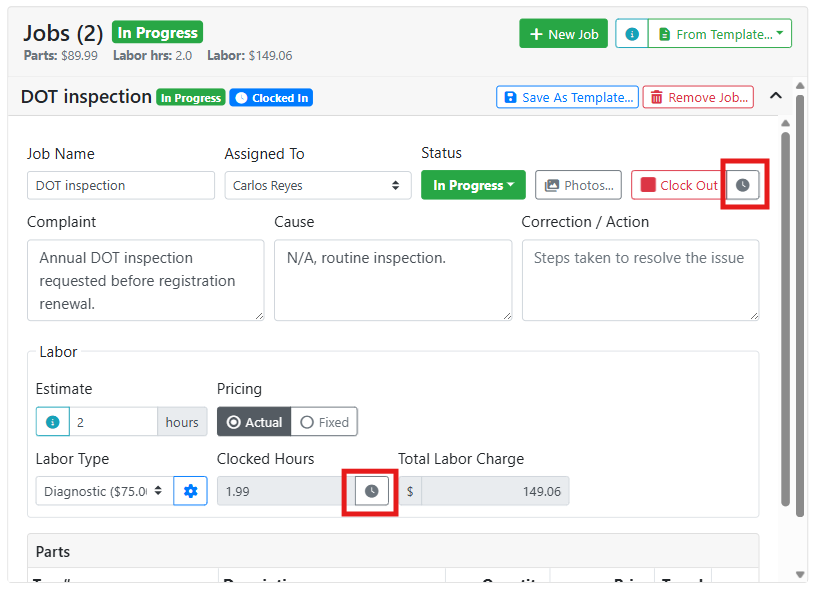
As you track time on a job, the Clocked Hours field will update to show how many hours are clocked so far.
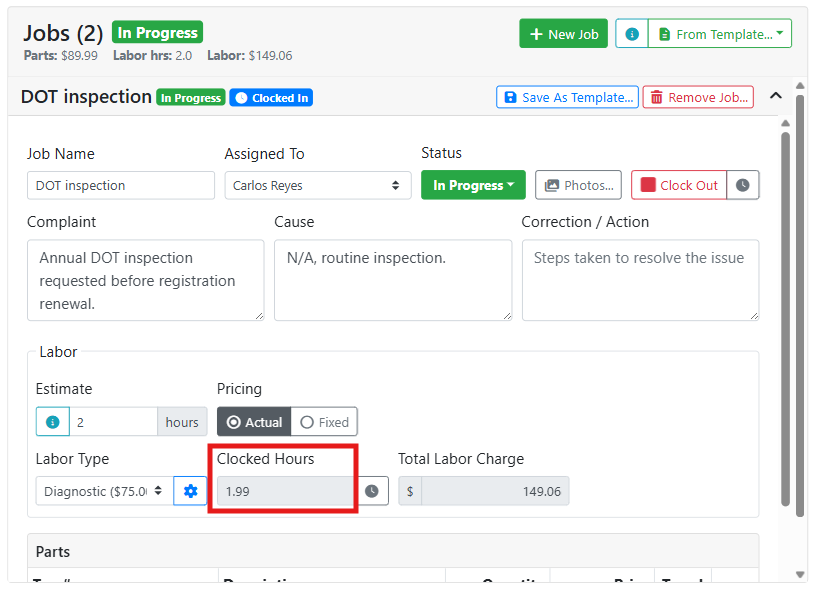
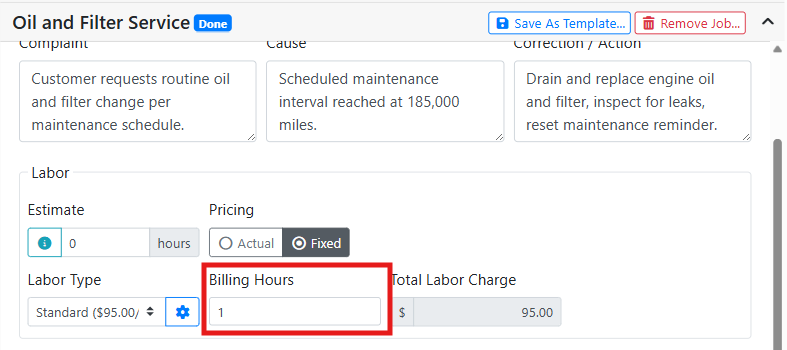
If the job is billed at a fix rate instead of actual hours, you’ll see a Billing Hours field instead, but your clock time is still logged.
If you need to review your time clock entries, click on the clock 
A Clock History window will open showing all clock events on this job, with the time in, time out, and duration of each event.
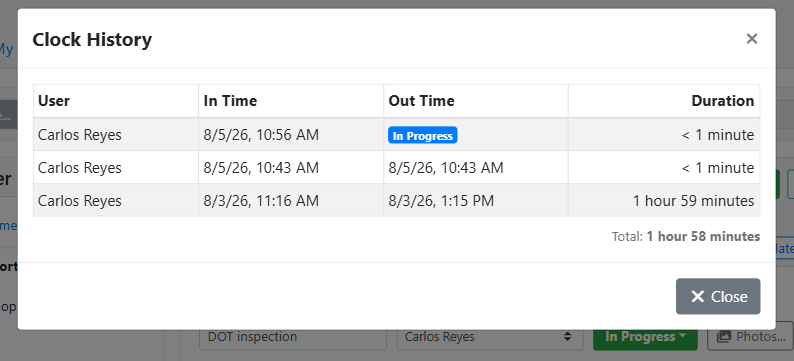
If a time clock entry needs correction, a user with the Edit Time Clocks permission can correct it for you.
🔍 Finding a Job You’re Clocked Into
You might navigate to another screen while working on a job, for example if you need to search for parts or view different service orders. You’ll stay clocked in if you move to another screen but might want a quick way to find the job you’re clocked in to.
As long as the job isn’t marked done, you’ll see a Clocked In badge on the job in your My Jobs screen.
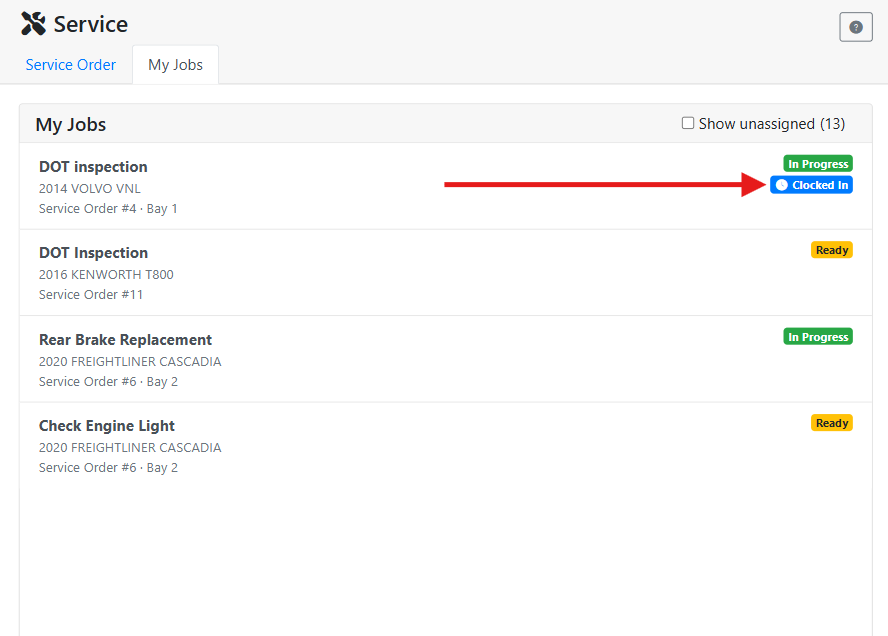
Read more about the My Jobs screen.
You will also see a Clocked Into Job badge near the top of the sidebar.
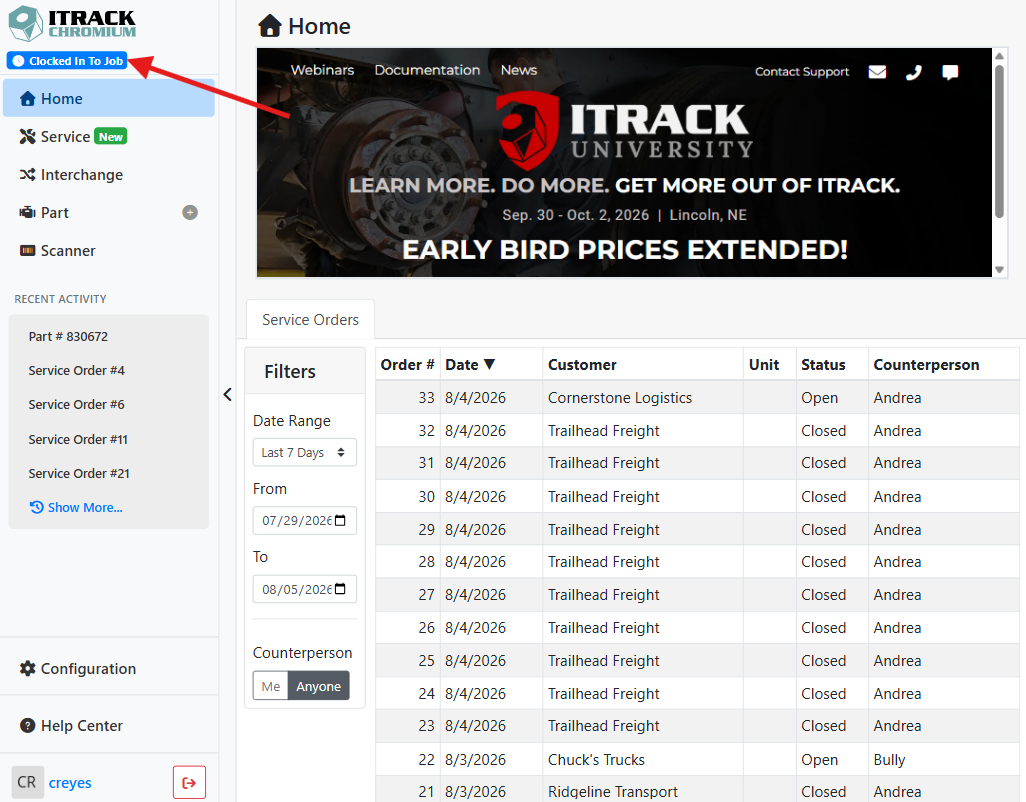
The badge only shows when the sidebar is expanded. You won't see it if the sidebar is collapsed, or if you’re on a small screen like a smartphone.
Click the badge to jump straight to the job you're clocked in on.
❓ Why is the Clock In Button Grayed Out?
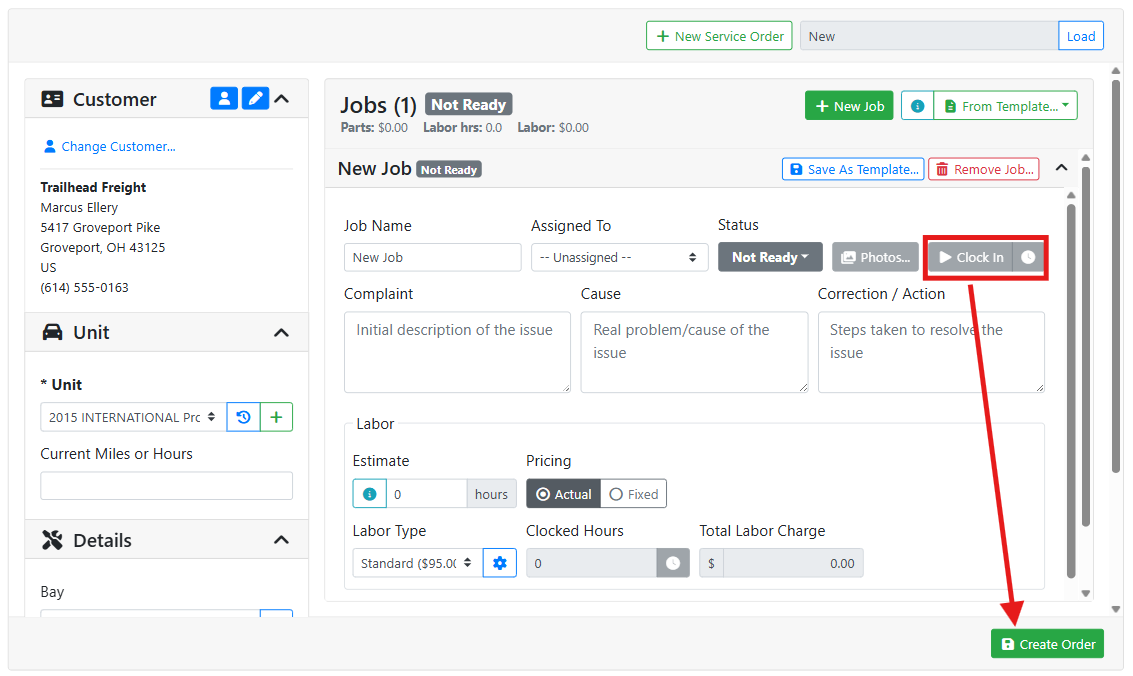
The Clock In button is disabled on a new Service Order that hasn’t been saved. Save the service order first, then you can begin tracking time on it.
❓ Can I Clock In to a Job That’s Not In Progress?
If a job is in the Not Ready or Ready status when you click Clock In, its status automatically changes to In Progress for you.
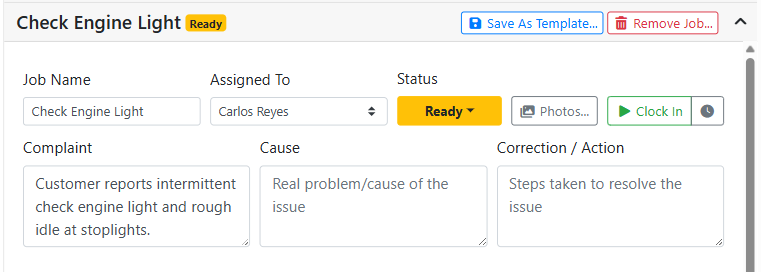
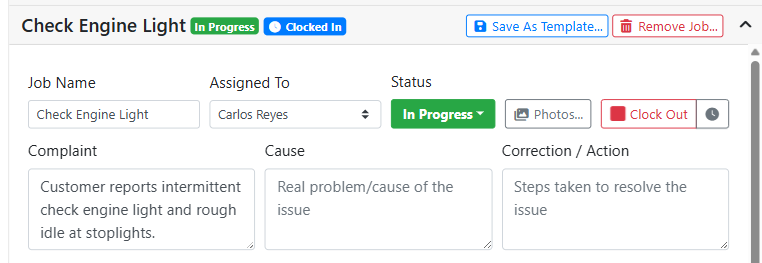
You can clock into done jobs, or change a job status at any point while clocked in, but ideally a job should be In Progress if you’re clocked in to it.
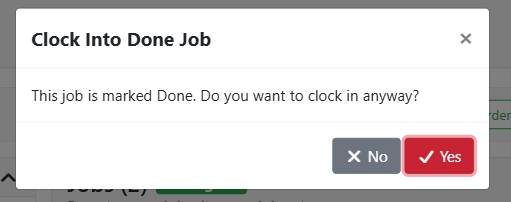
If you click Clock In on a job that's already marked Done, ITrack will ask you to confirm.