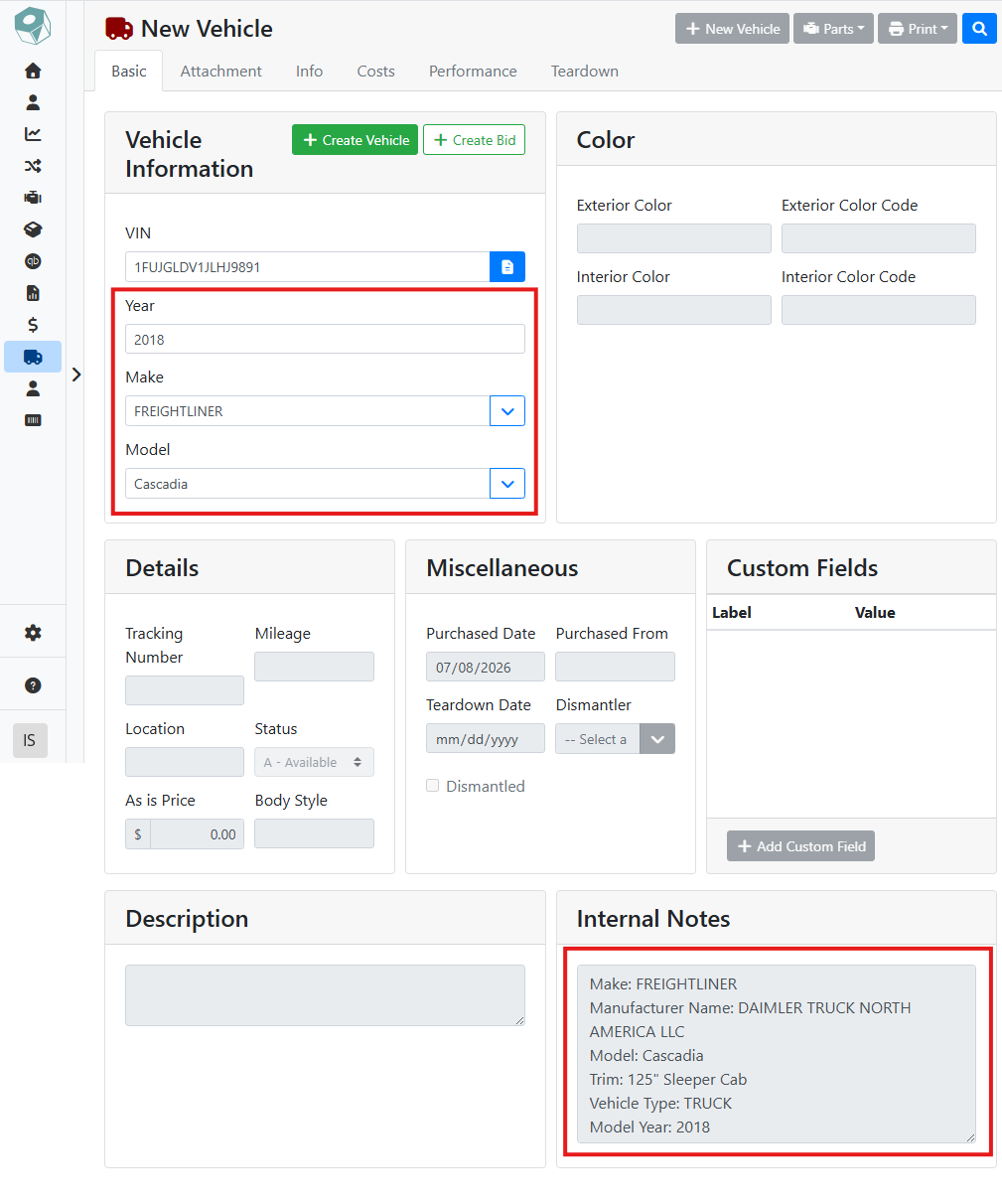
The VIN lookup tool can be a quick way to enter vehicle information. On a new vehicle, enter the VIN and press Enter on your keyboard.
The Year, Make, and Model fields fill in automatically from the VIN, and additional information will be entered in the Internal Notes field.
🔎 Viewing Full VIN Details
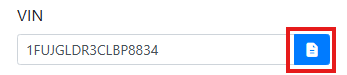
You can also open the VIN Info window to see more details about a vehicle, by clicking the button 
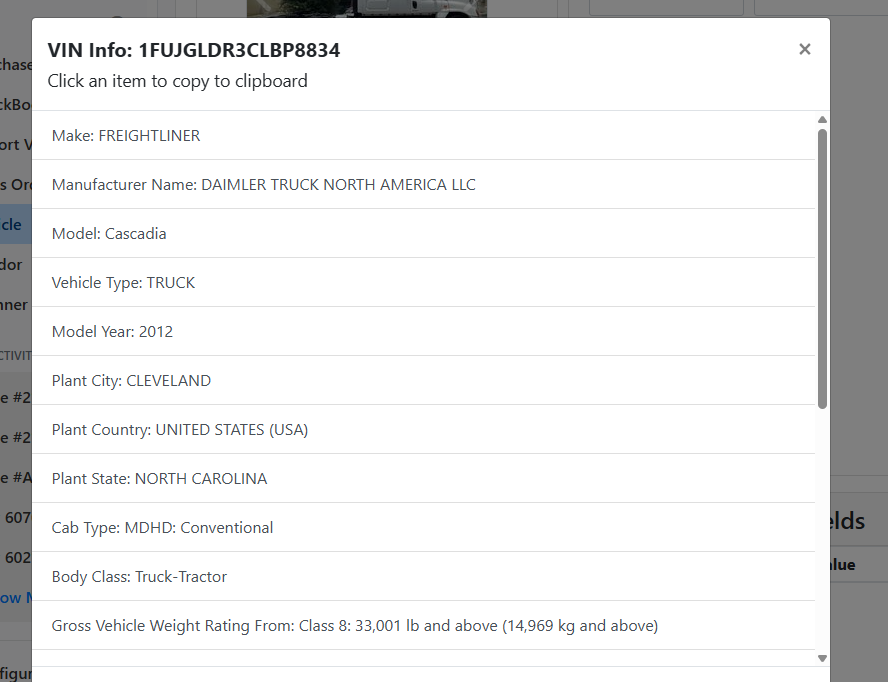
The VIN Info window shows all of the available details about the vehicle.
🚚 Duplicate VIN Check
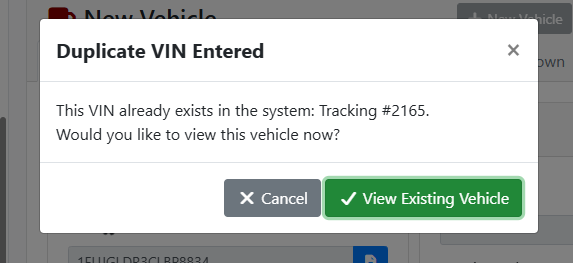
When you decode a VIN, ITrack also checks whether you already have a vehicle with this VIN. If it finds a match, you'll see a Duplicate VIN Entered window that shows vehicle's tracking number. Click View Existing Vehicle to open that record, or click Cancel to stay on the new vehicle and keep the decoded details.