
In ITrack Chromium, a vehicle keeps track of what you've spent on it and the parts you pull off of it. The vehicle itself isn't something you sell. To sell a whole vehicle, add it to your inventory as a part, using a whole-vehicle part type like Complete Vehicle. Then you can sell it on a sales order like any other part.
There are two ways to set this up, depending on whether you want to track the vehicle's costs.
🚚 Tracking the Vehicle's Costs
If you want to track what you've spent on the vehicle, like the purchase price, hauling, or repairs, start by creating a vehicle.
Add your costs on the vehicle's Costs tab.
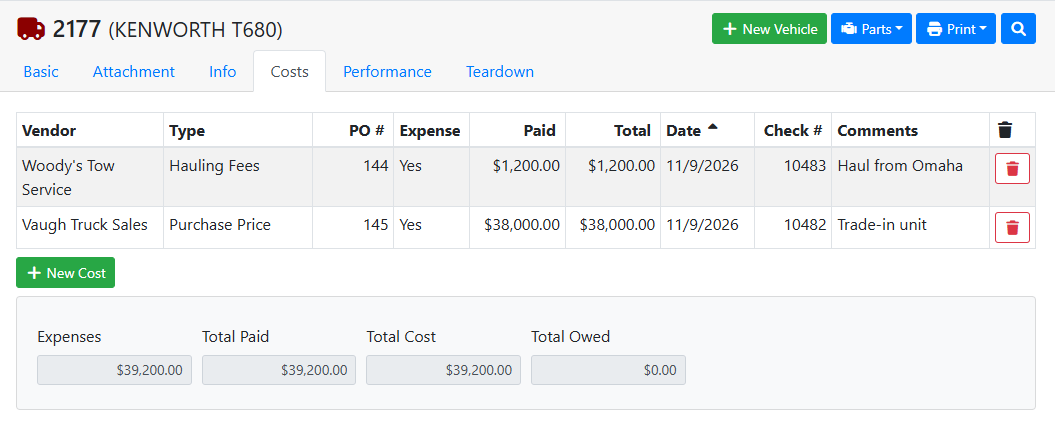
Read more about vehicle costs.
Next, go to the Teardown tab and click + New Part.... Choose your whole-vehicle part type and click Create Part. This part is the vehicle you'll sell.
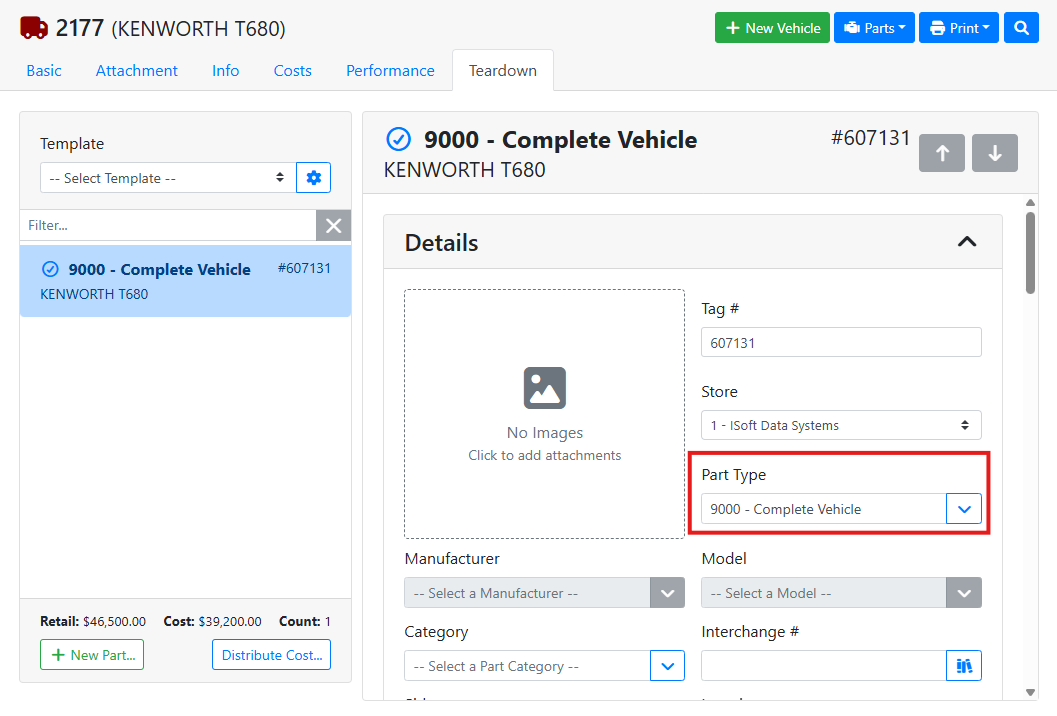
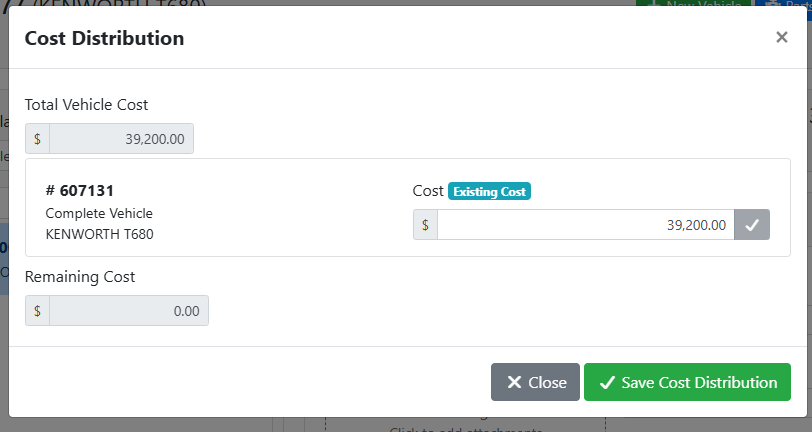
To move the vehicle's costs onto the part, click Distribute Cost... and put the full Total Vehicle Cost on the whole-vehicle part. Then go back to the Costs tab and mark those costs as expenses, so they aren't counted twice on the Performance tab.
When you sell the part on a sales order, the vehicle's Performance tab shows what you made on it.
I bought a Kenworth T680 to resell. I create a vehicle for it and add the $38,000 purchase price and $1,200 in hauling on the Costs tab. On the Teardown tab, I create a Complete Vehicle part and distribute the full $39,200 to it, then mark both costs as expenses. When I sell the truck for $46,500, the Performance tab shows I made $7,300 on it.
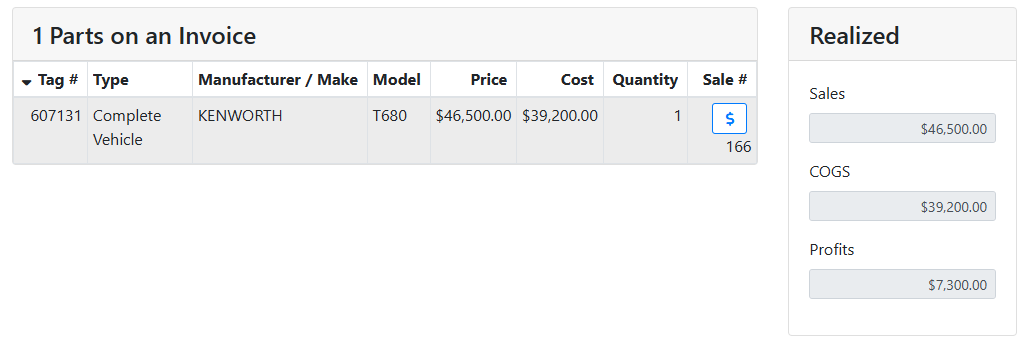
Read more about vehicle performance.
📦 Adding the Vehicle as a Part Only
If you don't need to track the vehicle's costs, you can skip the vehicle and add it to your inventory as a part. Create a new part with your whole-vehicle part type, and enter its details and cost.