When you're considering buying a parts vehicle, a bid helps you figure out what it's worth. You list the parts you expect to pull off of it and what they'll sell for, so you know how much to offer before you buy.
🔨 Starting a Bid
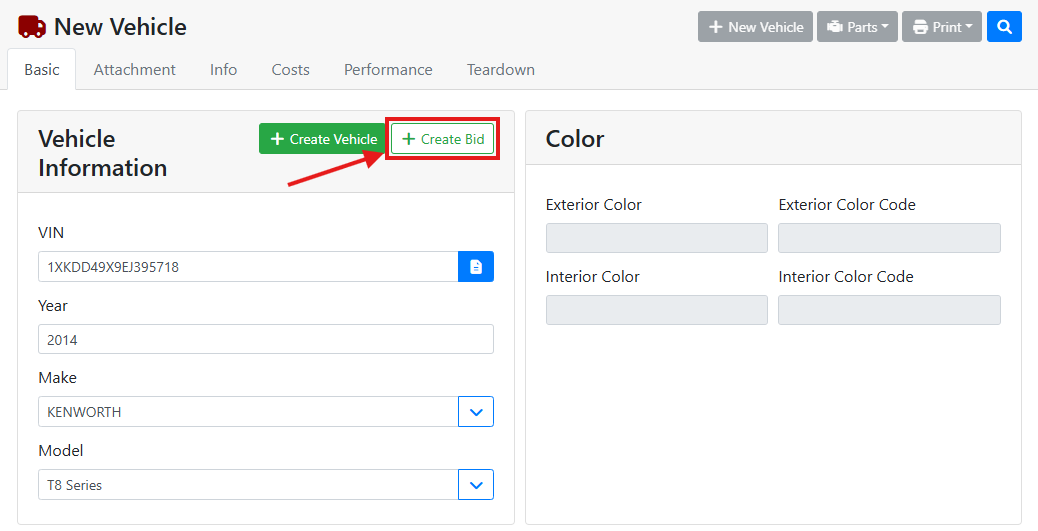
A bid has to be started when you first create the vehicle. On a new vehicle, enter the Year, Make, and Model, then click + Create Bid instead of + Create Vehicle.
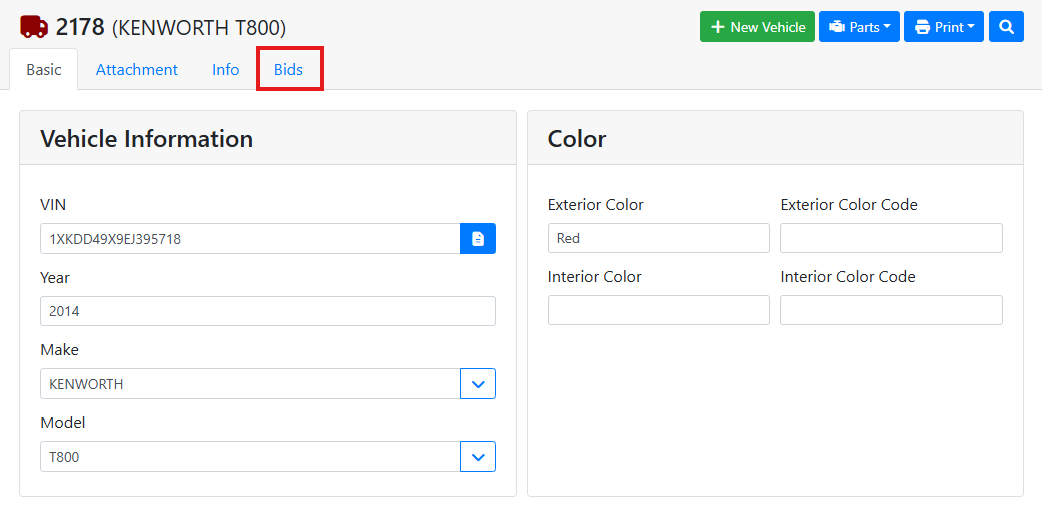
The vehicle's status is set to B - Bid, and a Bids tab appears. The Costs, Performance, and Teardown tabs stay hidden until you accept the bid.
📝 Building Your Bid
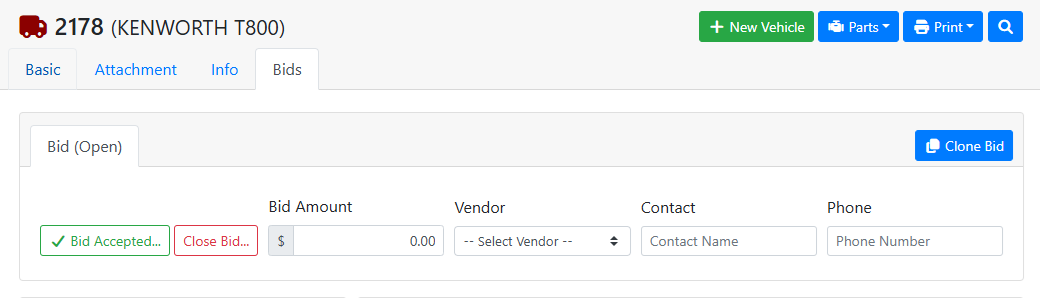
The Bids tab is where you build your estimate. At the top, enter the Bid Amount you plan to offer, and choose the Vendor selling the vehicle. You can also add a contact name and phone number.
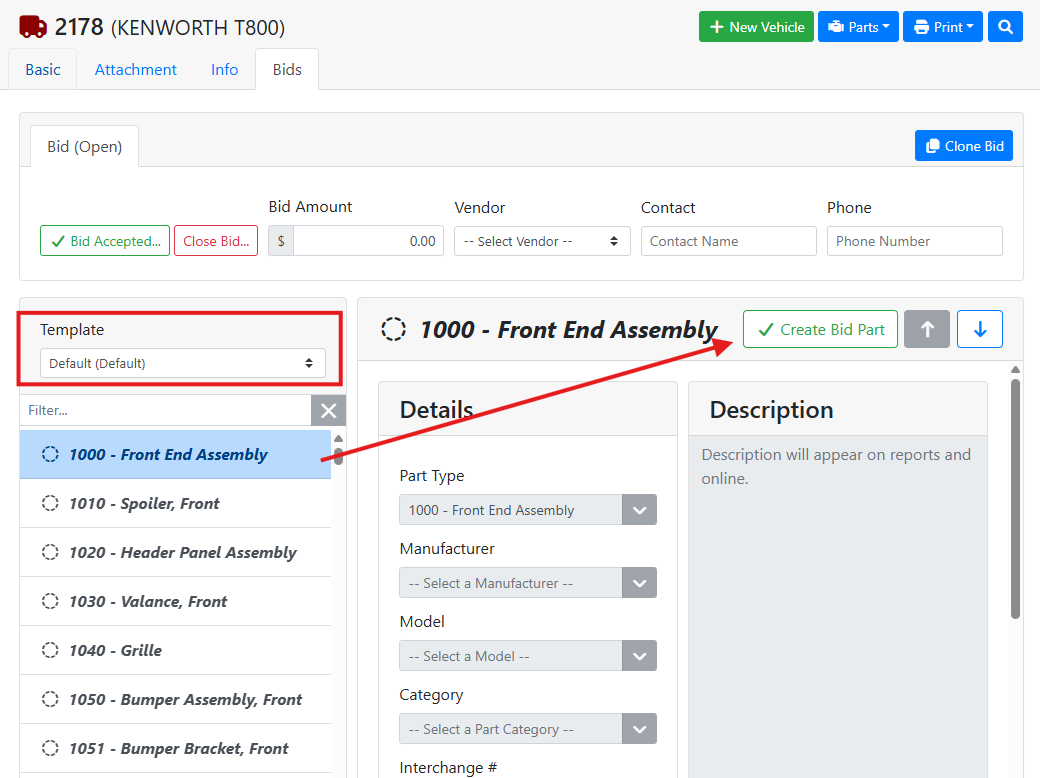
The parts list below works like a teardown. Choose a template to list the parts you'd usually pull, or click + New Part... to add others. Click a part, then click Create Bid Part to add it to your bid.
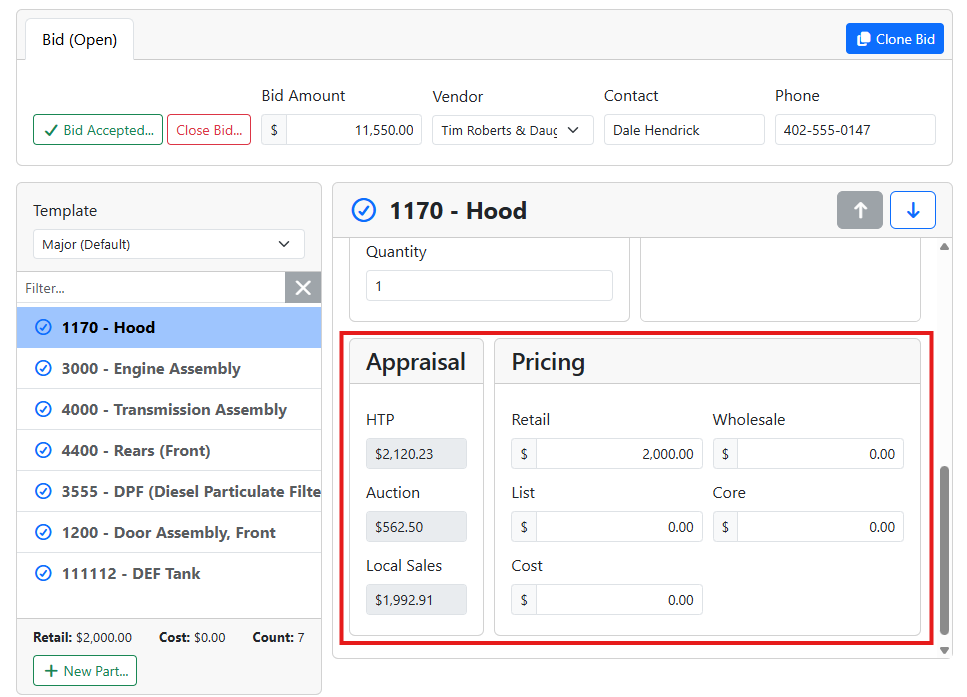
For each bid part, enter its details and what you expect to sell it for. The Appraisal panel shows what that kind of part sells for, using data from HeavyTruckParts.net and, if your account includes it, Berryhill Auctioneers auction results. The totals at the bottom of the list show the retail value and cost of everything on the bid.
Read more about tearing down a vehicle.
🔁 Trying a Different Bid Amount
If you want to try another offer, like a counteroffer at a higher price, click Clone Bid. A copy of your bid opens in a new tab, with the same parts, so you can change the Bid Amount without losing your first bid.

✅ Accepting or Closing a Bid
If you buy the vehicle, click Bid Accepted... on the bid you went with, and confirm.

The vehicle's status changes to A - Available, and your bid parts are added to your inventory on the Teardown tab. Any other bids on the vehicle are closed. The Costs, Performance, and Teardown tabs appear, and your bids stay on the Bids tab for reference.
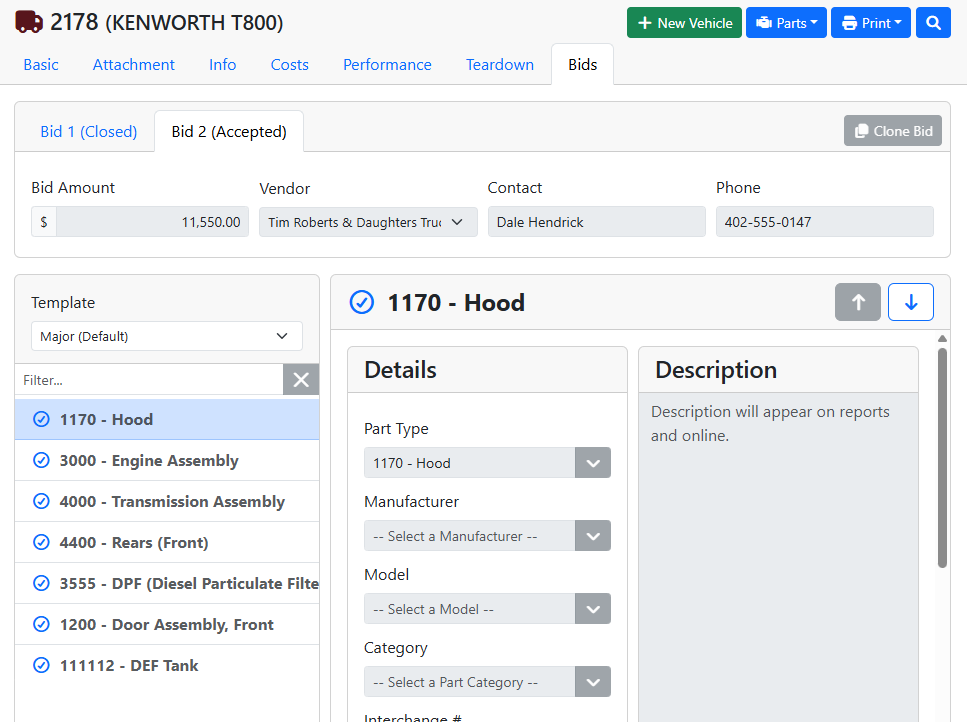
Your Bid Amount isn't added to the vehicle's costs, so add what you paid on the Costs tab.
Read more about vehicle costs.
If you don't buy the vehicle, click Close Bid.... You can change the vehicle's status when you close it, such as to D - Deleted. Closing a bid can't be undone.