
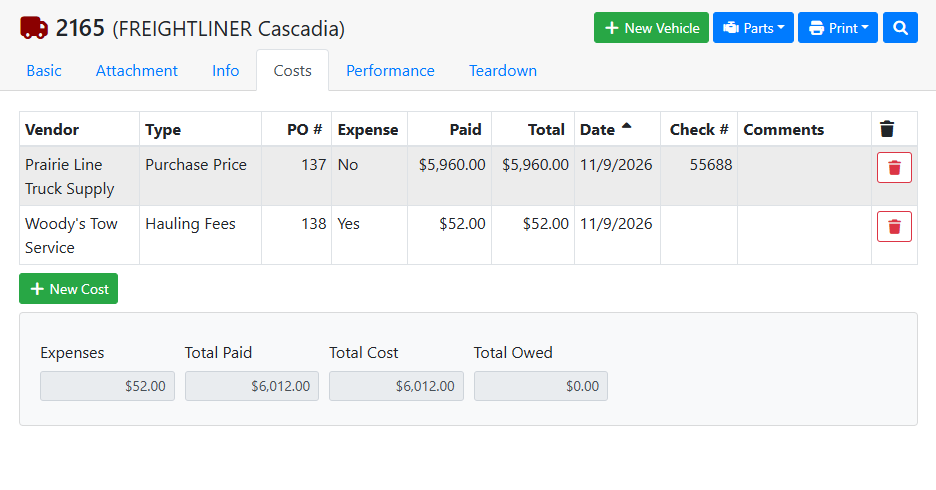
The Costs tab on a vehicle is where you keep track of what you've spent on it, like the purchase price, buyer's fees, or hauling. You can then spread that cost across the vehicle's parts, so you know what each part cost you when it sells.
💲 Adding a Cost
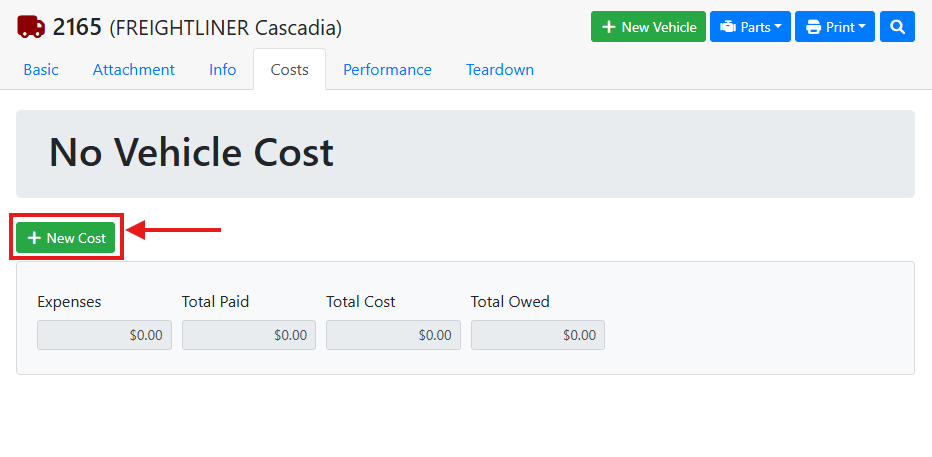
To add a cost to a vehicle, click the + New Cost button.
A window will open where you can enter the details of the vehicle cost. Choose the Vendor you paid and the Type of Cost, and enter the Amount. If you've already paid some or all of it, enter that in Paid. You can also add a date, check #, and comments.
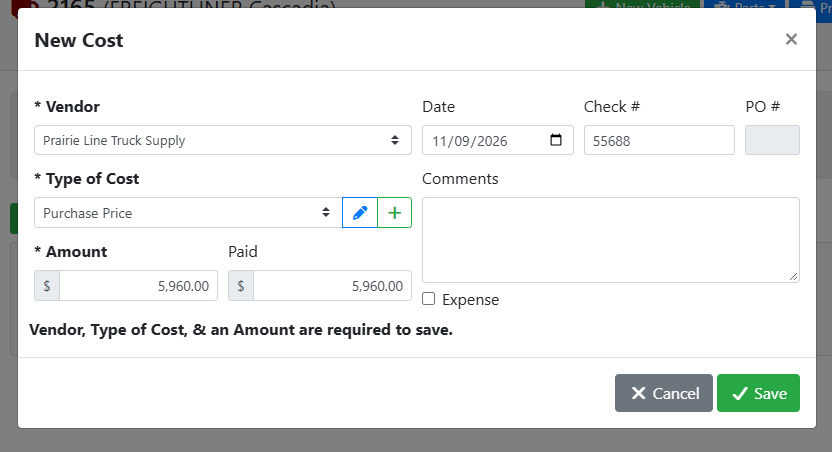
If the type of cost you need isn't in the list, click the + button next to Type of Cost to add it.
Click Save. ITrack creates a purchase order for the cost, and you'll see its number in the PO # column.
To change a cost, click it in the list. To remove one, click the trash 
📊 Cost Totals
Expenses - The total of costs marked as expenses.
Total Paid - How much you've paid so far.
Total Cost - The total of all costs on the vehicle.
Total Owed - How much you still owe, which is the Total Cost minus the Total Paid.
🔧 Distributing Cost to Parts
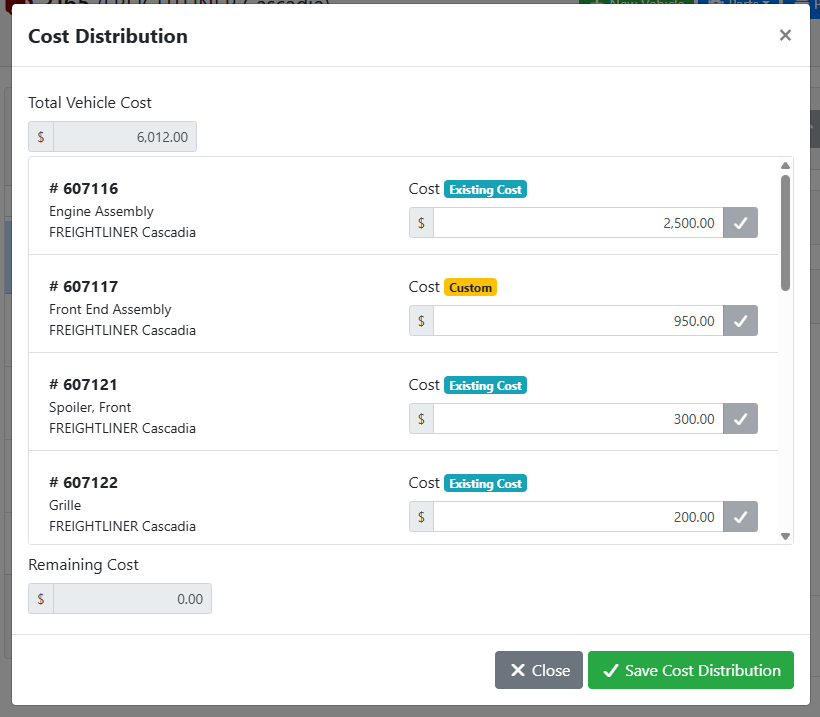
You can set each part's cost whenever it works for you, like during teardown, when you sell the part, or when you review your inventory later. To spread the vehicle's cost across all of its parts at once, go to the Teardown tab and click Distribute Cost....
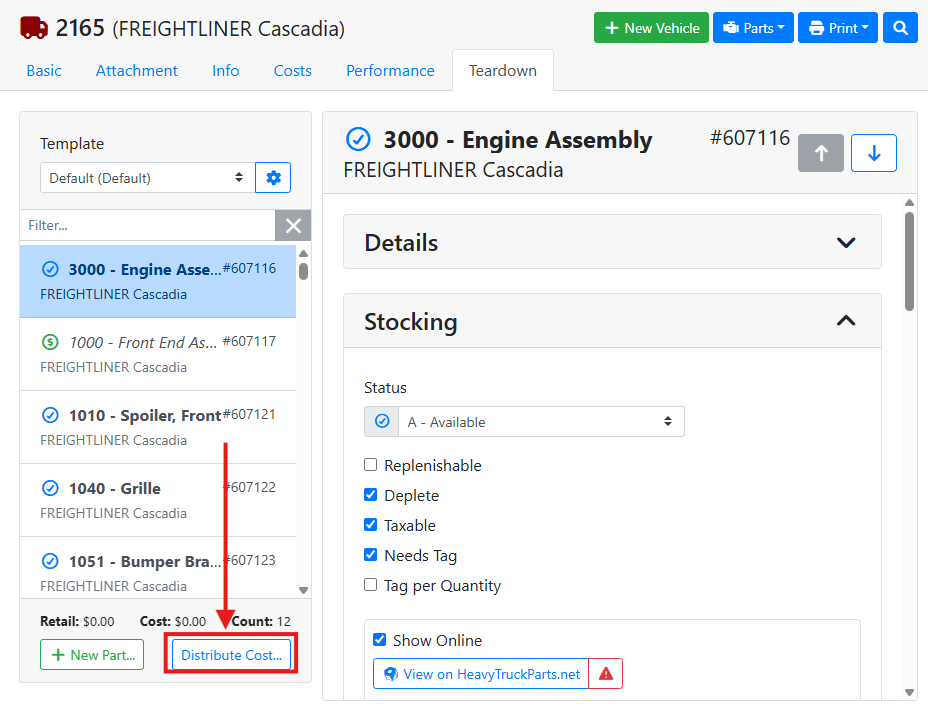
The Cost Distribution window lists each part on the teardown. Enter a cost for each part. Remaining Cost at the bottom shows how much of the Total Vehicle Cost is left to assign, and it shows in red until it reaches $0.00. When you're done, click Save Cost Distribution.
Read more about vehicle teardowns.