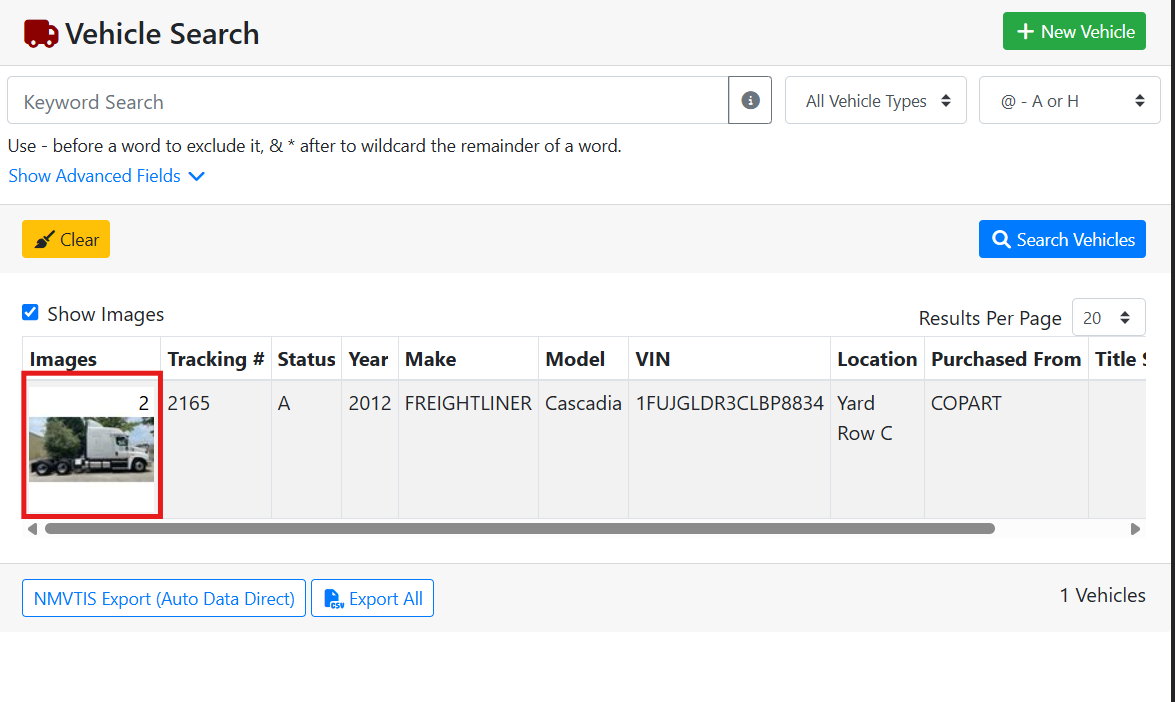
Adding photos and videos to a vehicle is a good idea for record keeping and will help boost your online sales.
The easiest way to add photos and videos is to log in to ITrack from your smartphone. This way you can take photos and upload them while you’re out in the yard with the vehicle.
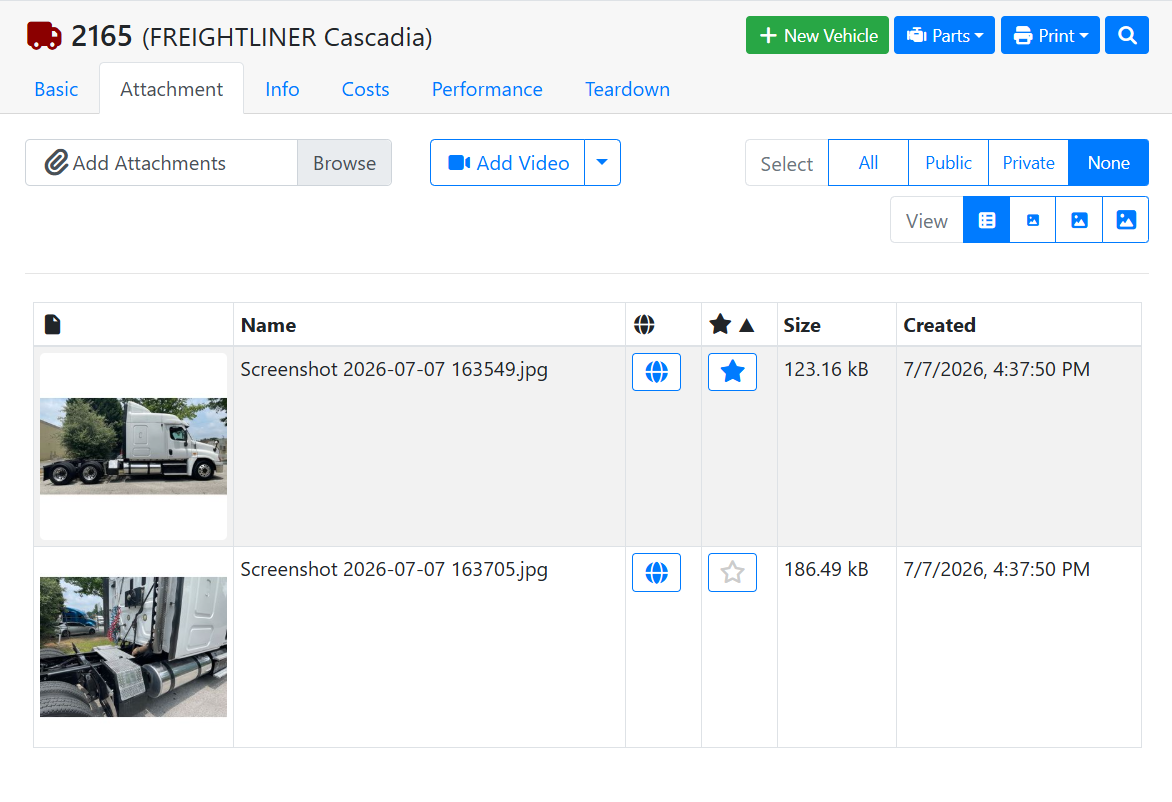
Use the View option to change the size of the attachment thumbnails on your screen, or to show them in a table.

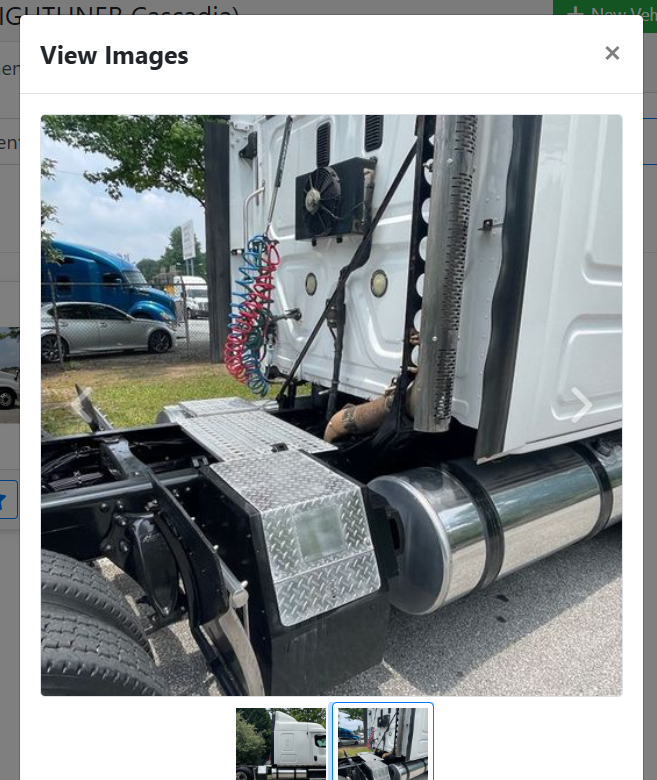
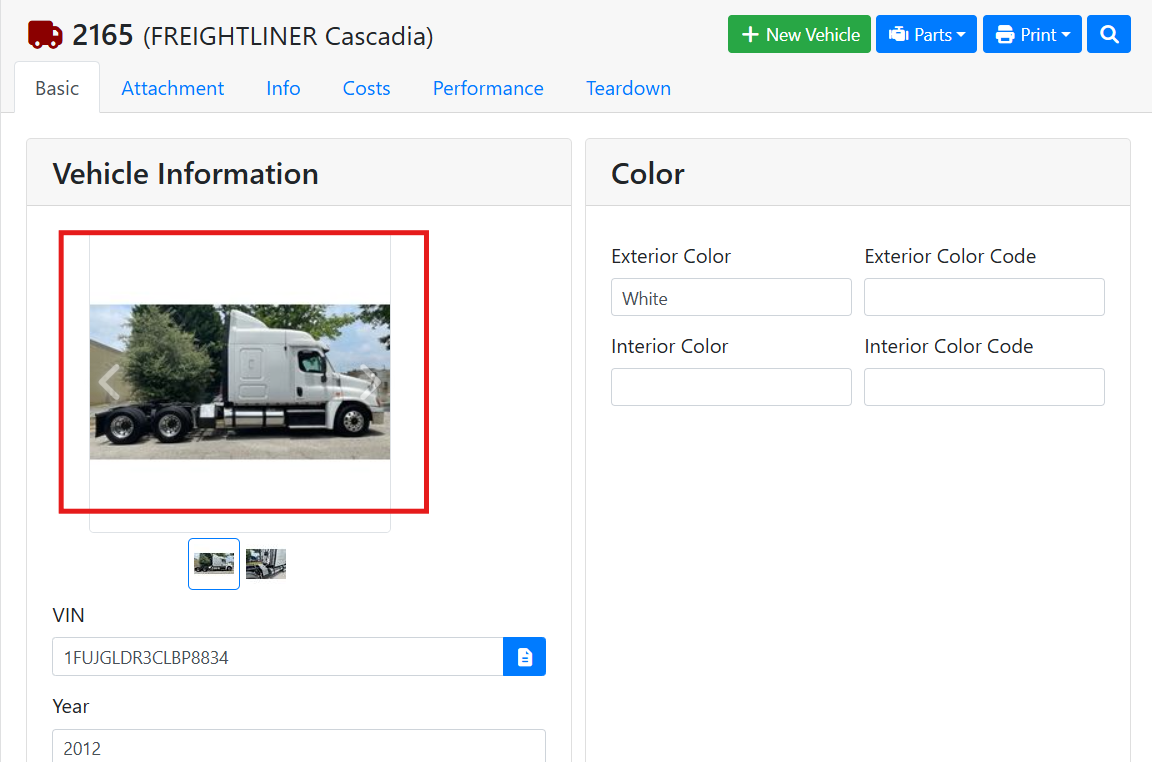
Click on an attachment thumbnail to see a larger version of it.
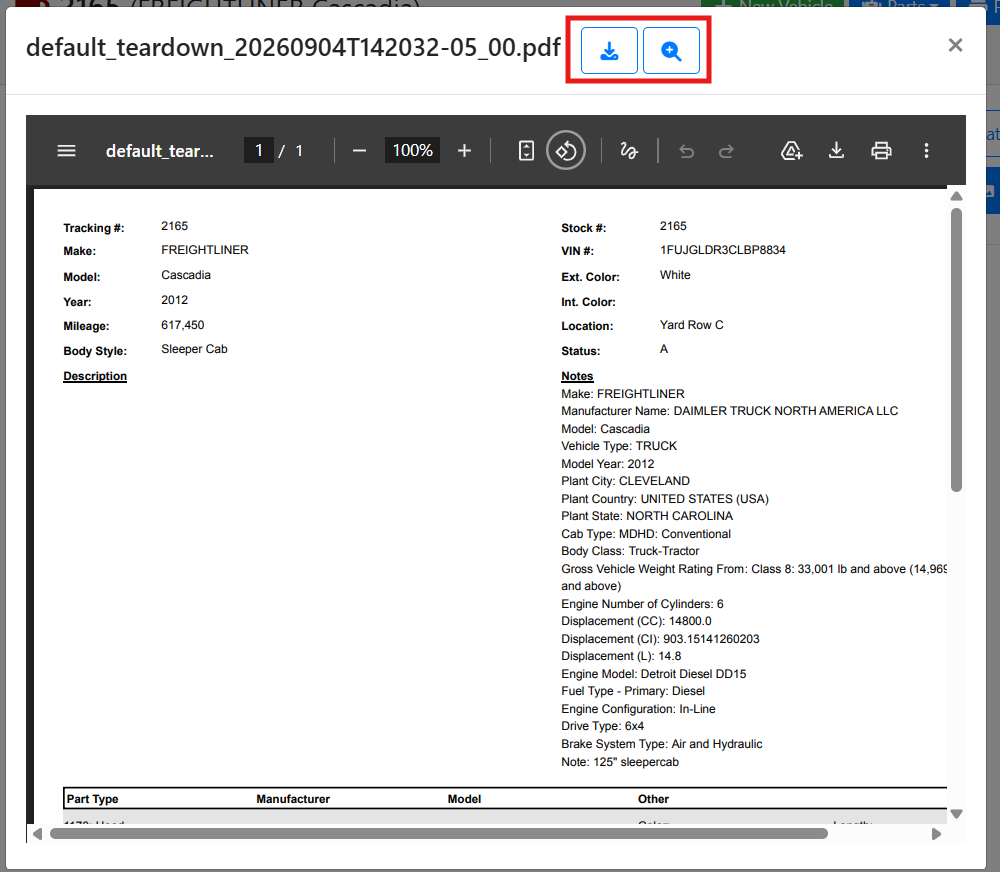
If your attachment is a PDF, click the zoom 

➕ Adding Attachments
To add files from a desktop computer or laptop, click the Browse button to open your file system to find an image or file. You can also drag files into the attachments area.
You can always drag files into the attachments area, even if you already have some attachments. You can also select several images from your computer and drag them all in at the same time.
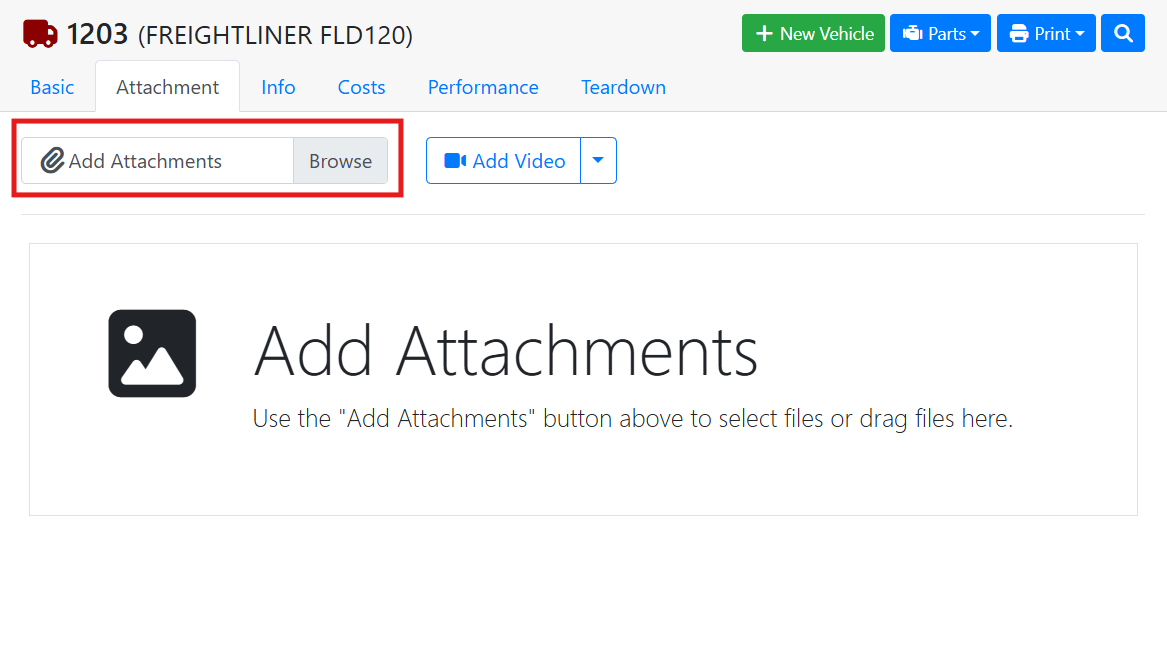
On a mobile device, tapping the Browse button will ask if you want to use your camera to take a photo or video, or if you want to browse your device for files.
📷 Managing a Single Attachment
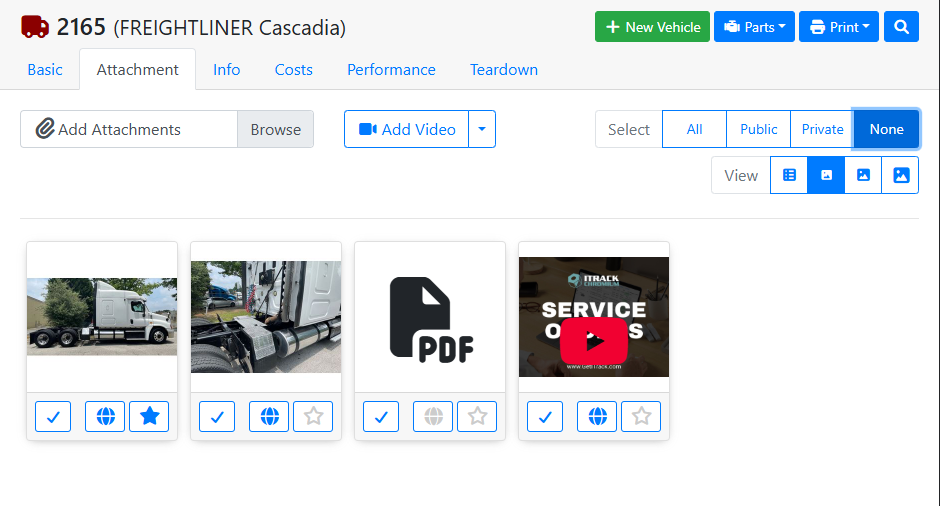
On the Attachment tab you can see all attachments for the vehicle. To manage a single attachment, use the buttons at the bottom of the card in thumbnail view mode, or on the row in the table view mode.
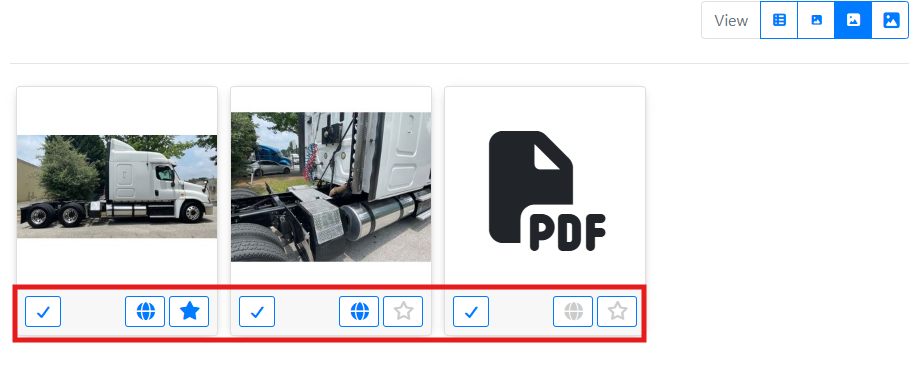
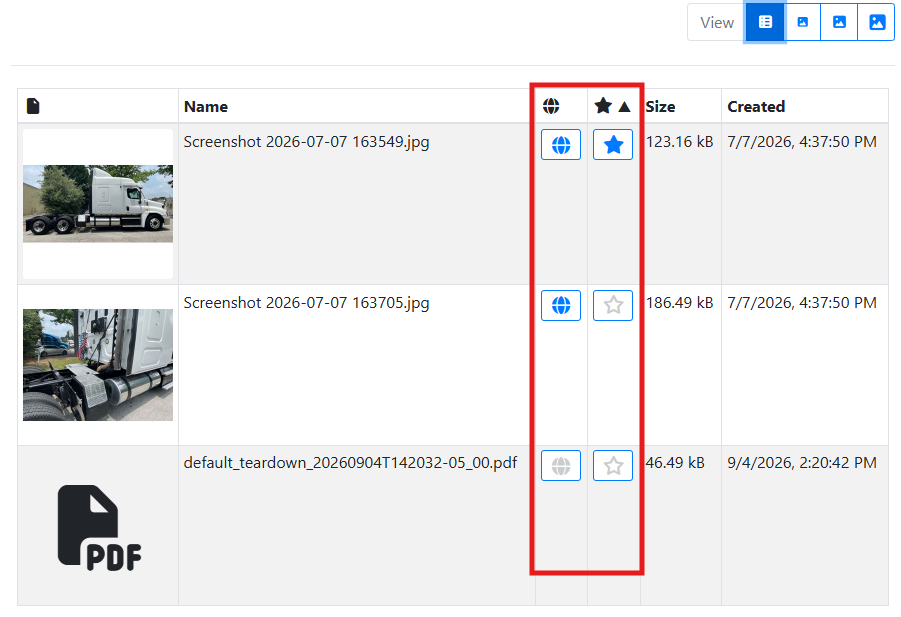
Click the globe 

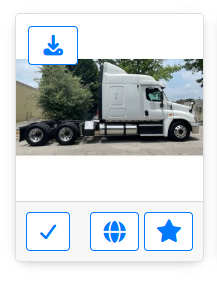
The star 
Hover over an image and click the Download
📷 Managing a Group of Attachments
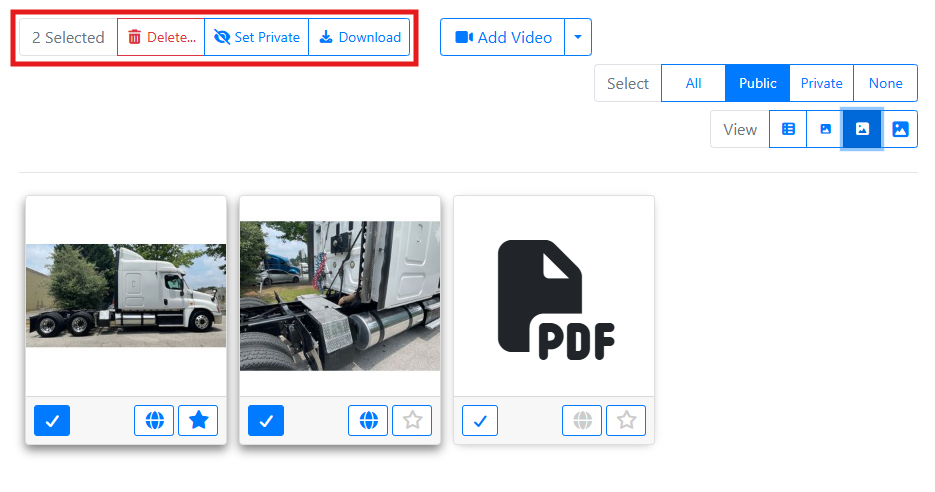
Use the checkbox buttons or the Select option near the top right to select more than one attachment.
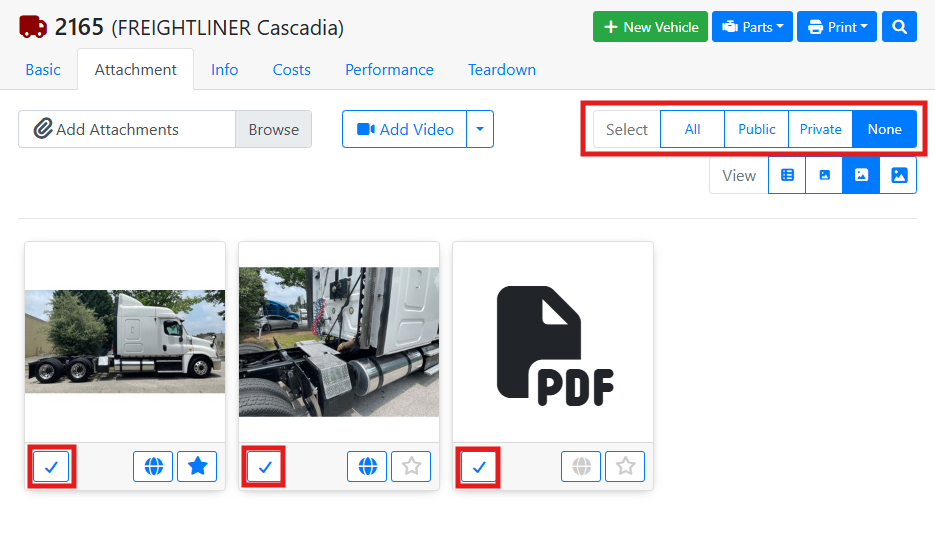
If you’re viewing attachments in the table, click on rows in the table to select or deselect them.
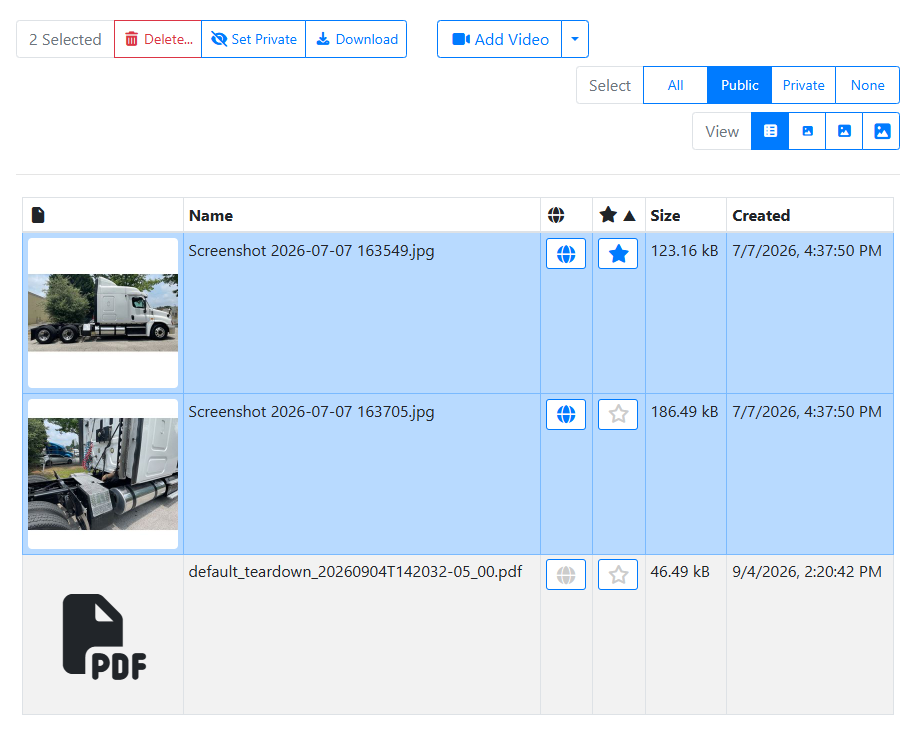
With at least one attachment selected, you will see some options in the upper left. You can delete, download, or change the online status of all selected items.
📹 Attaching Videos
If you have videos for your vehicles, ITrack supports attaching videos you have uploaded to YouTube. You cannot upload videos directly to ITrack.
You can either attach videos by getting the direct link to the video, or by adding a link to your YouTube channel and browsing for the correct video.
Once a video is added, it will appear in the list of attachments and can be managed the same as any other attachment.
🔗 Link Your Channel to ITrack
Click the Add Video button to link your YouTube Channel to ITrack.

When prompted, enter your Channel ID and click Save.
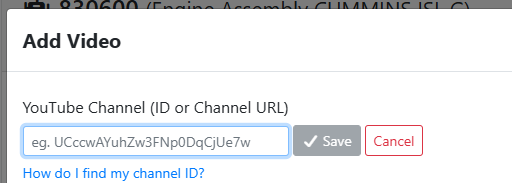
Read more about finding your Channel ID.
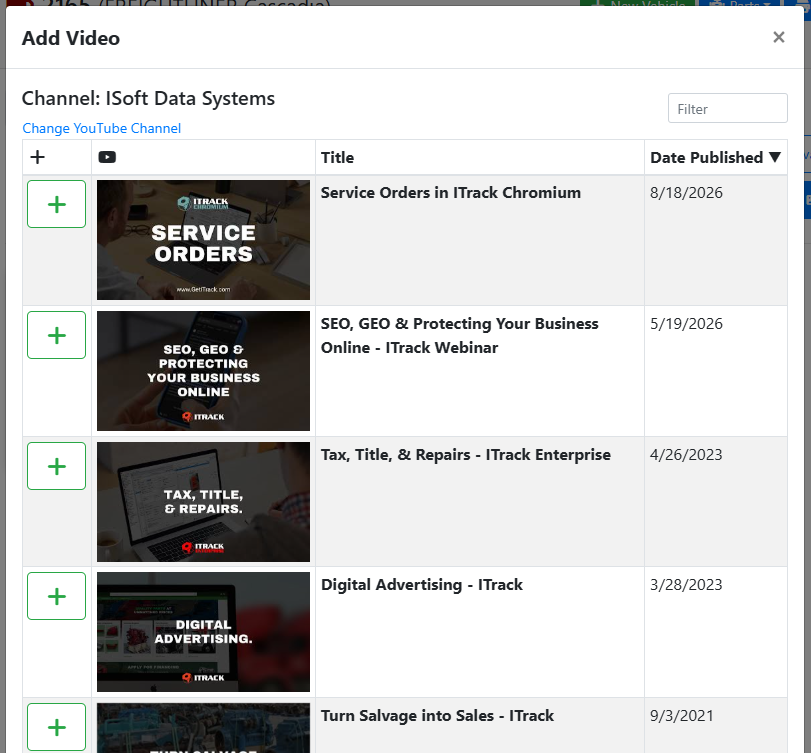
Once your channel is attached, any time you click the Add Video button you can pick one of your videos from a list.
Use the Filter to search for a video. Sort by date to find the most recent videos. Click the green + button to add the video.
🔗 Adding a Video by URL
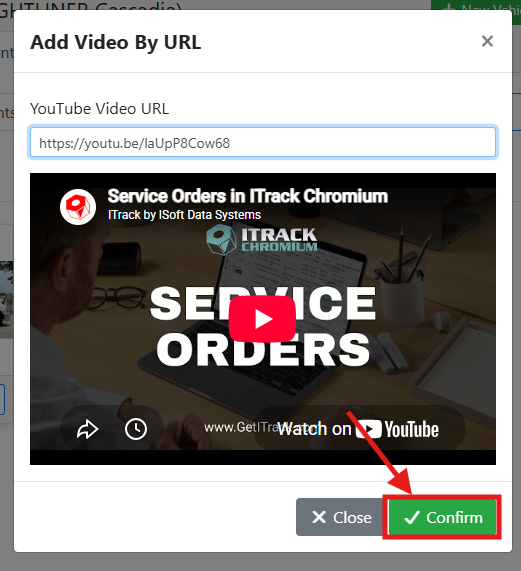
If you’d like to add a video without linking your channel, click the arrow next to the Add Video button and choose Add Video by URL.

An Add Video By URL window will open where you can paste your video link.
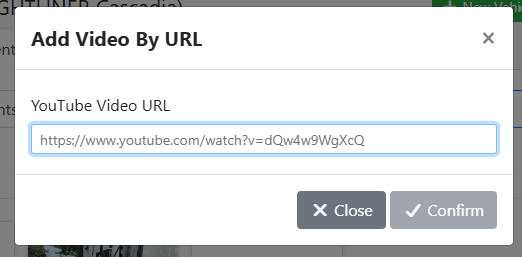
Click the Confirm button when finished and your video will be attached.