
-
Images - Shows a count of the number of images on the vehicle.
If Show Images is checked, the vehicle’s top ranked image will be shown.
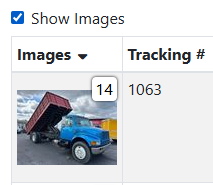
If Show Images is unchecked, you will only see a button with the image count.
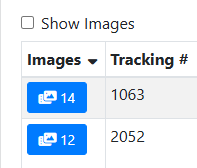
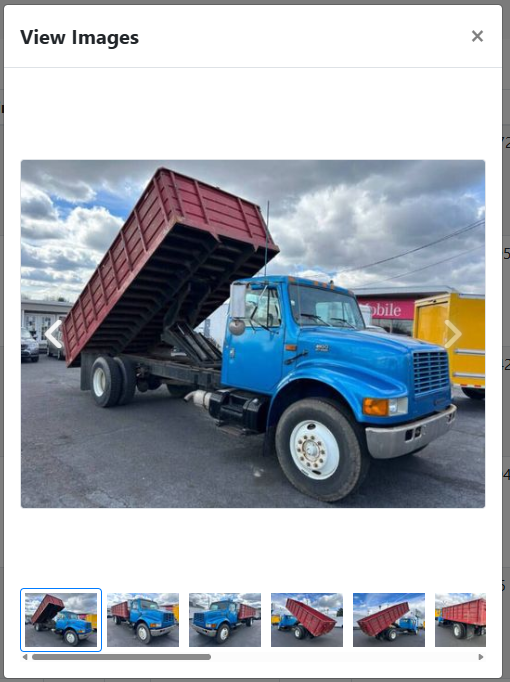
Clicking in this column will open a window where you can preview the images without leaving the search screen.
-
Tracking # - The ID used to identify the vehicle. Either this is an ID assigned by your company, or one that is automatically assigned by the software.
-
Status - The status code for the vehicle, such as Available, Sold, Crushed, etc.
Read more about vehicle statuses.
-
Year - The vehicle’s year.
-
Make - The vehicle’s make.
-
Model - The vehicle’s model.
-
VIN - The vehicle’s VIN.
-
Location - The vehicle’s location in your yard.
-
Purchased From - Whom you purchased the vehicle from.
-
Title Status - The status of the vehicle’s title.
-
Type - The vehicle type assigned to the vehicle model.
Read more about vehicle types.