The Ecommerce tab on a part record is where you manage that part's eBay listing. You can view the current listing status, review the data that will be sent to eBay, and override any of the listing template values for this specific part.
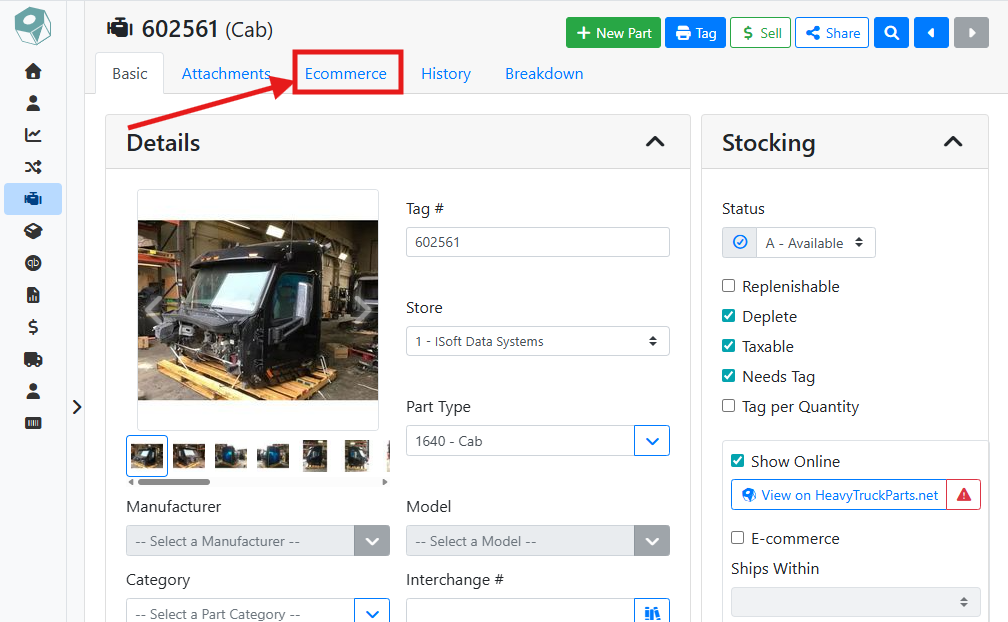
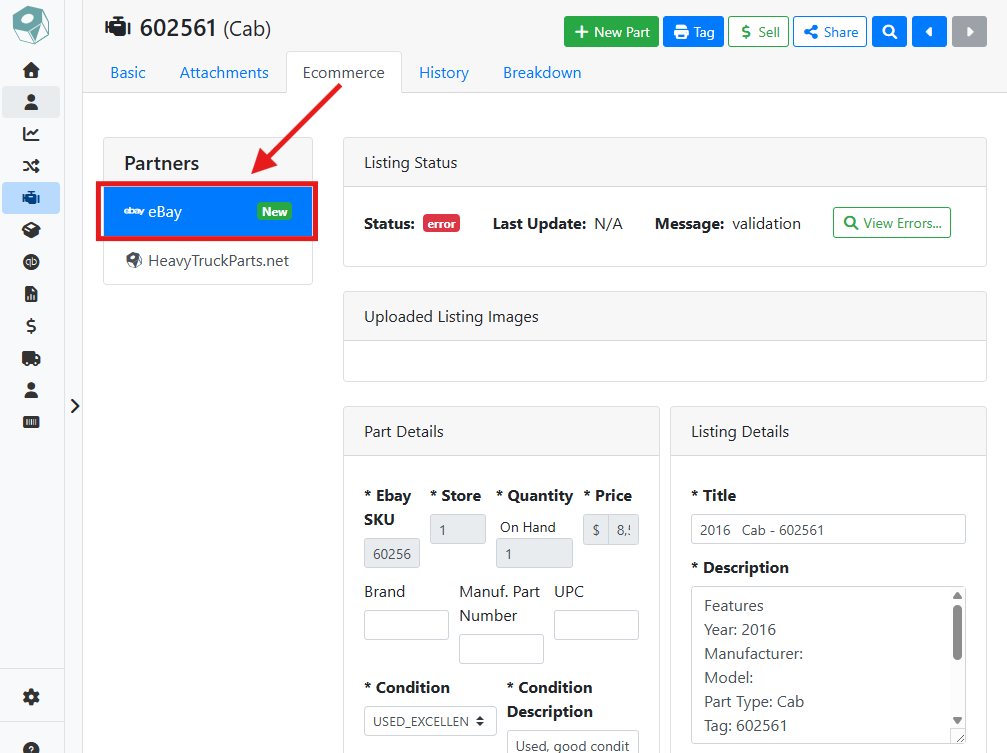
To manage your part’s eBay listing, click the Ecommerce tab, then select eBay in the Partners list.
📡 Listing Status
The Listing Status panel shows the current state of this part's eBay listing.
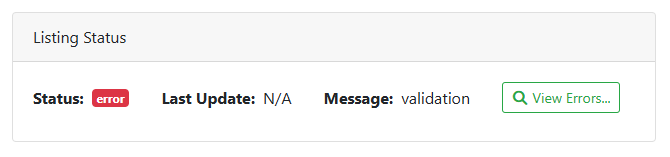
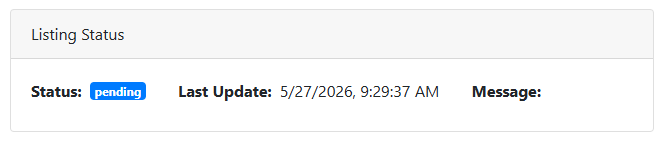
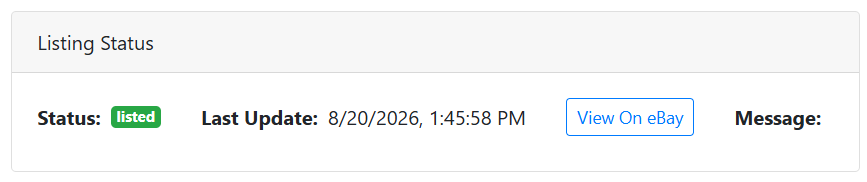
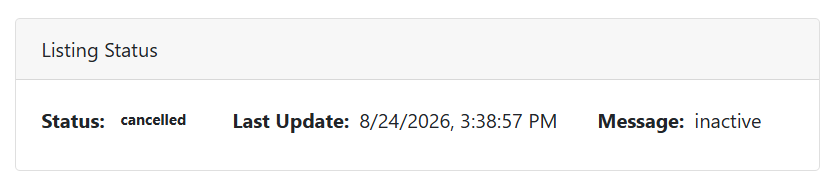
Status - Shows whether the listing is active, has errors, is cancelled, or is pending.
A status of Cancelled means the part has some criteria that will not list on eBay, such as being stocked at a store that is not active on eBay.
Last Update - The timestamp of the last sync attempt with eBay.
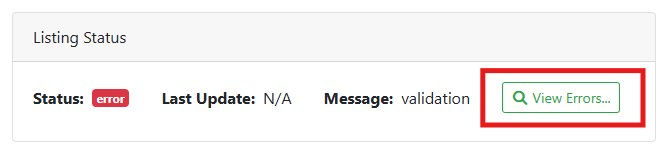
Message - If your listing has an error, this displays a short message about the type of error.
View On eBay - When your listing is active, clicking the View On eBay button will open your listing in a new browser window or tab.
What Changes When A Part Is Listed?
Once a part is listed on eBay, you will see the listed images, and a button to view the listing on eBay. Once a part is listed and published, you can only change it through the part-> Ecommerce tab.
Edits made to the listing on eBay won’t be changed in ITrack. If you manually edit the eBay listing on eBay, you can manually edit the part in ITrack to make them match if you need to.
Clicking View On eBay takes me to the listing, so I can see how it appears to a customer.
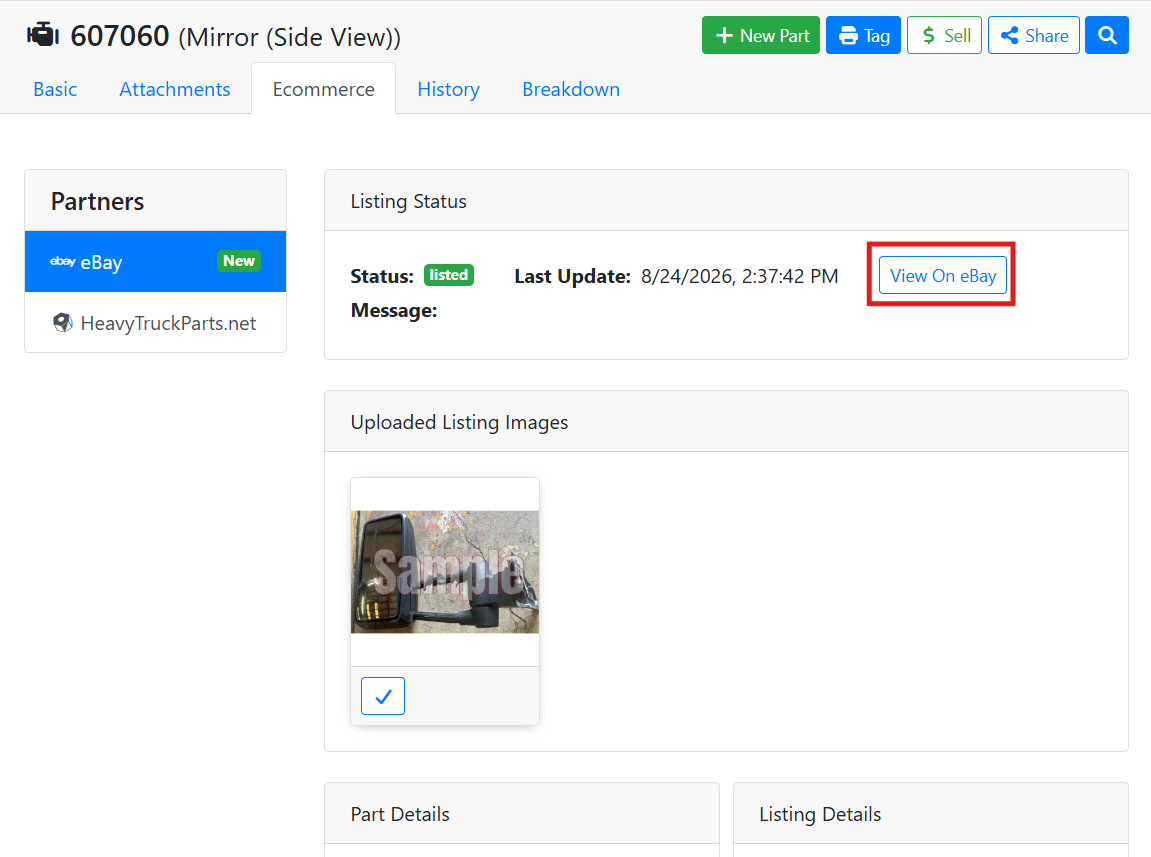
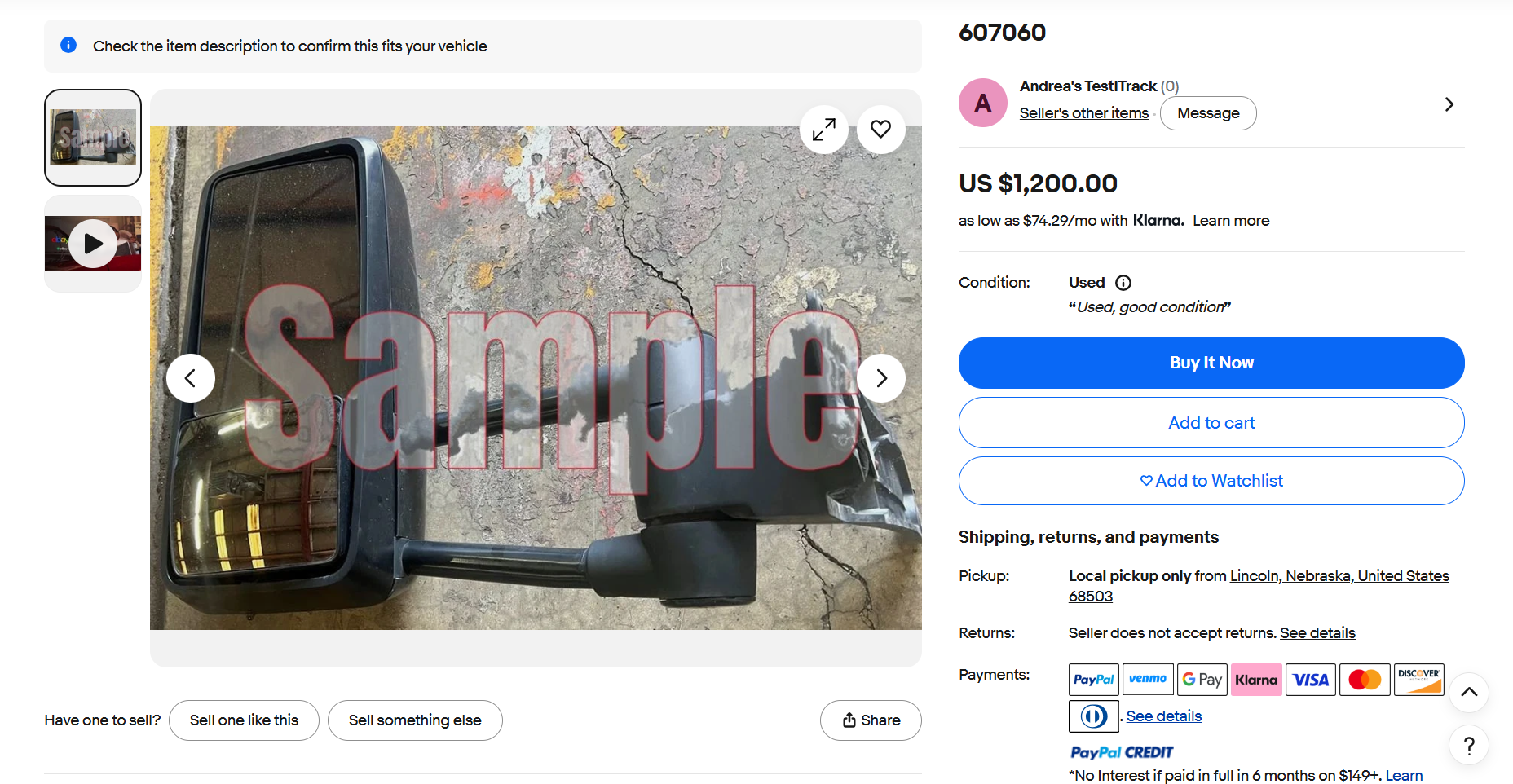
Your customer’s shopping experience may be different than your own. Shipping information, for example, varies based on their location in relation to yours.
 Resolving Errors
If the status shows an error, click View Errors... to see details about what went wrong.
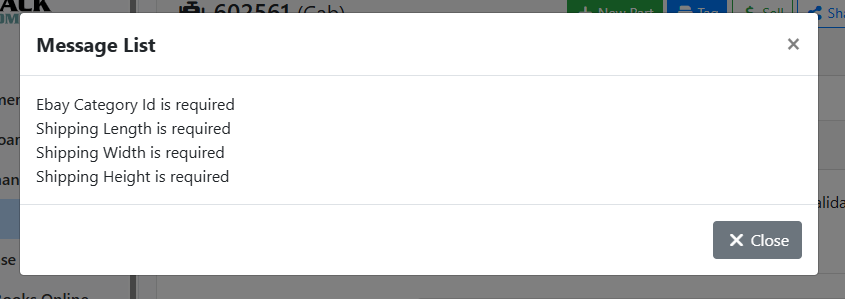
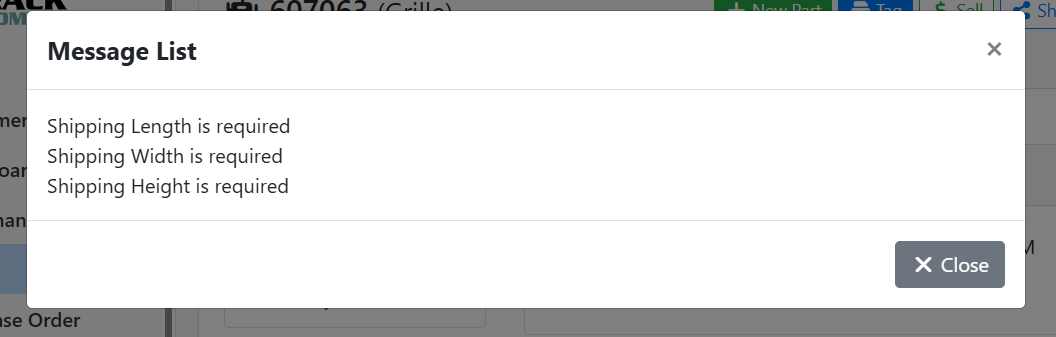
Usually errors are caused by missing required fields, or shipping details that don’t conform to your shipping policy on the part.
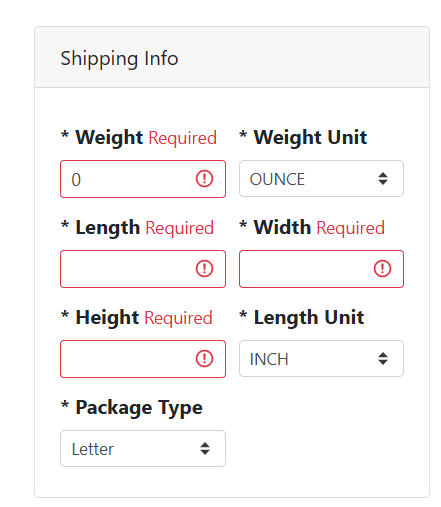
Required fields that are missing information will be highlighted in red.
In this example, I receive some validation errors on the listing. When reviewing the errors, the errors state the Shipping Length, Width and Height are required.
Scrolling down on the listing details, I can see these fields are empty. I can edit the shipping details here or on the part’s Basic tab.
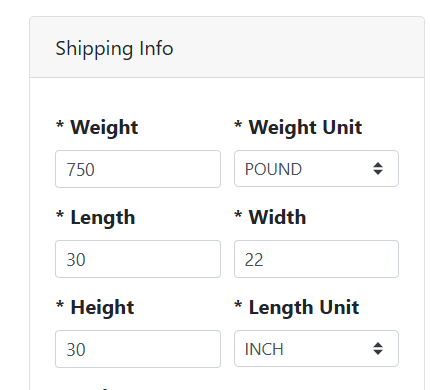
In another example, I made a part listing that looked good on the ITrack side, but got an error back from eBay. The error message tells me the item is too big for the package dimensions.
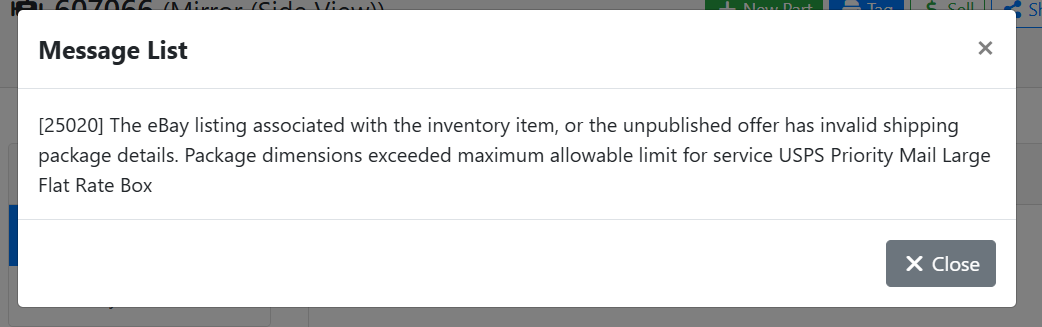
In this case, the shipping information isn’t valid for the fulfillment policy I currently have attached to the listing. I can either update the shipping dimensions if they are incorrect, or I need to choose a different fulfillment policy that can handle the size of the item.
Read more about resolving specific errors with eBay listings.
🖼️ Uploaded Listing Images
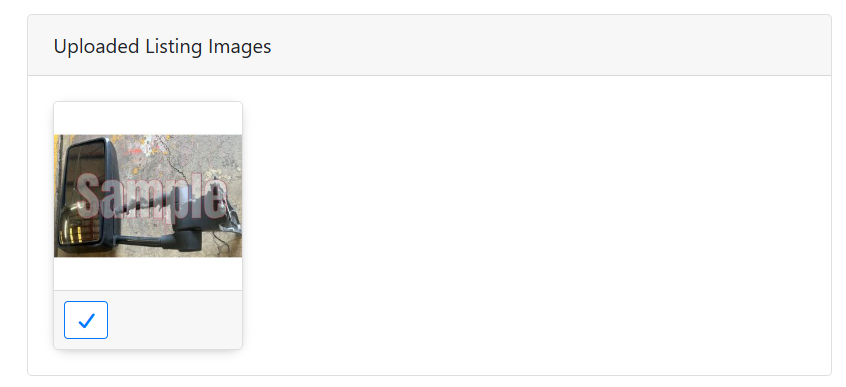
The Uploaded Listing Images panel shows the images that have been sent to eBay for this listing. Images are pulled from the part's Attachments tab. Only attachments that are marked public will be sent to eBay.
📋 Part Details
The Part Details panel contains the basic information about the part from data already entered in ITrack. Fields with a gray background are read-only; they reflect data from the part's Basic tab and can only be changed there. You can override some of the part information here, but if you do, it will only change the data on the eBay listing, not on the part in ITrack. If you want to change the part’s information in ITrack, go back to the part’s Basic tab and edit it there.
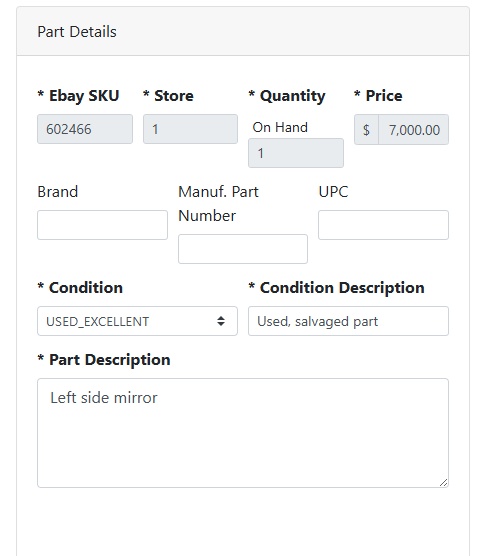
📋 Read-Only Fields
Edit these fields on the part’s Basic tab.
eBay SKU - The part's Tag #.
Store - The ID number of the store this part is listed under.
Quantity - Shows the part's current on-hand quantity.
📋 Overridable Fields
Edit these fields on the part’s Basic tab, or you can override them here if you only want the change reflected on eBay.
Price - Required. The listing price pulled from the part record based on your listing template. If it's outlined in red, the part's current price is $0.00, which would prevent a successful listing.
Brand - Defaults to the part's manufacturer, unless you override it using template tags in eBay Listing Configuration.
Manuf. Part Number - Defaults to the part's model, unless you override it using template tags in eBay Listing Configuration.
If your part has either a Brand or a Manuf. Part Number, both fields need to be set.
UPC - Optional UPC code for the listing.
Condition - Required. Select the eBay condition for this part. This will default to the eBay condition mapped to the condition on the part, unless you override it in eBay Listing Configuration.
Condition Description - Required. A short description of the part's condition to display on the listing. This will default to the eBay condition description mapped to the condition on the part, unless you override it in eBay Listing Configuration.
Part Description - The description of the part for the listing from the part’s Basic tab.
📦 Shipping Info
The Shipping Info panel contains the package dimensions for this listing. These default to the values entered on the part's Basic tab under the Shipping section. You can override them here if needed. eBay requires shipping info on all listings, so all fields here are required.
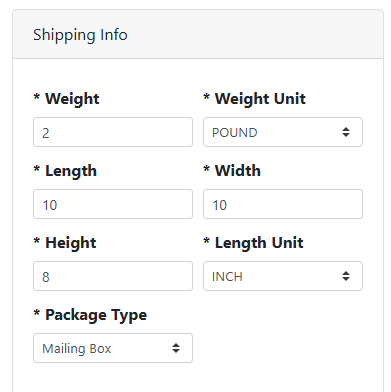
Weight and Weight Unit - The weight of the package.
Length, Width, and Height - The dimensions of the package.
Length Unit - The unit of measure for the dimensions.
Package Type - The type of package being shipped.
🏷️ Listing Details
The Listing Details panel controls how the listing appears on eBay. Values here default from your listing templates, but you can override them on this listing.
To save yourself time making eBay listings, it is recommended that you configure default listing templates. Read more about Configuring eBay Listing Templates.
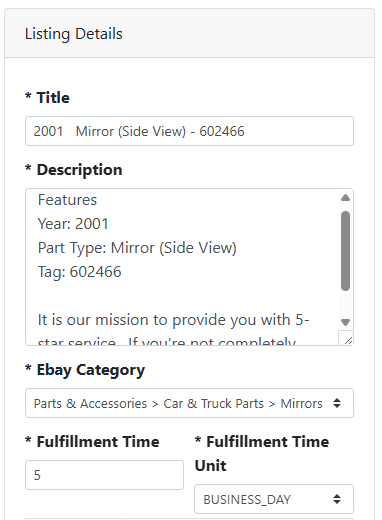
Title - The title of the eBay listing.
Description - The body of the eBay listing.
eBay Category - The eBay category for this listing.
Fulfillment Time and Fulfillment Time Unit - The handling time for this listing.
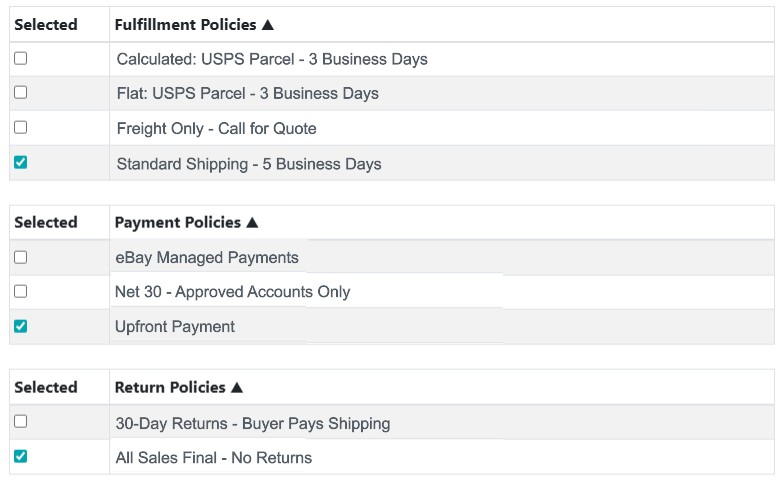
Fulfillment Policies - The fulfillment/shipping policy for this listing.
Payment Policies - The payment policy for this listing.
Return Policies - The return policy for this listing.
Once a part is listed and published, you can only change it through the part-> Ecommerce tab, and making any changes to listing templates won’t have any effect.
✏️ Manually Overriding Part Data and Default Values
Most data that’s used to make the eBay listing should automatically be filled by either a listing template, or by the data you enter on the part record in ITrack. You can override that data for the eBay listing, but keep in mind any overrides made on the part’s Ecommerce tab will ONLY update the eBay listing. This is handy if you want to list something differently on eBay, such as a different price or a modified description.
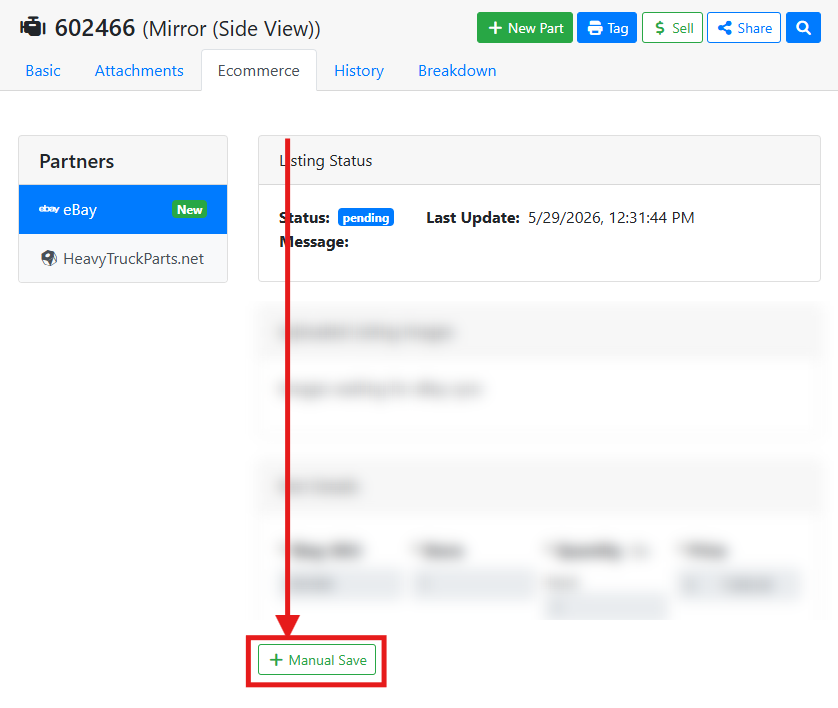
If you make an override to the eBay listing details, you need to perform a manual save to commit those changes. Otherwise, the data will revert back to the default data. When you're making any manual overrides, click + Manual Save near the bottom of the listing details to save your changes.