eBay configuration in ITrack lets you set template values at many different levels to help you automate your listings. Ideally, you can set most things automatically so you don’t have to do much editing on a specific part.
Once a part is listed and published, you can only change it through the part-> Ecommerce tab. It is recommended that you configure your templates before you start publishing listings.
The templates exist at different layers and will be used under different conditions.
-
Global Defaults will be used if no other template applies.
-
Store Defaults will be used for inventory stocked at a particular store, if no other template applies.
-
Part Type listing defaults will be used for inventory matching that part type, if there is no part type + category template that overrides it.
-
Part Type and Category listing defaults will be used for inventory matching that part type with that category.
-
On a specific inventory item, anything manually set on the item’s Ecommerce tab will override any template setting.
🌎 Global Defaults
The Global Defaults section sets values that will be used if no other template applies to a listing. This is your fallback template that applies very general rules for all parts. If you have anything you want to apply broadly to all listings, set it in the Global Defaults area.
For example, you likely want to set your Fulfillment Time and Pricing Configuration as a global default.
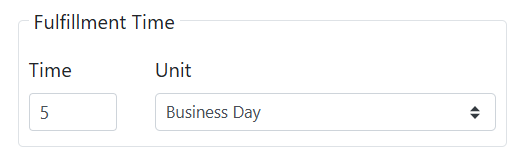
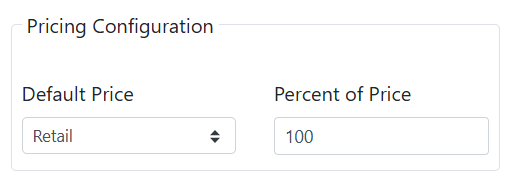
In my example, I set my pricing to 100% of Retail Price, and fulfillment time to 5 Business Days. Your organization may have different policies such as different pricing fields, or different measurement units, but these would be common values to set globally.
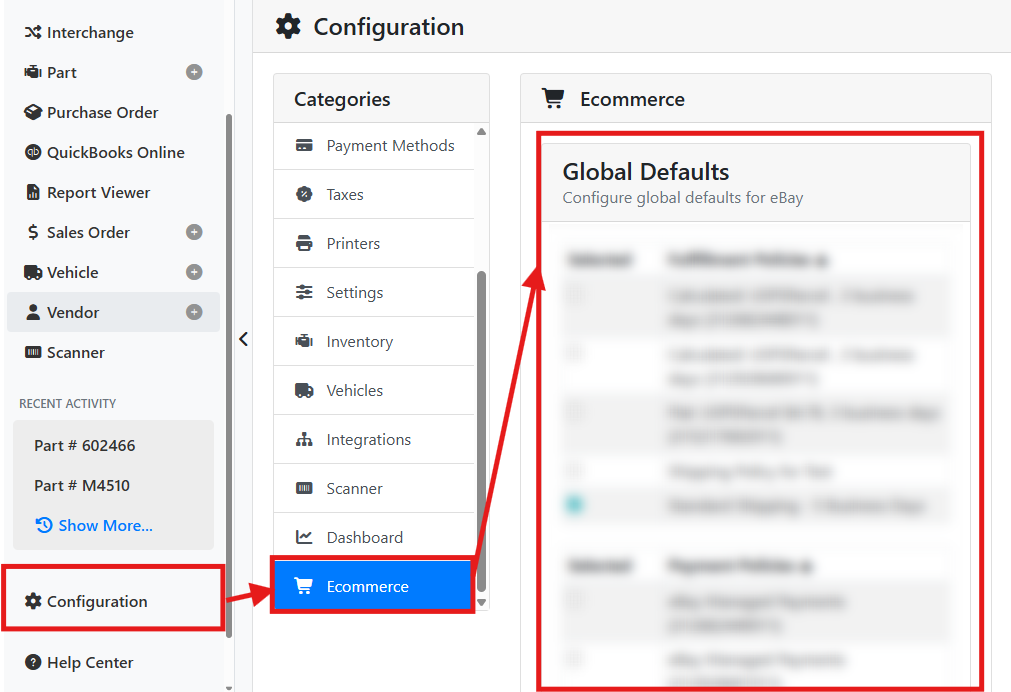
Global Defaults are configured on the main Ecommerce configuration page. Go to Configuration > Ecommerce and scroll down to set your global defaults.
🏢 Store Defaults
The Store Configuration section lets you set values that will be used for all listings at a specific store. Use this template for any rules that apply to listings at a specific store. If you don’t have any rules specific to a store, or if you only use one store, use Global Defaults instead.
For example, you may want to set your Fulfillment Policies, Payment Policies, Return Policies and Fulfillment Time as store defaults.
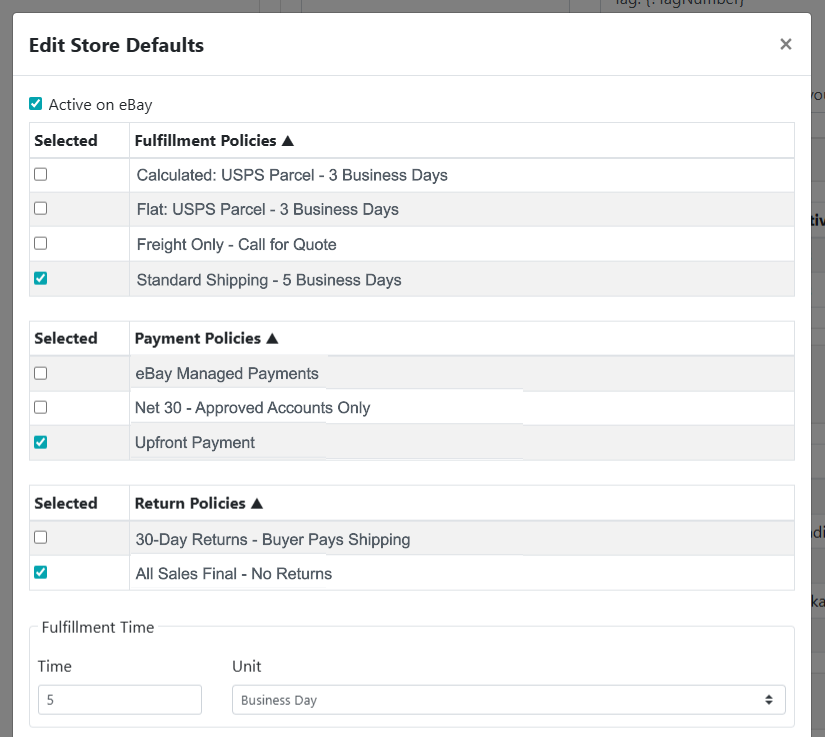
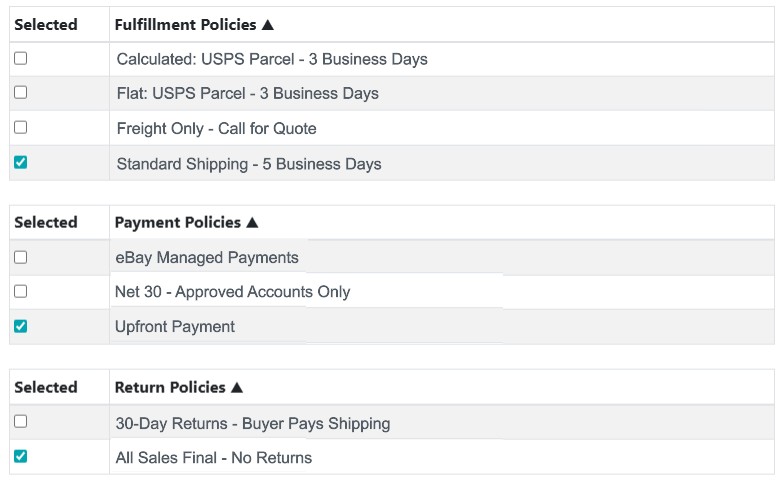
In my example, I set the default fulfillment policy to Standard Shipping - 5 Business Days and I set a default fulfillment time of 5 Business Days since that’s the policy for this store. I set the default payment policy to Upfront Payment and the return policy to All Sales Final - No Returns.
Your organization may have different policies such as a shorter fulfillment time, or return and payment policies, but these would be common values to set per store. If you only have one store, or use the same policies at all stores, you should set these values as global defaults instead.
Fulfillment, Payment, and Return Policies are configured in your eBay store. Read more about initial set up requirements.
eBay Integration
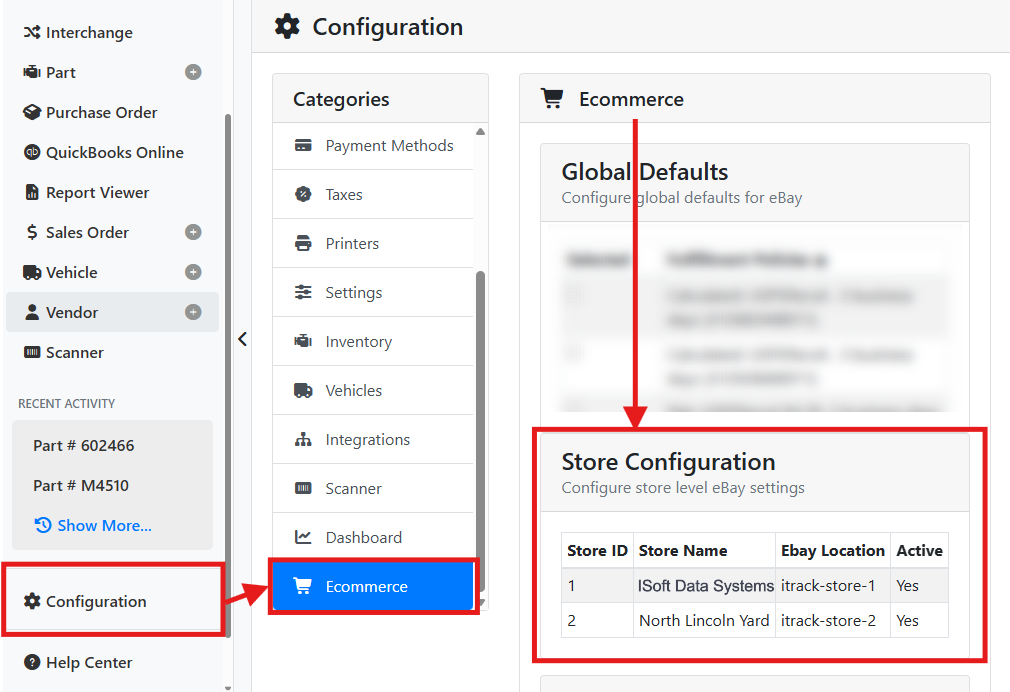
Store defaults are configured on the Ecommerce configuration screen by scrolling down to Store Configuration and selecting a store.
🔧 Part Type and Part Type + Category Defaults
The Part Type Listing Configuration section lets you set values that will be used for a specific part type or part type and category combination. This is useful for part types that need special handling like large items, or parts types where you want to make custom description templates based on their category. If the part matches the same part type and category, the part type template will override the store and global default templates.
Part Types may or may not be configured to use Categories. This is controlled in Configuration > Inventory. Template descriptions and titles can be configured with HTML tags. Read more about Inventory Configuration and eBay Template Tags.
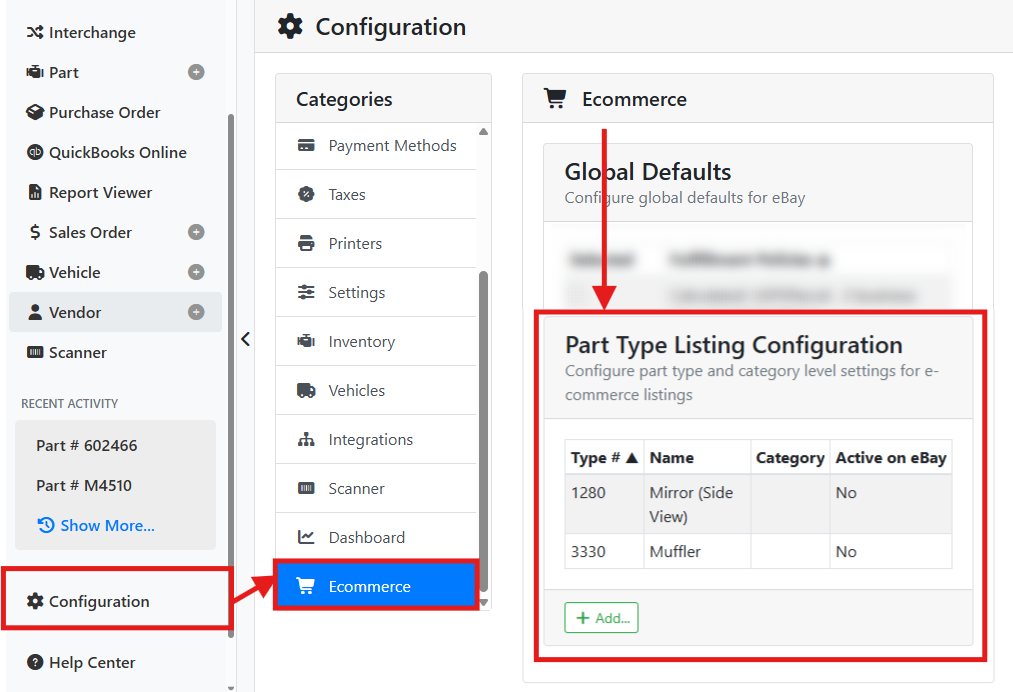
Part Type defaults are configured on the Ecommerce configuration screen by scrolling down to Part Type Listing Configuration and selecting a part type in the list or clicking the +Add… button to add a new one.
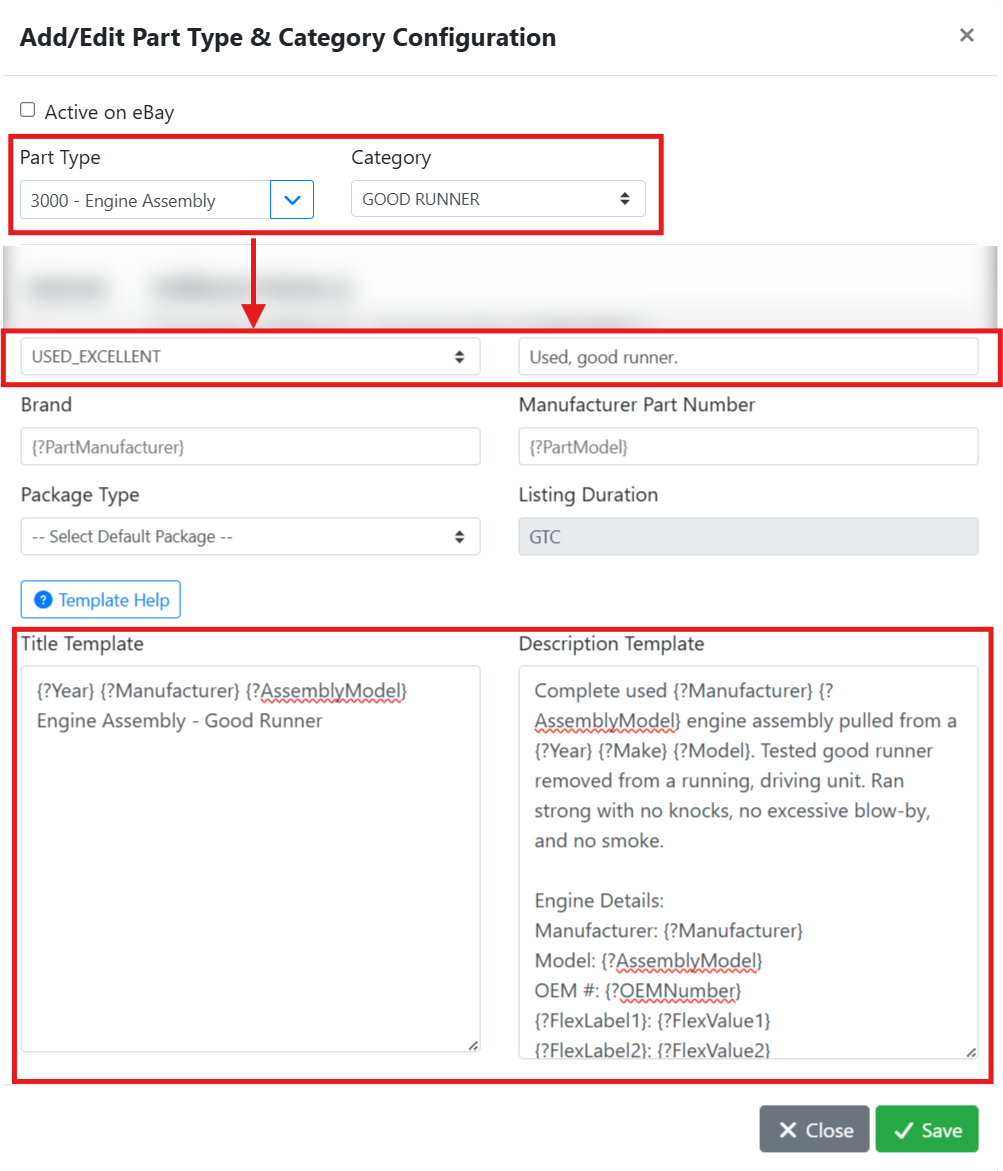
For example, engine assemblies are going to need LTL shipping, which is different than my store default. I also use different categories in my database for engine conditions, so to save time on my listings I can set each engine category to use a slightly different set of condition and description template values.
To do this, I selected the engine part type in the Part Type Listing Configuration. I have a Good Runner category assigned to engines that I want to make a specific template for, so I select that category in the window. Scrolling down, I can select the eBay condition that applies, in this case Used Excellent, and I set a condition description to Used, good runner.
I also set a Title Template and a Description Template that will automatically pull data from each part type using Template Tags, and I also included some regular text with a typical description that I use for this type of engine.
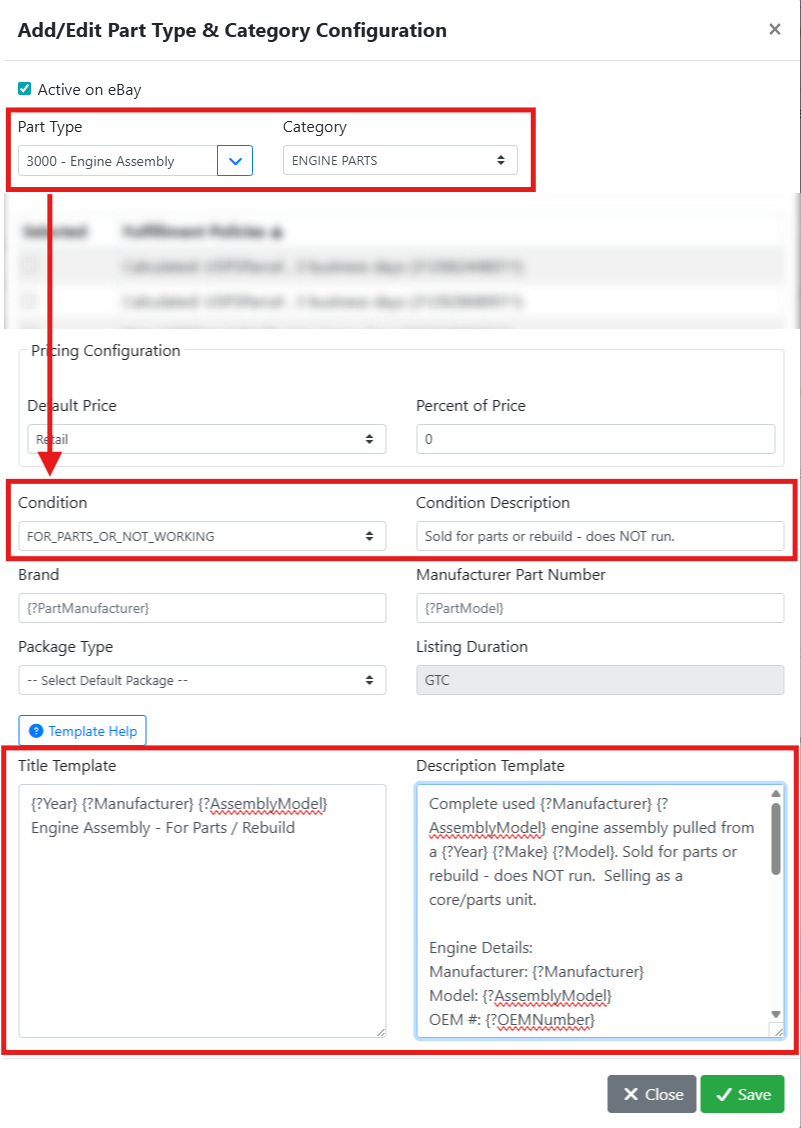
Additionally, I can make a separate template for engines that don’t run that are being sold for parts. I create a new part type category configuration, selecting the engine assembly part type again. However, this time, I select the Engine Parts category. Scrolling down, I can select the eBay Condition For Parts Or Not Working, and I set a Condition Description to Sold for parts or rebuild - does NOT run.
I also set a Title Template and a Description Template that describes the engine as not running and used Template Tags again to automatically pull data from the part.
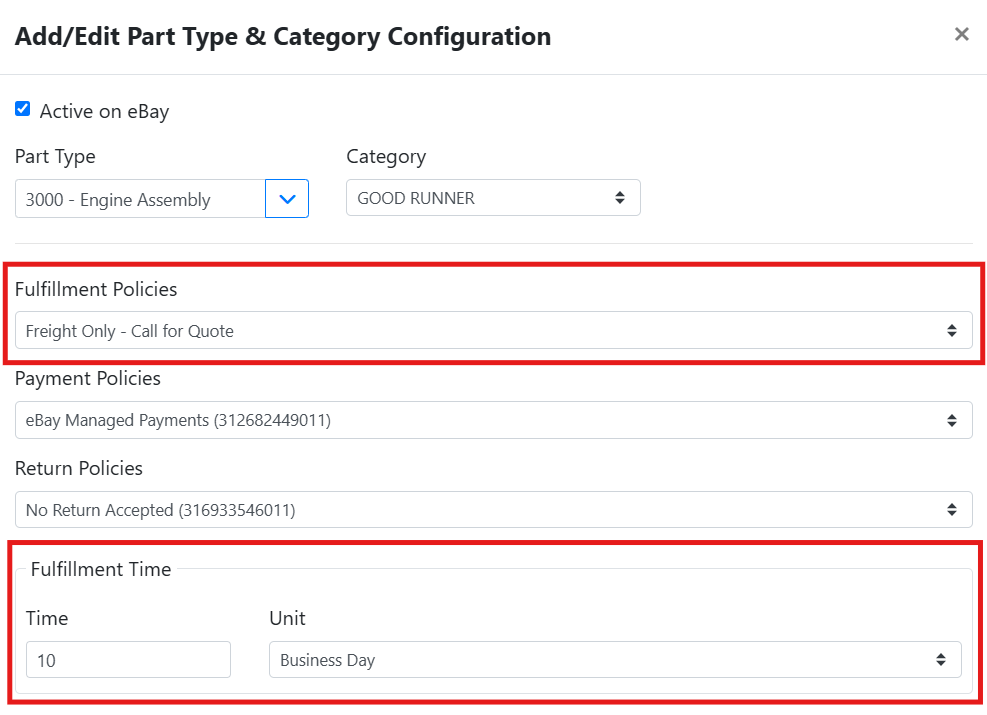
For both part type combinations, I also override the Fulfillment Policy and Fulfillment Time since engines always need extra handling and special shipping arrangements. My default fulfillment policy might be Standard Shipping, but for engines I set it to Freight Only, and my default fulfillment time is 5 business days, but I increase that to 10 business days for engines.
📄 Listing Template Options
This section covers fields that can be set on a listing template.
📋Policies
Your policies must be configured in your eBay Store. If you need to make any modifications to these policies, you can do so on your Account Settings > Seller > Business Policies, and those changes will be reflected in ITrack.
Use the checkboxes to select the default Fulfillment/Shipping, Payment, and Return policies. Like all the defaults, you can override this per part type or per listing.
For example, if most of your listings are large LTL items, you may want to set your Global Default shipping policy to a freight shipping type, and set smaller part types specifically to a standard shipping type on the Part Type Listing Configuration.
⏱️ Fulfillment Time
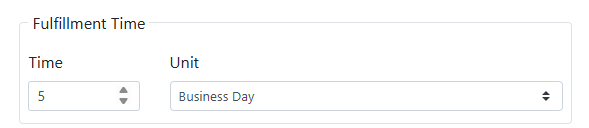
Time and Unit - Sets the default handling time for your listings. Enter a number and select a unit. Enter your typical expected fulfillment time, for example 5 business days or 3 business days.
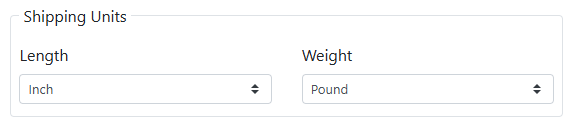
📦 Shipping Units
Length and Weight - Sets the default units of measure used when specifying package dimensions for your listings.
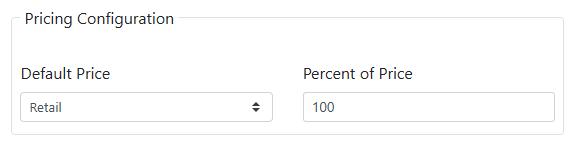
💲 Pricing Configuration
Default Price - Select which ITrack price field to use as the base price for eBay listings. The options are Wholesale, Retail, List, and Cost.
Percent of Price - Set a percentage of the selected price to use as the listing price. Defaults to 100 (full price). For example, entering 90 would list parts at 90% of the selected price.
🏷️ Listing Details
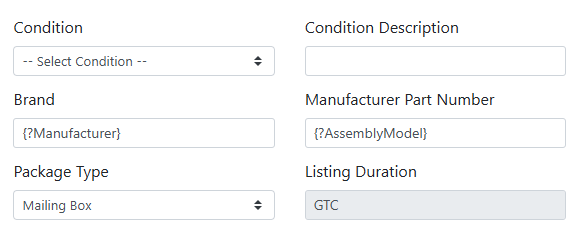
Condition - Select the default eBay condition value for your listings.
Condition Description - The condition description shown on the listing.
Brand - The recommended default is {?Manufacturer}, which pulls the part's manufacturer from the part record. You can edit this, add additional text, or use other template tags.
Manufacturer Part Number - The recommended default is {?AssemblyModel}, which pulls the part’s model from the part record. You can edit this, add additional text, or use other template tags.
Package Type - Select the default package type for your listings.
Listing Duration - ITrack sets your listing duration to GTC (Good Till Cancelled). eBay sets all listings to Good Till Cancelled by default, so this field is informational.
Read more about eBay Template Tags.
📓 Title and Description Templates
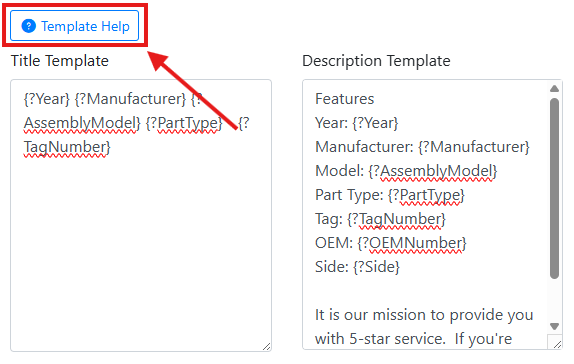
Title Template - Use the Title Template box to format your default eBay listing title. ITrack recommends using template tags to automatically generate a title using the part details such as the part type, manufacturer, model, and year. You may want to include additional details such as an OEM number or tag number, but avoid adding too much in the title.
Description Template - Use the Description Template box to format your default eBay seller description. ITrack recommends using template tokens to automatically generate a description using the part details. You may want to include general information about your business
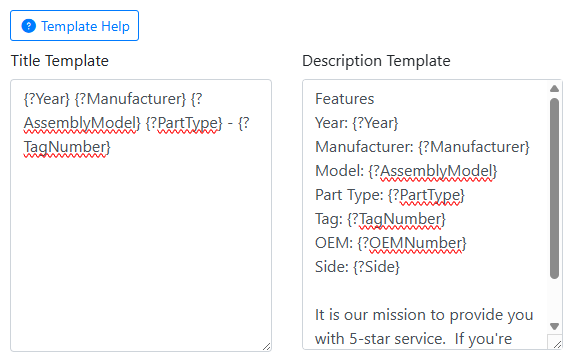
Click Template Help to see available tokens, or see eBay Template Tags for the full reference.