
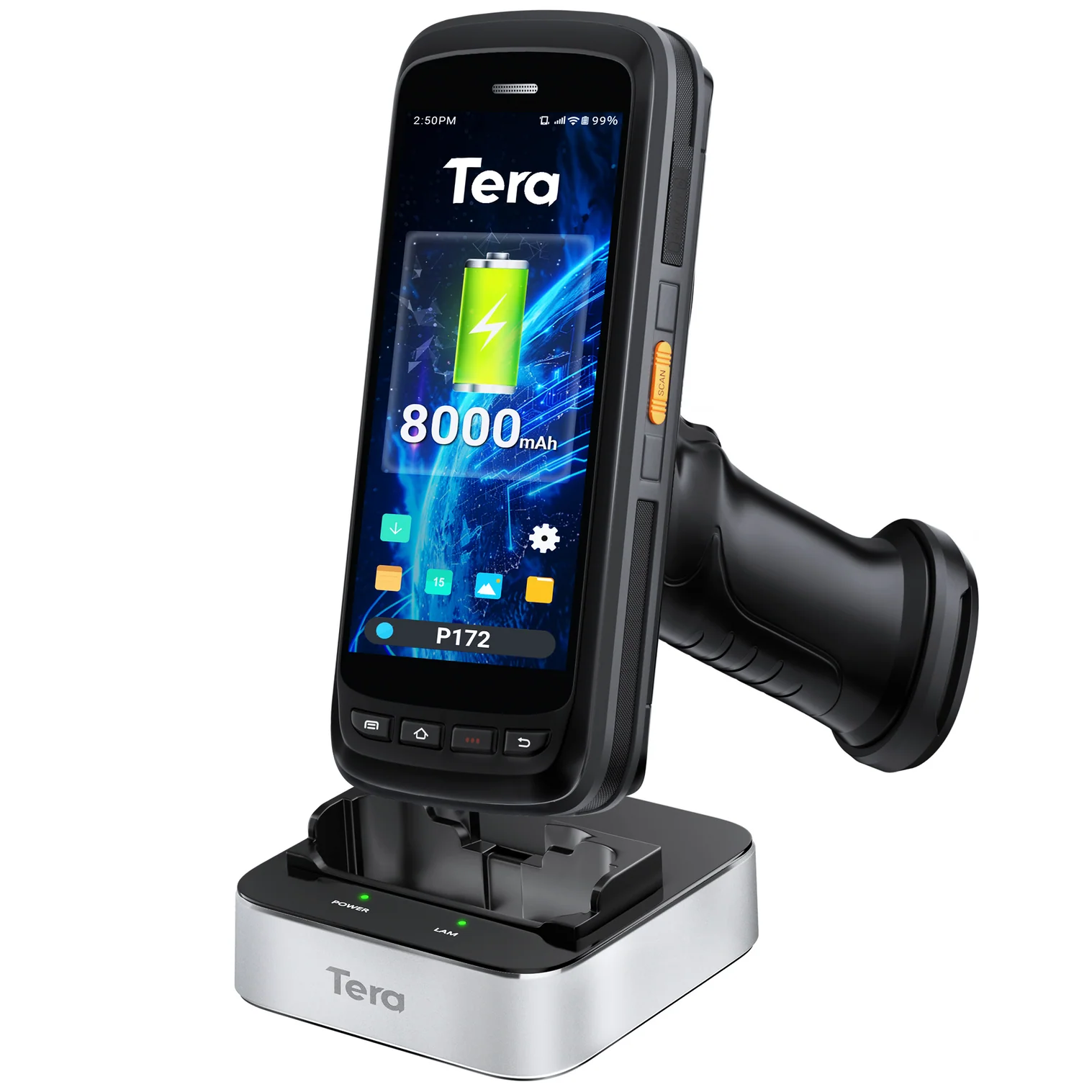
The Tera P172 Handheld scanner is the recommended device to use with ITrack Chromium. It has a trigger button on the pistol grip as well as a button on the side of the device. Both buttons can be configured to scan.
⚙️ Setting Up the Device
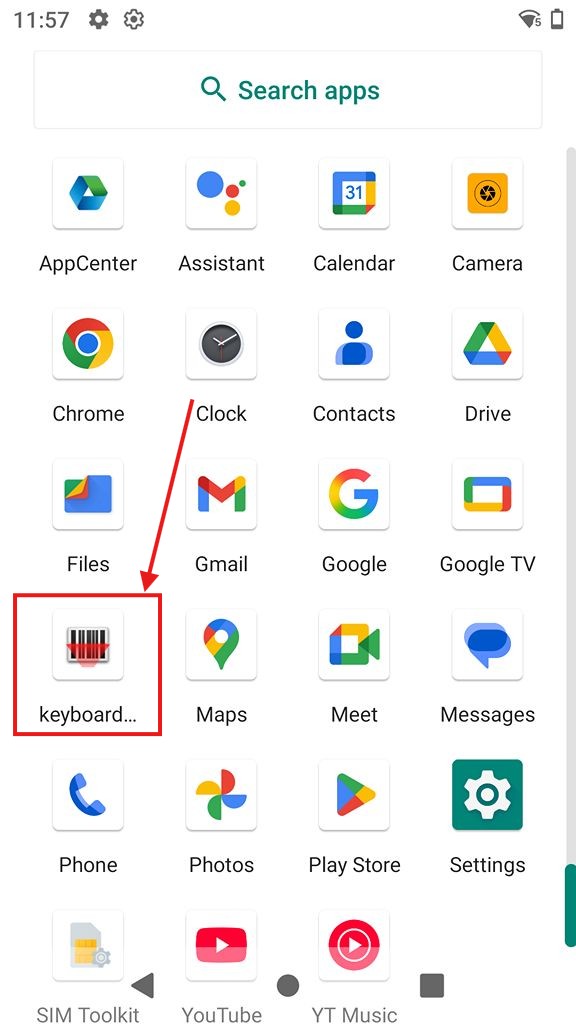
From your Tera's home screen, swipe up to to see apps, then select the keyboardemulator app.
⏹️ Function
The Function page configures whether the scanner is enabled, and manages the buttons that trigger the scanning laser.
-
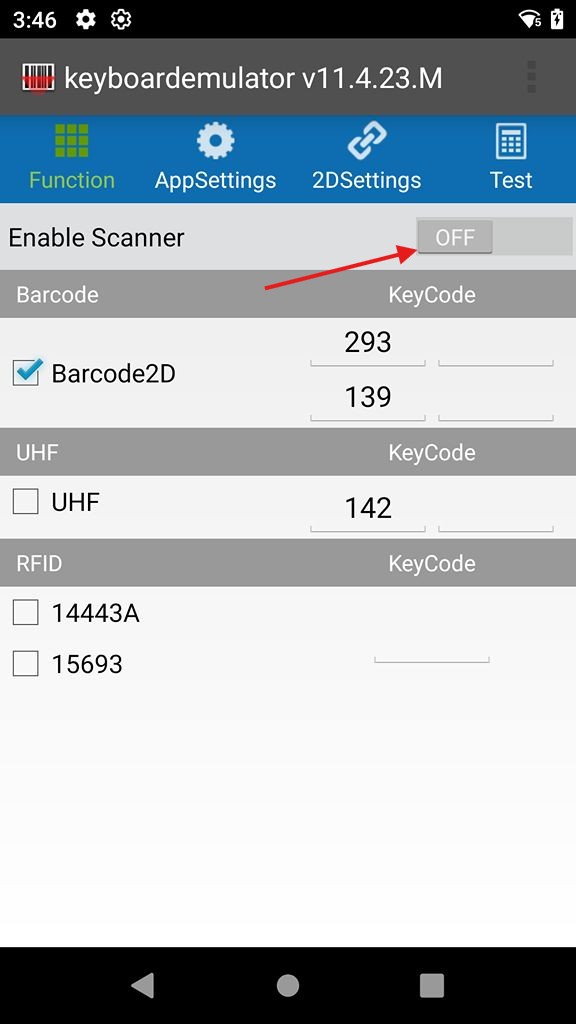
Enable Scanner should be On.
-
Barcode2D should be checked.
-
There should be a KeyCode in both fields on the left.
If it is enabled correctly, the Function page should look like this:
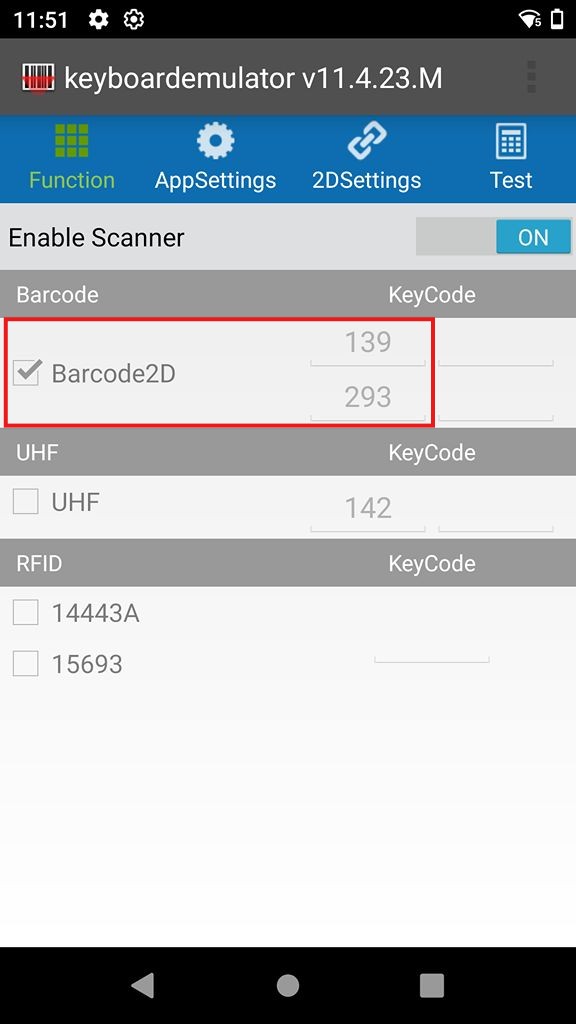
If the fields are empty, then pressing the button or trigger on the device won't trigger the laser and no scanning will happen.
If the KeyCodes are empty, follow these steps
-
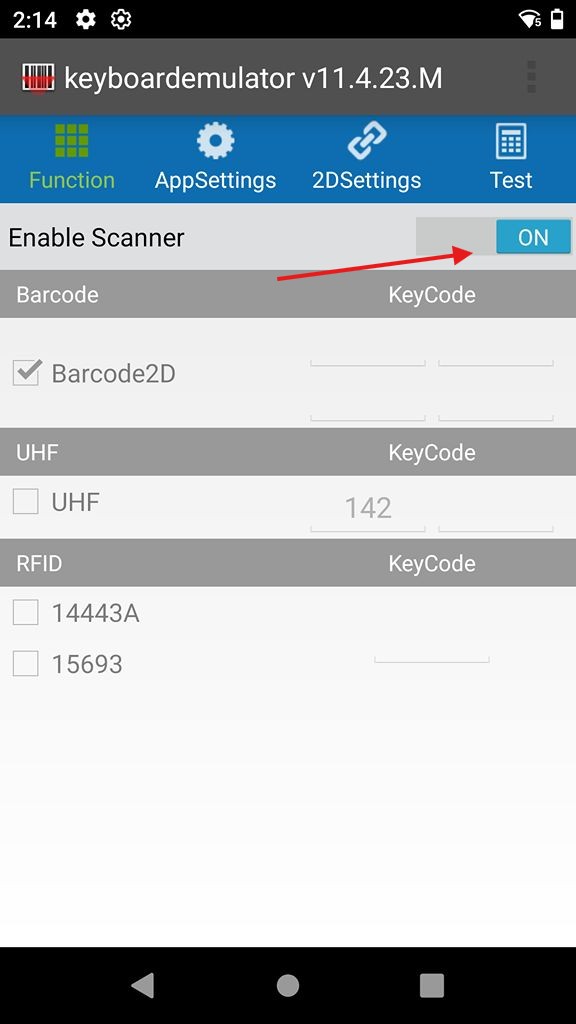
Toggle Enable Scanner to Off.
-
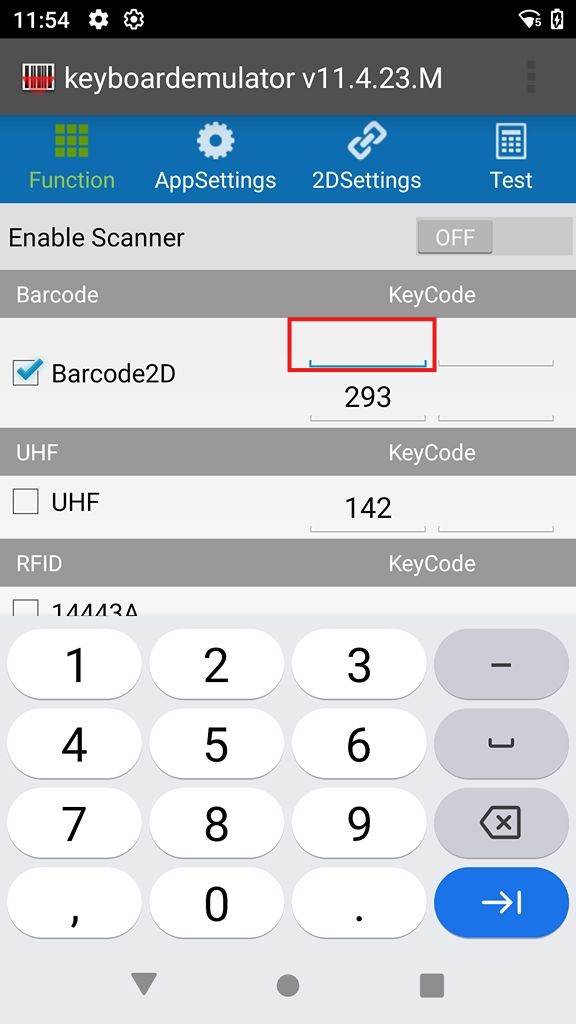
Tap in the KeyCode field to make the field active and put the cursor in the field.
-
Press the scan button on the device -OR- manually enter the button's KeyCode.
-
Repeat step 2 and 3 for each button you want to trigger the scan. For the handheld scanner, you want to program both the Scan button on the right side of the device (KeyCode 139) as well as the trigger button on the pistol grip (KeyCode 293).
-
Toggle Enable Scanner back On.
⚙️ App Settings
The App Settings page configures how the scanner communicates to apps by entering characters before and after the scanned bar code. If these are not configured, the scanner will simply insert the bar code number as text and it won't function in an automatic way.
-
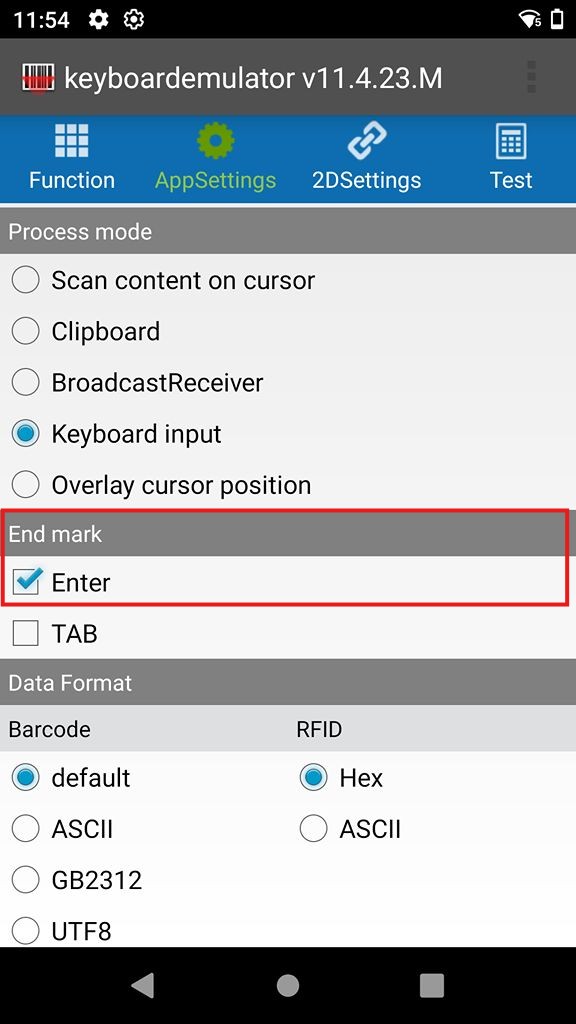
Scroll down to the End Mark section, and make sure Enter is checked.
-
In the Data Format section, insert a tilde "~" in the Prefix field, and leave Suffix blank. The tilde ~ can be found on the symbols portion of your keyboard.
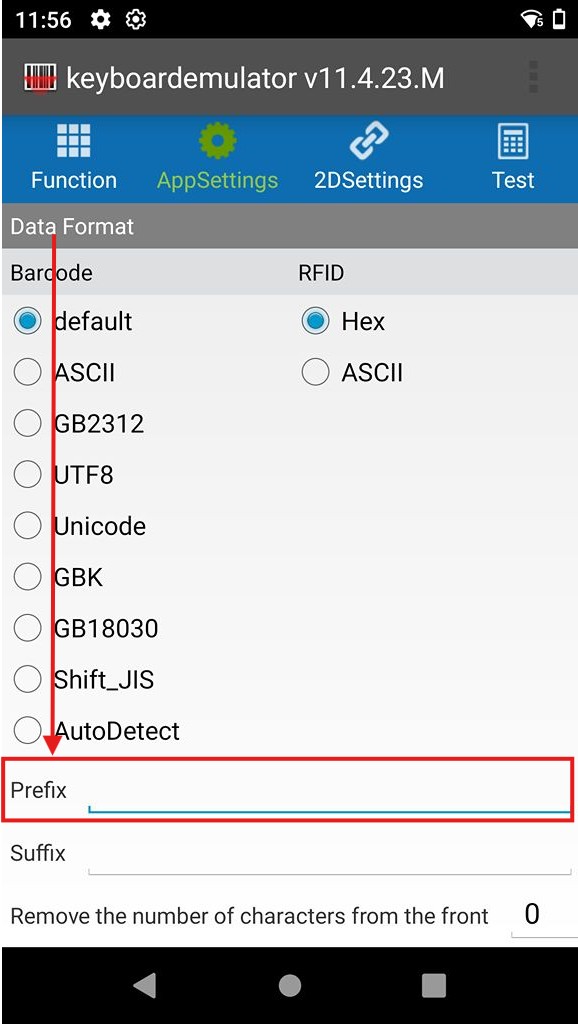
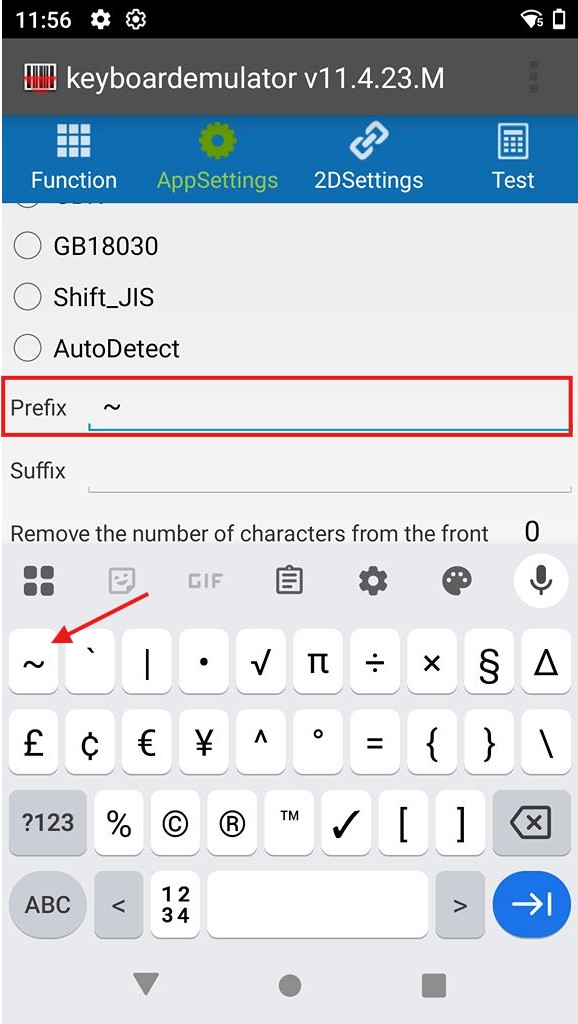
Some applications can configure their own overrides to the expected Prefix and End Mark. If you modify these values manually, you need to make sure the App Settings on the device match accordingly.
🌎 Setting up Chromium
Open Chromium on your scanner and navigate to Configuration > Scanner.
Read more about the Scanner Configuration page.
In the Scanner Configuration Profile, select Standard Device.
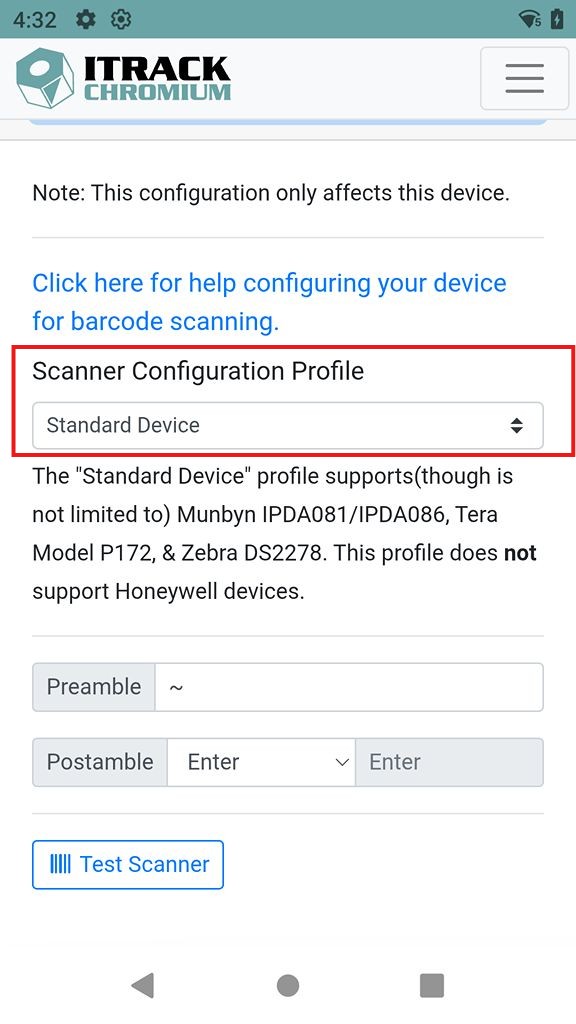
You’ll see a tilde ~ in the Preamble field, and Enter in the Postamble field.
Scanner configuration is specific to the device you are currently using. If you have more than one scanner, you need to configure the scanning settings on each one.