
A labor type sets the hourly rate a job bills at, so setting these up correctly before you start billing customers matters.
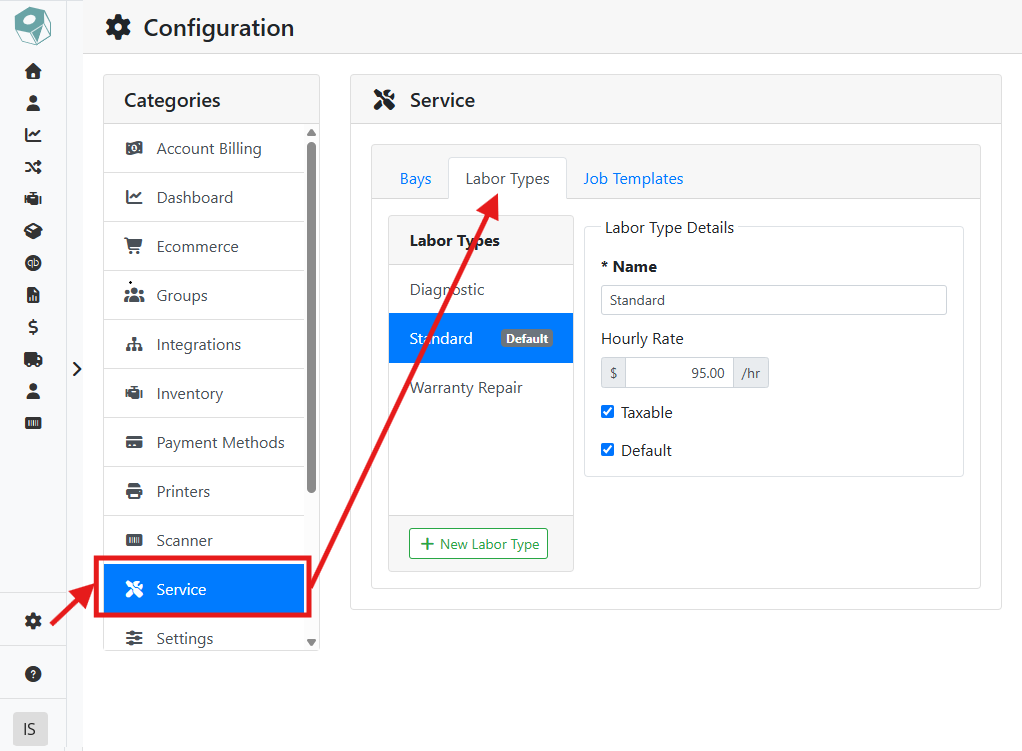
To manage labor types, go to Configuration > Service > Labor Types.
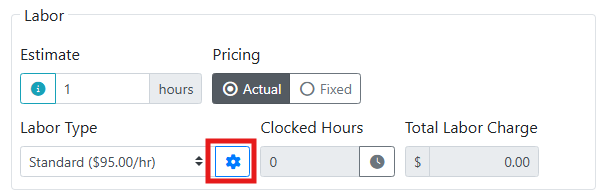
You can also manage labor types from a Service Order by clicking the gear 
➕ Adding a Labor Type
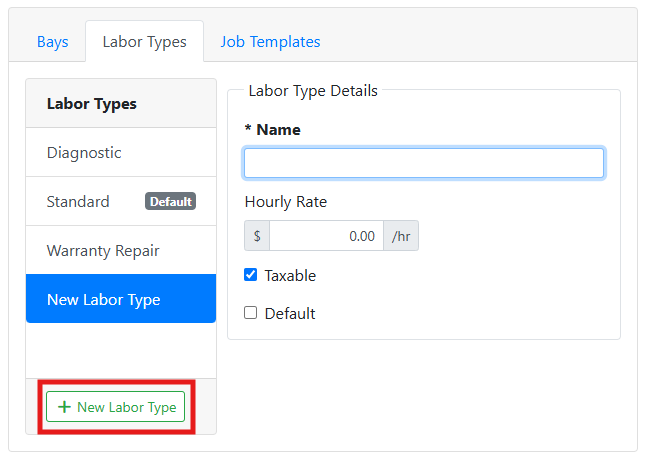
To add a new labor type, click the + New Labor Type button at the bottom of the list. Enter a Name and an Hourly Rate. Check Taxable if labor at this rate should be taxed.
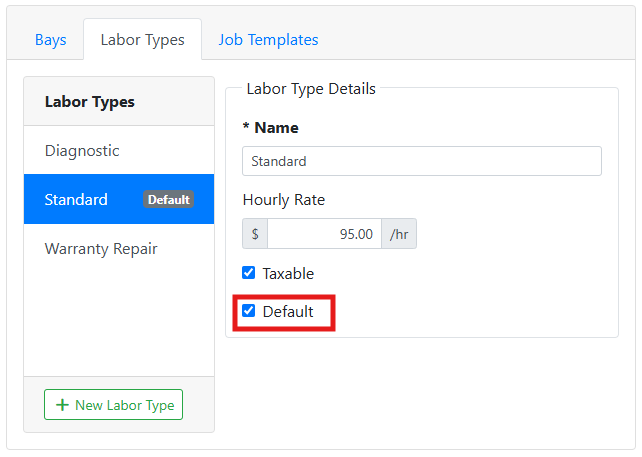
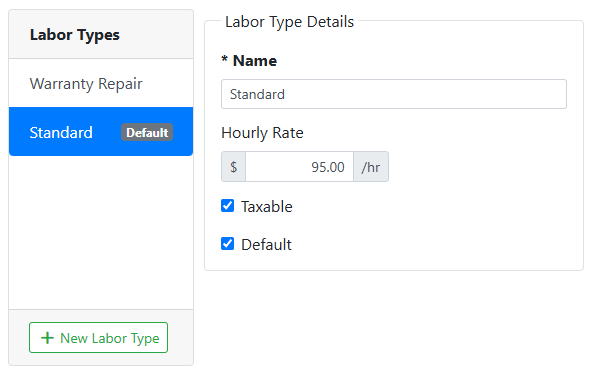
Check the Default checkbox if this is the rate you use for most jobs.
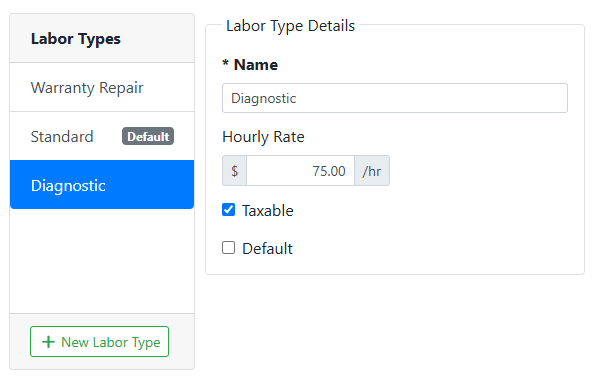
Different labor types allow you to bill different rates for different services or situations. For example, I set up Diagnostic labor type at $75/hr.
I set a Standard Repair rate at $95/hr for the mechanic’s repair time. Since most of the work in my shop is standard repair, I set it as the default rate.
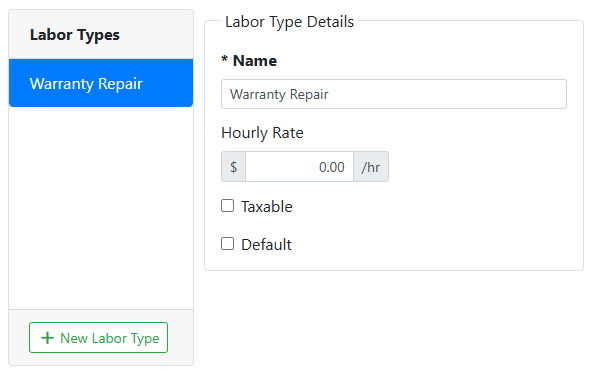
I also do warranty repair in my shop, and while I still want to charge for parts, warranty labor is not charged to the customer. To account for this I set a labor type for Warranty Work at $0/hr so I can still track a mechanic’s time without charging the customer.
Edit labor types may not be available to all users, depending on your user permissions. Labor pricing is usually managed by an admin or shop manager, since it affects every job billed at that rate. Read more about user permissions.