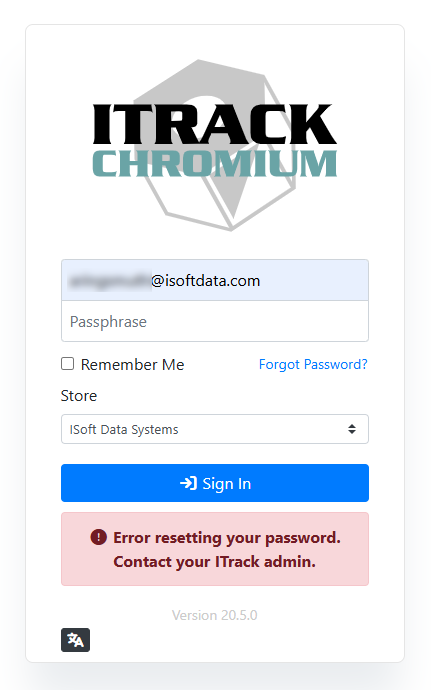
If you forget your password, you can reset it as long as you have access to the email address on your user account.
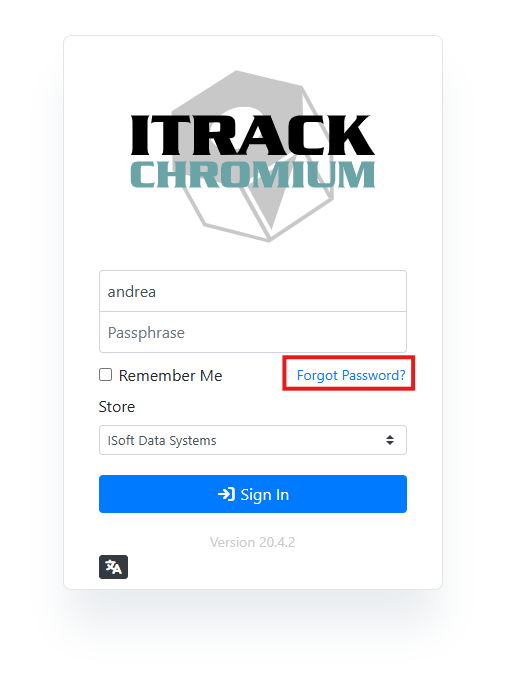
To start, enter your username or email address, then click Forgot Password?
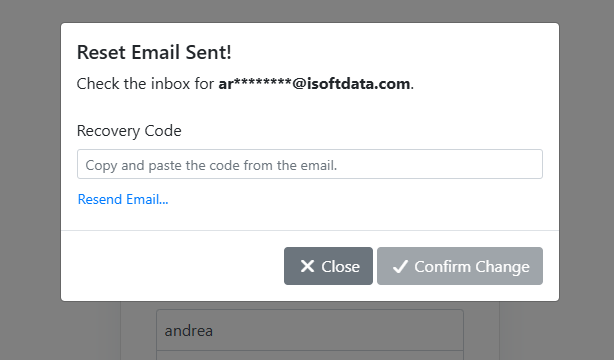
You will receive an email with a recovery code to the email address associated with your user.
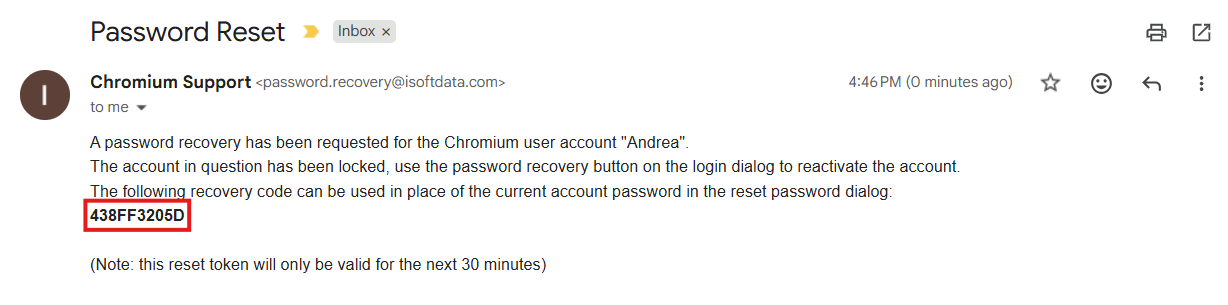
Copy this code into the password recovery window in ITrack. After you enter the recovery code, you can pick a new password.
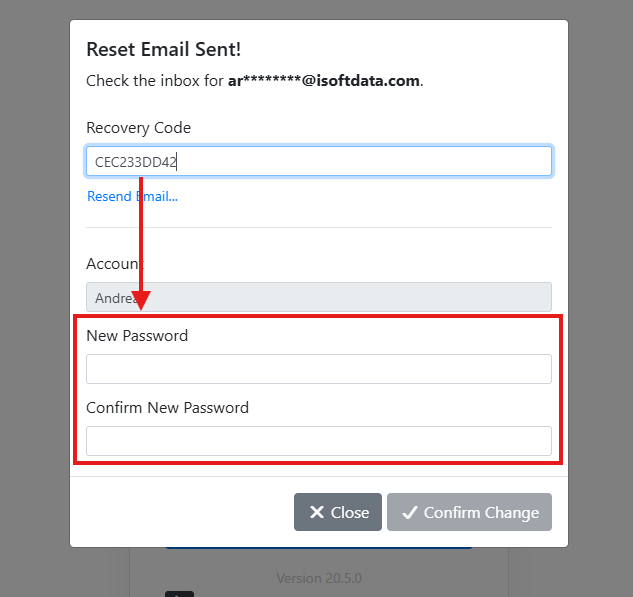
The password must be entered in both the New Password and Confirm New Password fields, and they must match. If they do not match, the Confirm Change button will not activate.
After you enter your new password and confirm it by entering it a second time, the Confirm Change button will activate.
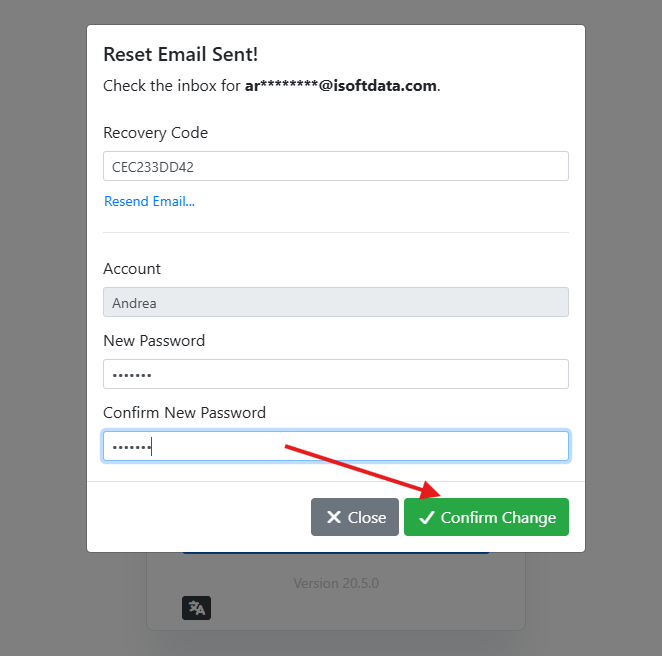
Afterwards, you can login with your new password like normal.
What if I didn’t get an email with a recovery code?
If you are having trouble receiving the password reset email, follow these steps.
-
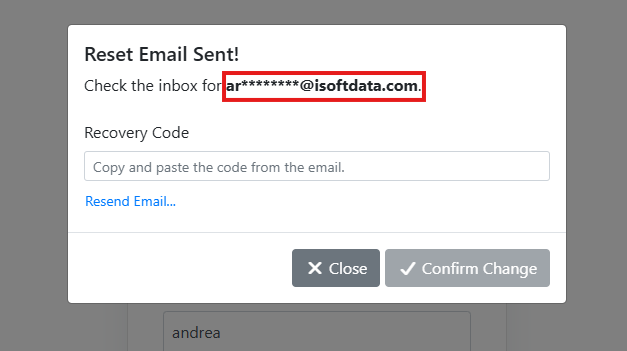
Make sure the email address in the Reset window looks correct.
ITrack hides most of the email address to protect your identity, but you can verify that the address looks approximately correct.
-
It may take a few minutes for the email to be delivered and received by your email application, try refreshing your email or checking for new messages.
-
Check if the email was delivered to your spam folder, especially if you’ve never received an email from ITrack before. If you find the email in your spam folder, you may want to add the ITrack password recovery email as a contact to avoid them going to spam in the future.
-
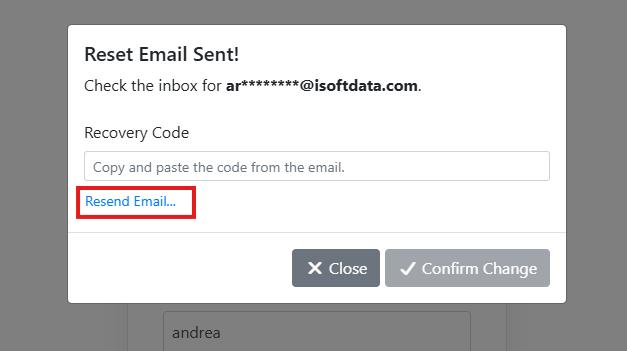
Try sending the email again. Click the Resend Email… button to send the email again.
-
If you still don’t receive the email, check with your ITrack admin to see if there’s a typo in your account recovery email, otherwise contact ISoft support.
What if I don’t remember my username?
Your username may be your email address. If you don’t know your username, start by trying your email address instead. If that does not work, you will need to contact your ITrack admin.