
ITrack Chromium allows you to change the app’s language to either English or Spanish.
Changing the application language is done from the Login screen.
If you are currently logged in, you will need to log out to change your language. Read more about Logging Out.
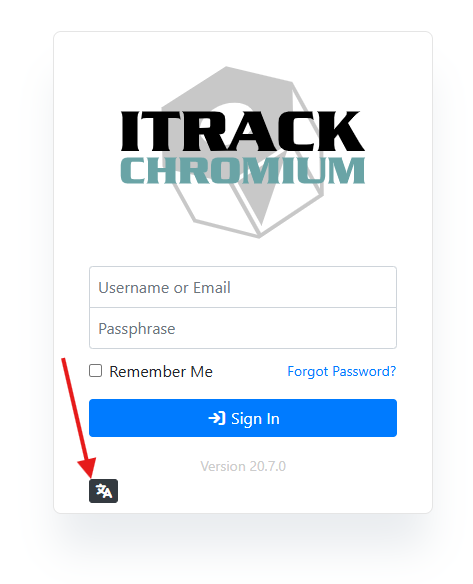
At the bottom of the Login screen, you will see a translate icon. Click this icon to open the language panel.
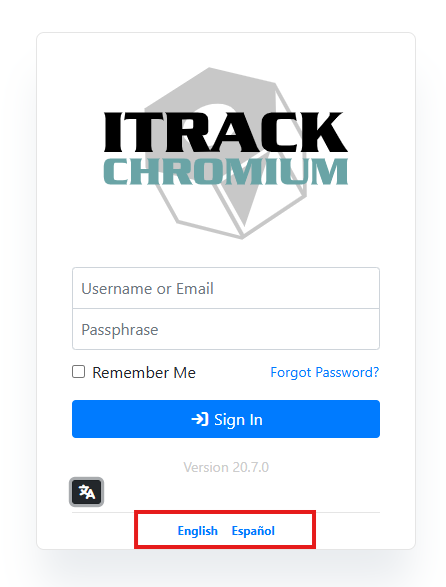
Supported languages will be shown in a list. Click on the language you want to use.
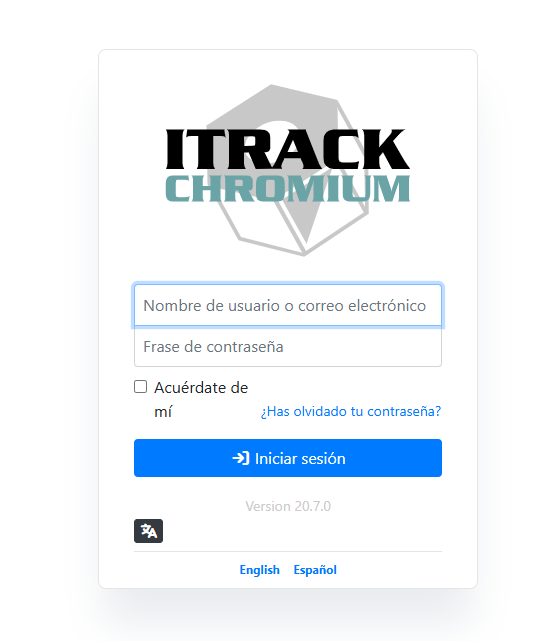
The login screen will change to the language you select. Log in as you normally would. Your username and password will not be translated.
Your language choice will be remembered in your browser for the next time you log in. If you log in from a different device, you may need to change your language settings again.
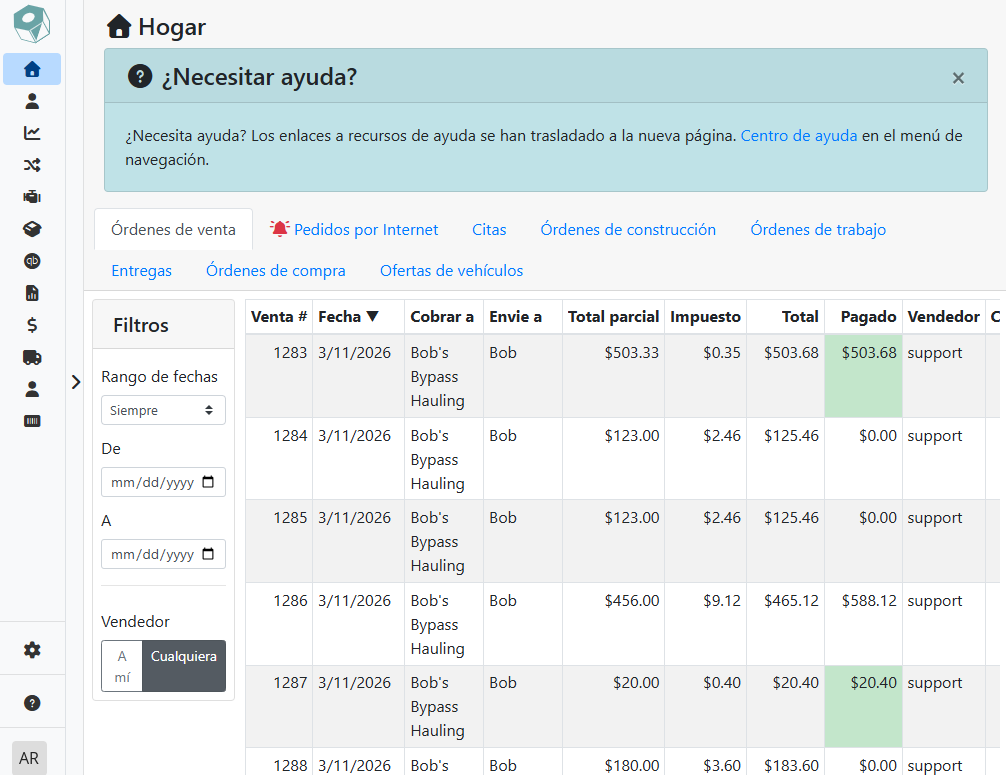
The application will be translated for you, but your data cannot be translated. For example, descriptions, part names, customer names, etc. will display as they were entered.
For example, the Home screen will translate to your language, but if a customer name is entered in English, it will remain in English for all users. In this screenshot, you can see that my customer name is “Bob’s Bypass Hauling” in English, even though the rest of the screen is in Spanish.
Can I Use a Different Language Than Other People at My Organization?
Yes, each user can use a different language in the application. Only the language on the application screen will be translated, not your data, which allows some users to work in English while others use the Spanish version. You should, however, agree within your organization how data should be entered, such as all English or all Spanish.